
What is Pending Revenue in Boxify?
In Boxify, Pending Revenue refers to the total value of orders that are:
- Not yet ready to be considered confirmed revenue
- Still in progress, and may still change
- Not yet prepared for shipping or fulfilment
These orders are expected revenue, but not yet guaranteed as final revenue.
Pending Revenue exists because Boxify uses a stacking mechanism — multiple actions (payment, stock check, fulfilment readiness) need to complete before revenue can be recognised.
Which Order Statuses Count as Pending Revenue
An order is included in Pending Revenue when its status is any of the following:
- Active
- Paid
- Waiting for payment
- Waiting for online payment
- On hold
- No stack
- Locked
- Preorder
These statuses show that:
- The customer has placed an order
- Payment may or may not be complete
- Stock or fulfilment isn’t fully confirmed
Therefore, they are considered pending, not final.
Why Orders in Pending Status Are Not Counted as Revenue
Pending Revenue orders are not included in the revenue totals because:
✔ The order might still be cancelled
✔ The customer might change items
✔ Stock may be unavailable
✔ Payment might not be confirmed
To avoid reporting revenue that could later be reversed or changed, Boxify only recognises revenue once an order reaches a status where fulfilment is highly certain.
To get the report of Pending Revenue
You are able to have a glance at the pending revenue of 30 days from the Dashboard and If you want to export it as a record, you can follow the steps to do so.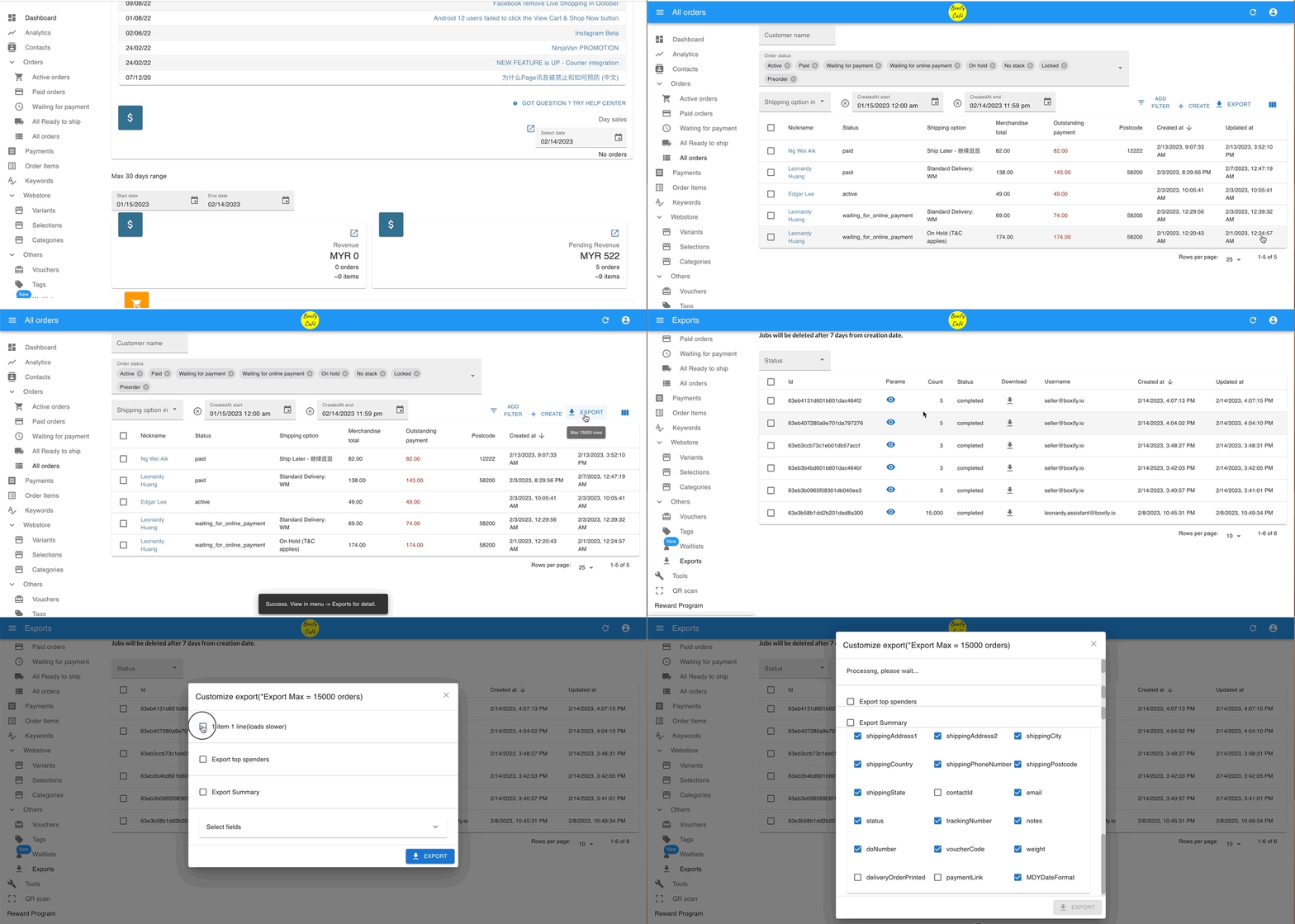
Step 1: You can access it from either ‘Dashboard‘ or ‘All Orders‘ from the menu on the left.
Step 2: Filter the order status of ‘ACTIVE‘, ‘PAID’, ‘WAITING FOR PAYMENT, ‘WAITING FOR ONLINE PAYMENT’, ‘ON HOLD’, ‘NO STACK’, ‘LOCKED’ & ‘PREORDER’, and the created start/end date as you wish to see.
Step 3: Click the button ‘EXPORT‘ on the top right.
Step 4: Click the ‘Exports‘ button on the left menu. Click the download icon( ) beside the export file list.
Step 5: Select ‘Export Standard‘, and also select the field that you want it to show in the CSV file and click the ‘EXPORT‘ button at the bottom.