
Boxify supports integrated online payment gateways to allow customers to make instant payment during checkout.
You can configure payment gateways under:
Profile → Setting → Payment Methods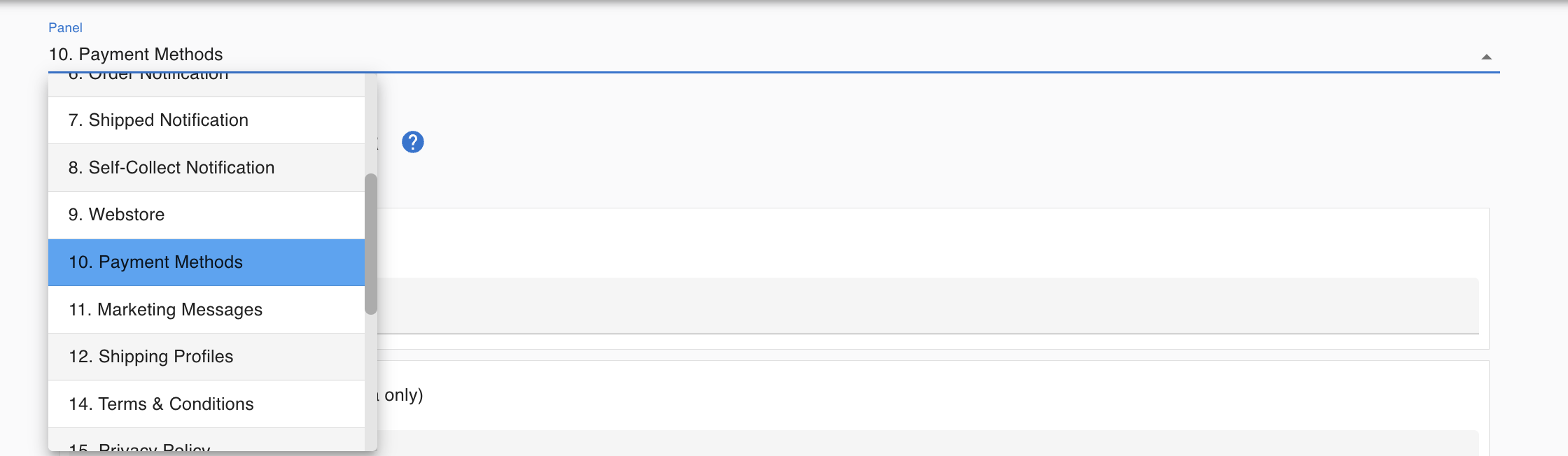
Supported Payment Gateways (Malaysia)
Boxify system currently supports 2 payment gateways for Malaysia merchants:
1️⃣ Hitpay (Recommended)
Available for:
- Malaysia merchants
- Singapore merchants
Pricing
https://hitpayapp.com/my/pricing
Register Account for Malaysia Merchants
Malaysia – Sign-up Hitpay
Register Account for Singapore Merchants
Singapore – Sign-up Hitpay
Hitpay offers:
✔ Support for Malaysia & Singapore
✔ Clean and user-friendly dashboard
✔ Responsive support team
For merchants who are new to online payments, Hitpay is generally easier to get started with.
2️⃣ Billplz
Available for:
- Malaysia merchants only
Pricing
https://www.billplz.com/pricing
Register Account
Malaysia Only Sign up Billplz
Billplz is a well-established Malaysian payment gateway suitable for local businesses.
Both gateways are fully supported in Boxify.
Recommend Hitpay, especially for merchants who:
- Prefer a more responsive support team
- Operate across Malaysia and Singapore
Ultimately, the choice depends on your business needs and existing gateway accounts.
How to Enable Online Payment in Boxify
Step 1 : Go to Profile → Setting → Payment Methods
Step 2 : Select your preferred gateway (Hitpay or Billplz)
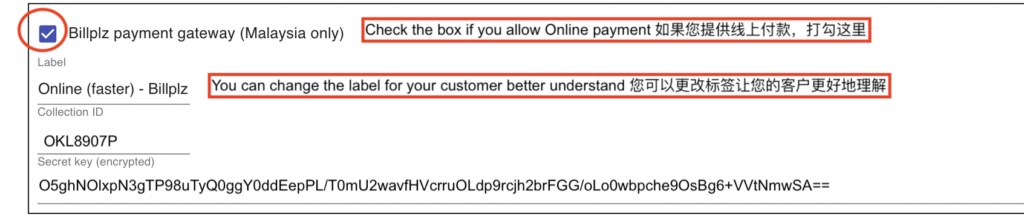
Step 3 : Enter your Required Merchant Credentials -> API Key / Secret Key
Step 4 : Click Save
How to Get API Key & Secret Key
You must first register an account directly with the payment provider.
🔹 Hitpay
- Log in to your Hitpay Dashboard
- Go to Payment Gateway / API Settings
- Copy your:
- API Key
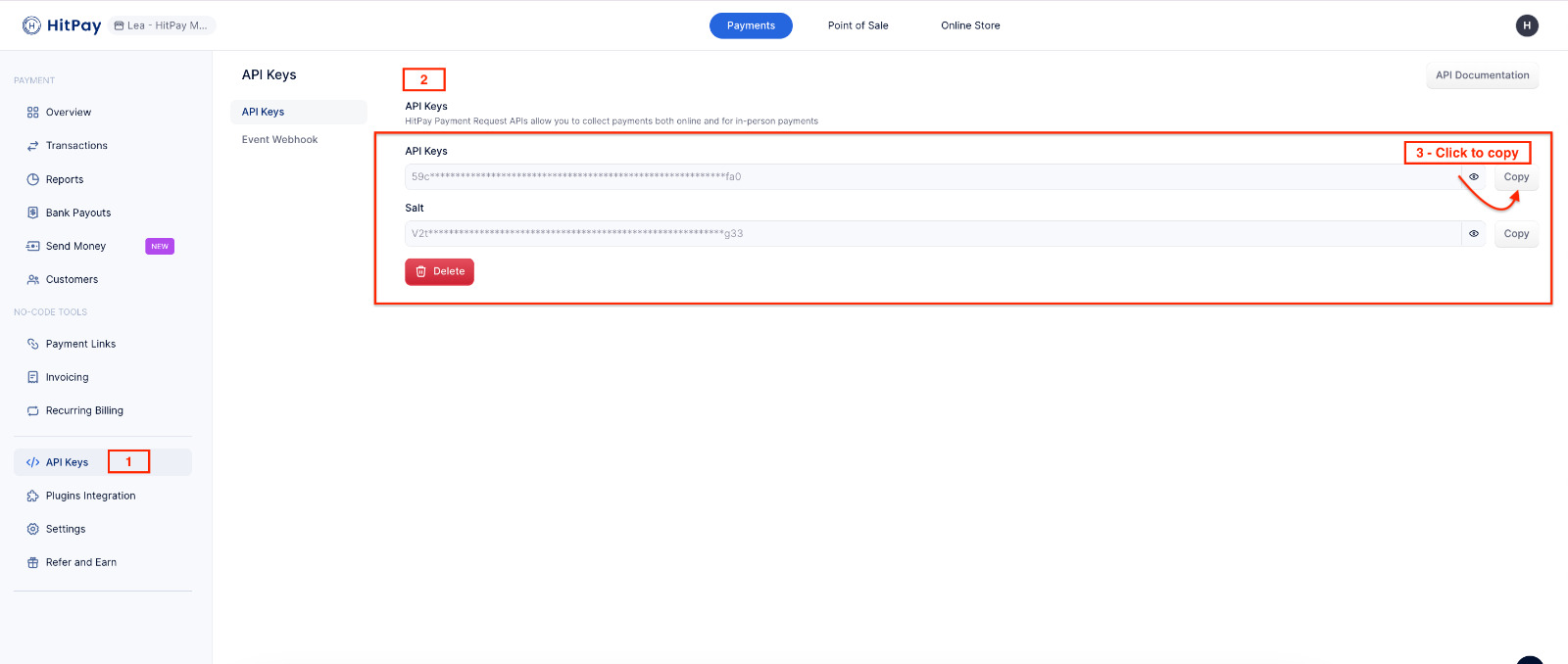
- API Key
Paste these into Boxify.
Additional Resources:
🔹 Billplz
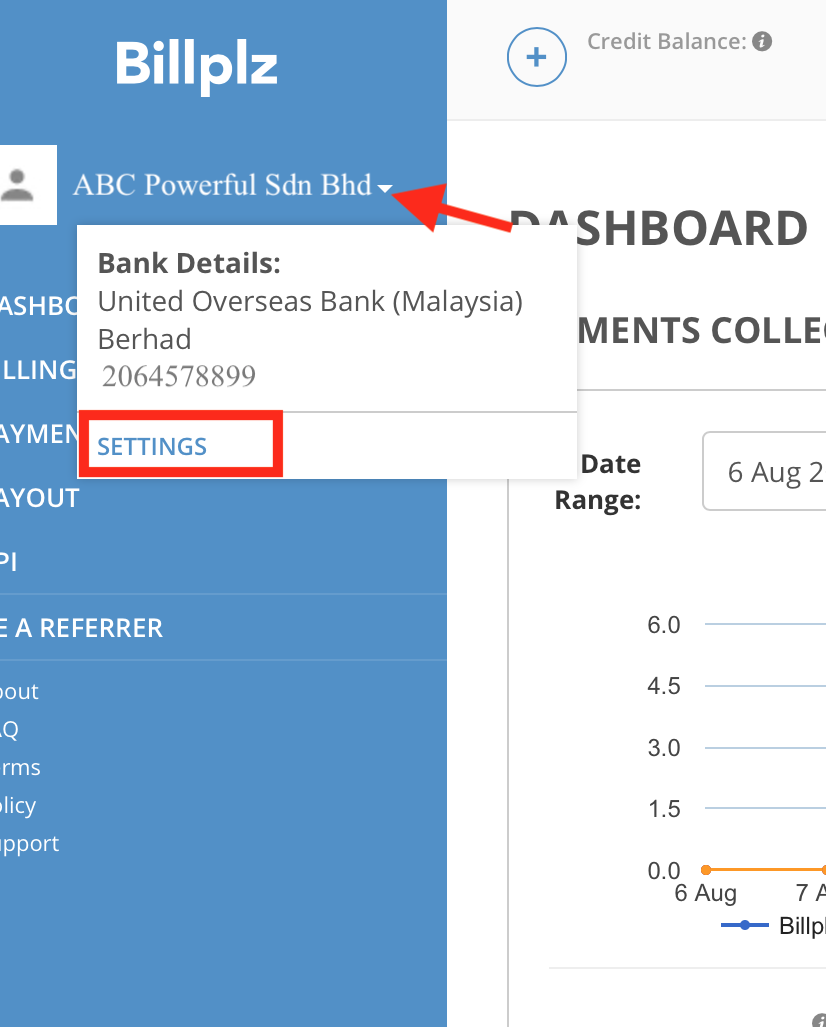
- Log in to your Billplz Dashboard
- Go to Settings → Keys & Integration.
- Copy your:
- Secret Key
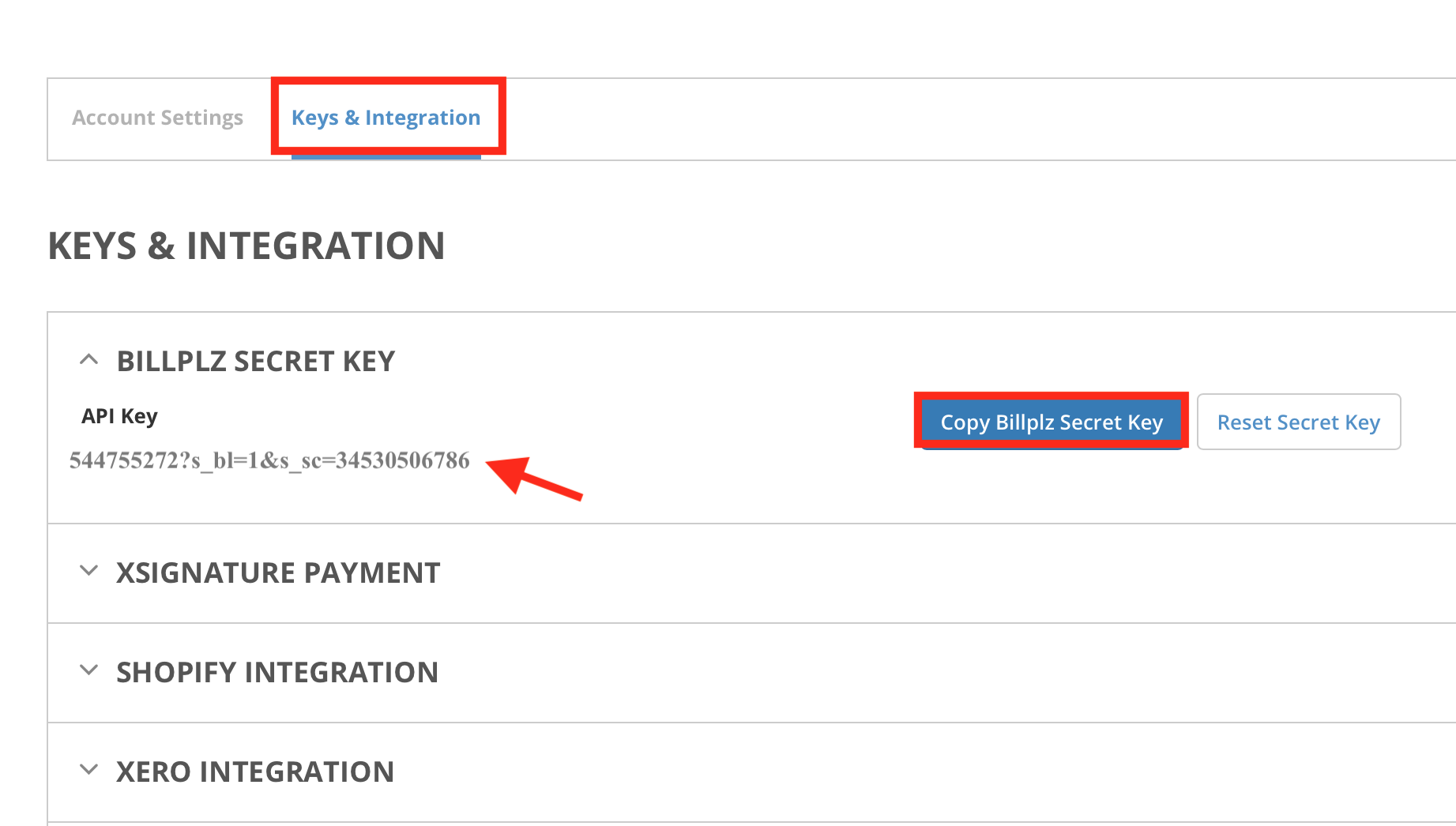
- Secret Key
- Create a Collection:
Go to Billing > Create Collections – Name your collection (e.g., your Facebook Page name).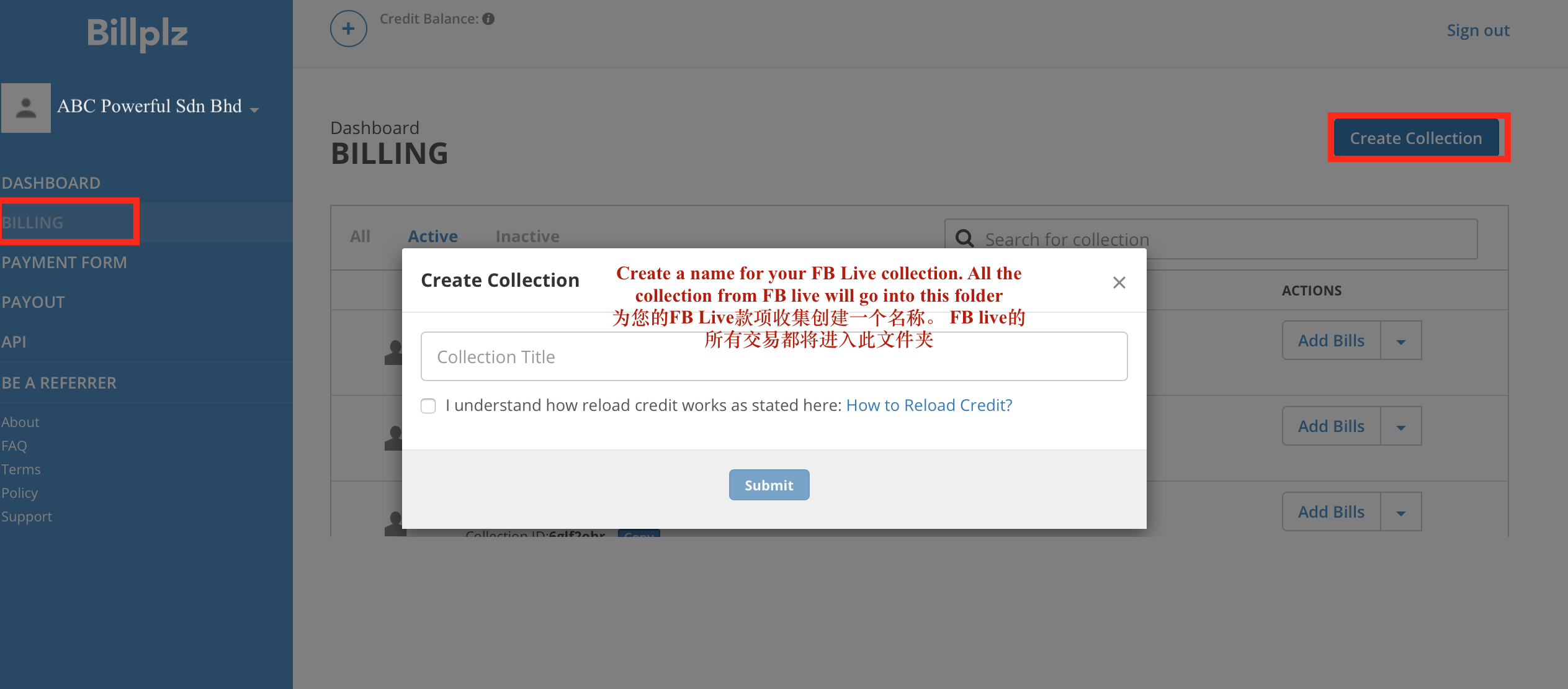
- Copy the Collection ID.
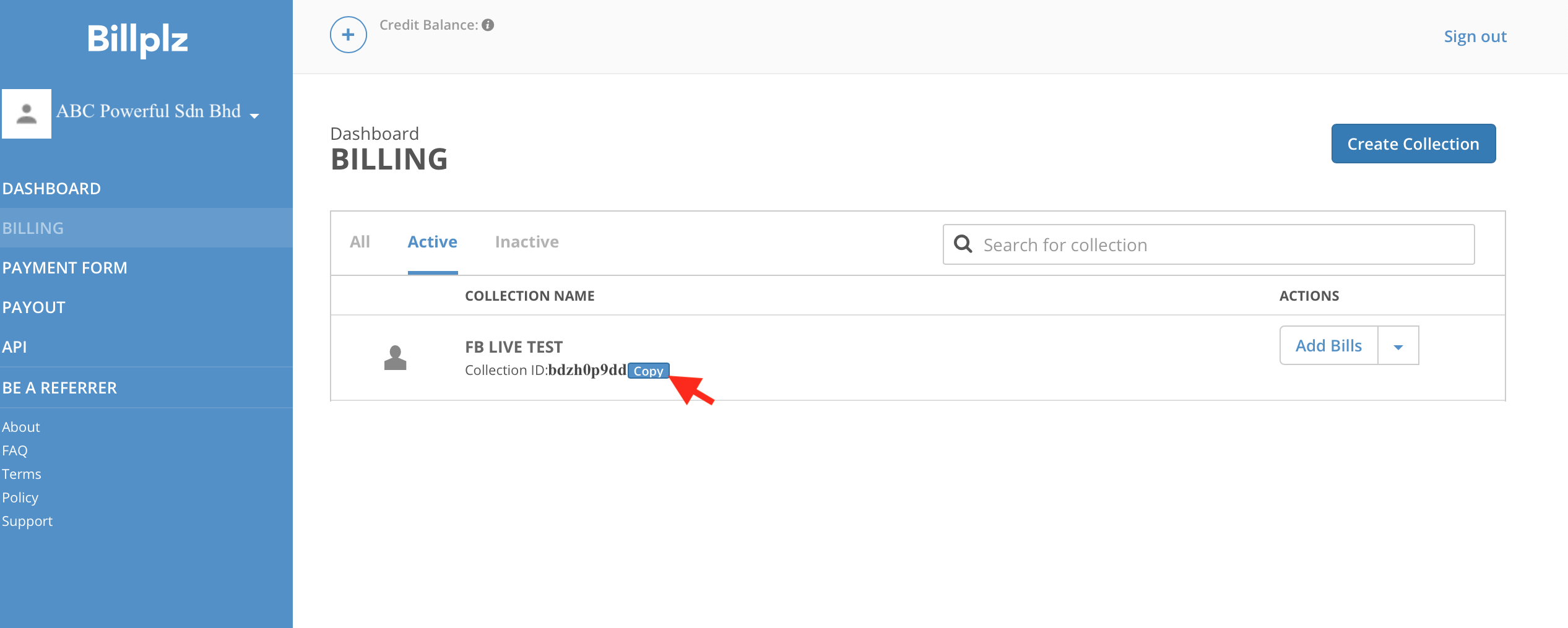
- Paste these into Boxify.
Additional Resources:
- Activating E-wallet with Billplz
- Integrating E-wallet with Billplz
- Billplz Settlement Information
- FPX Transaction Checker
- Card Payments via Billplz
- Integrating PayPal with Billplz
How Online Payment Works
Once configured:
✔ Customer selects online payment at checkout
✔ Customer is redirected to payment gateway
✔ Upon successful payment:
- System auto reconciles
- Item status becomes Paid
- Order status updates based on shipping option
If payment fails:
- Order remains under Waiting for Online Payment
- Merchant should not ship the order
Important Notes
- Online payments are automatically confirmed by the system.
- Manual reconciliation is not required for successful gateway transactions.
- Always test a small transaction before going live.
- Ensure your gateway account is fully activated before accepting payments.
Quick Comparison
| Gateway | Malaysia | Singapore |
|---|---|---|
| Hitpay | ✅ Yes | ✅ Yes |
| Billplz | ✅ Yes | ❌ No |