
Waitlists allow you to collect customers who are interested in a product that is out of stock or not yet released, and notify them once the product becomes available again.
This helps increase conversion, improve customer engagement, and reduce missed sales opportunities.
How It Works
Step 1️⃣ Enable Backorder in Keywords
When creating or editing a keyword:
✔ Tick Allow Backorder
This allows customers to attempt ordering even when stock is zero.
Step 2️⃣ Customer Attempts to Order (Out of Stock)
When a customer places an order and stock is unavailable:
• The system notifies the customer that the product is out of stock
• The customer is automatically added to the Waitlist
No manual action required.
Step 3️⃣ Customer Is Added to Waitlist Automatically
The customer’s name is saved inside:
📍 Boxify Dashboard → Others → Waitlists
You can view all customers waiting for that product.
Step 4️⃣ Stock Arrives — Notify Customers
Once stock is available:
1️⃣ Go to Waitlists
2️⃣ Select customers with the relevant product
3️⃣ Click the FB icon (top right) ->
4️⃣ Send notification message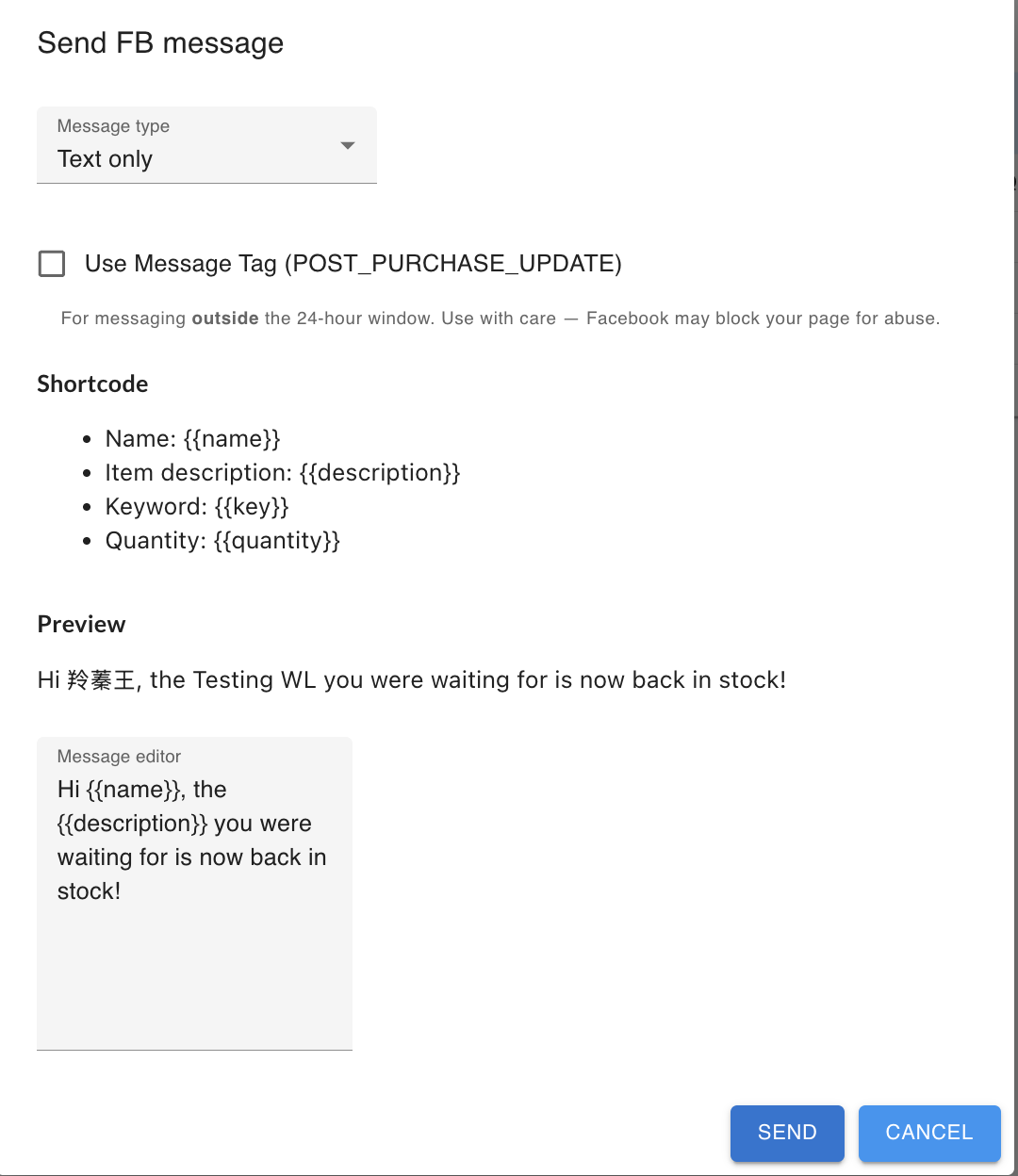
This informs customers that the product is back in stock.
Step 5️⃣ Convert to Order (Optional)
Instead of waiting for customers to order again, you can:
1️⃣ Select customer(s) inside Waitlist
2️⃣ Click Convert (top right)
3️⃣ The system will create an order on their behalf
This is useful during live selling or limited stock releases.
Convert Waitlists into Orders — Important Notes
When converting waitlisted customers into orders, the system will display a confirmation window:

Before proceeding, you must select how the keyword should be applied.
Option 1 — Use Keyword from “Waitlist”
When you select Waitlist:
✔ The system will use the original keyword that triggered the waitlist
✔ The order will follow the original product setup
✔ Stock, quantity limits, and keyword status must be valid
Use this option when:
• The restocked item is exactly the same
• You want to maintain original keyword logic
• No change in pricing or configuration
Option 2 — Manual Assign
When you select Manual Assign:
✔ You can choose a different keyword for the item
✔ Useful if the product is updated or replaced
✔ Helpful if you want to change pricing or stock source
Use this option when:
• The item has a new keyword
• The original keyword is inactive
⚠ Important Requirements Before Converting
Before clicking Convert, ensure:
✔ The selected keyword is active
✔ There is sufficient stock available
✔ Minimum and maximum quantity requirements are valid
If conditions are not met, the order conversion will fail.
How the System Treats Conversion
When converting, the system treats the waitlist entry as if it were a comment order.
This means:
• All keyword logic will apply
• Stock validation will apply
• Quantity rules will apply