
How to Set Up Bukku Integration in Boxify (Full Guide)
Follow this step-by-step guide to integrate your Bukku Accounting System into Boxify smoothly. After setup, post shipped orders to Bukku as invoices.
💡 Don’t have a Bukku account yet? Sign up here first: Sign up — Bukku
🔰 Step 0: Navigate to Bukku Integration in Boxify
Section titled “🔰 Step 0: Navigate to Bukku Integration in Boxify”- Log in to your Boxify account.
- Click on your Profile icon at the top right corner.
- Select “Settings” from the dropdown menu.
- In the left panel, choose “Bukku Integration”.
Now you’re ready to begin the setup.
1️⃣ Bearer Token & Subdomain
Section titled “1️⃣ Bearer Token & Subdomain”🔧 How to Get It:
Section titled “🔧 How to Get It:”- Log in to your Bukku Accounting System.
- Go to Control Panel → Integration.
- Copy the Access Token and Subdomain.
- Paste them into the corresponding fields in Boxify.
- Click Save.
- Then click “Get Account ID List” to retrieve your Chart of Accounts from Bukku.
2️⃣ Order Item Tax Code ID
Section titled “2️⃣ Order Item Tax Code ID”If your product is inclusive of tax, select the correct Tax Code.
✅ To cross-check in Bukku:
- Go to Control Panel → Company Setting → Tax tab
- Refer to Default Sales Tax Code
3️⃣ Order Item Account ID
Section titled “3️⃣ Order Item Account ID”Choose the account used to record sales income.
- Use the “Show Account ID List” button in Boxify to see available accounts.
- Example: If “Sales Income” has ID
20, enter 20 in the field.
4️⃣ Order Item Classification Code
Section titled “4️⃣ Order Item Classification Code”Refers to the product classification code in Bukku.
✅ To cross-check in Bukku:
- Go to Products & Services in Bukku.
- Click on a product.
- Scroll to Location & Categorization → Classification Code.
- Select the same Classification code as Bukku in Boxify.
5️⃣ Deposit Payment Method
Section titled “5️⃣ Deposit Payment Method”Set the payment method used for deposits (e.g., Bank Transfer). This will be reflected in the invoice generated in Bukku.
6️⃣ Deposit Account ID
Section titled “6️⃣ Deposit Account ID”Select the Account ID where deposit payments should be recorded in Bukku.
- Use the “Show Account ID List” button in Boxify to see available accounts.
- Example: Bank Account ID
3, enter 3 in the field.
7️⃣ Shipping Fee Account ID
Section titled “7️⃣ Shipping Fee Account ID”Similar to Order Item Account ID.
Choose the Account ID to record shipping fee.
Example: If you want it recorded under Sales Income (ID 20), enter 20.
8️⃣ Shipping Fee Tax Code ID
Section titled “8️⃣ Shipping Fee Tax Code ID”Does your shipping fee include tax?
- ✅ Yes → Select the appropriate Tax Code
- ❌ No → Select “No Tax Code”
Cross-check in Bukku’s Company Setting → Tax if needed.
9️⃣ Shipping Fee Classification Code
Section titled “9️⃣ Shipping Fee Classification Code”Same as product classification in Bukku.
✅ To cross-check in Bukku: Bukku → Products & Services → Product → Location & Categorization → Classification Code
🔟 Customs Form No. / Customs K2 / Incoterms
Section titled “🔟 Customs Form No. / Customs K2 / Incoterms”These fields are for Malaysian customs declarations.
- If not available yet, leave them blank.
- You can edit the invoice in Bukku later once you have the required info.
✅ Final Reminder: After completing all fields, click Save in Boxify to apply your Bukku integration settings successfully.
Post orders as invoices
Section titled “Post orders as invoices”Once the integration is saved, you can push shipped Boxify orders to Bukku in bulk to create invoices.
-
Log in to Boxify with your admin credentials.
-
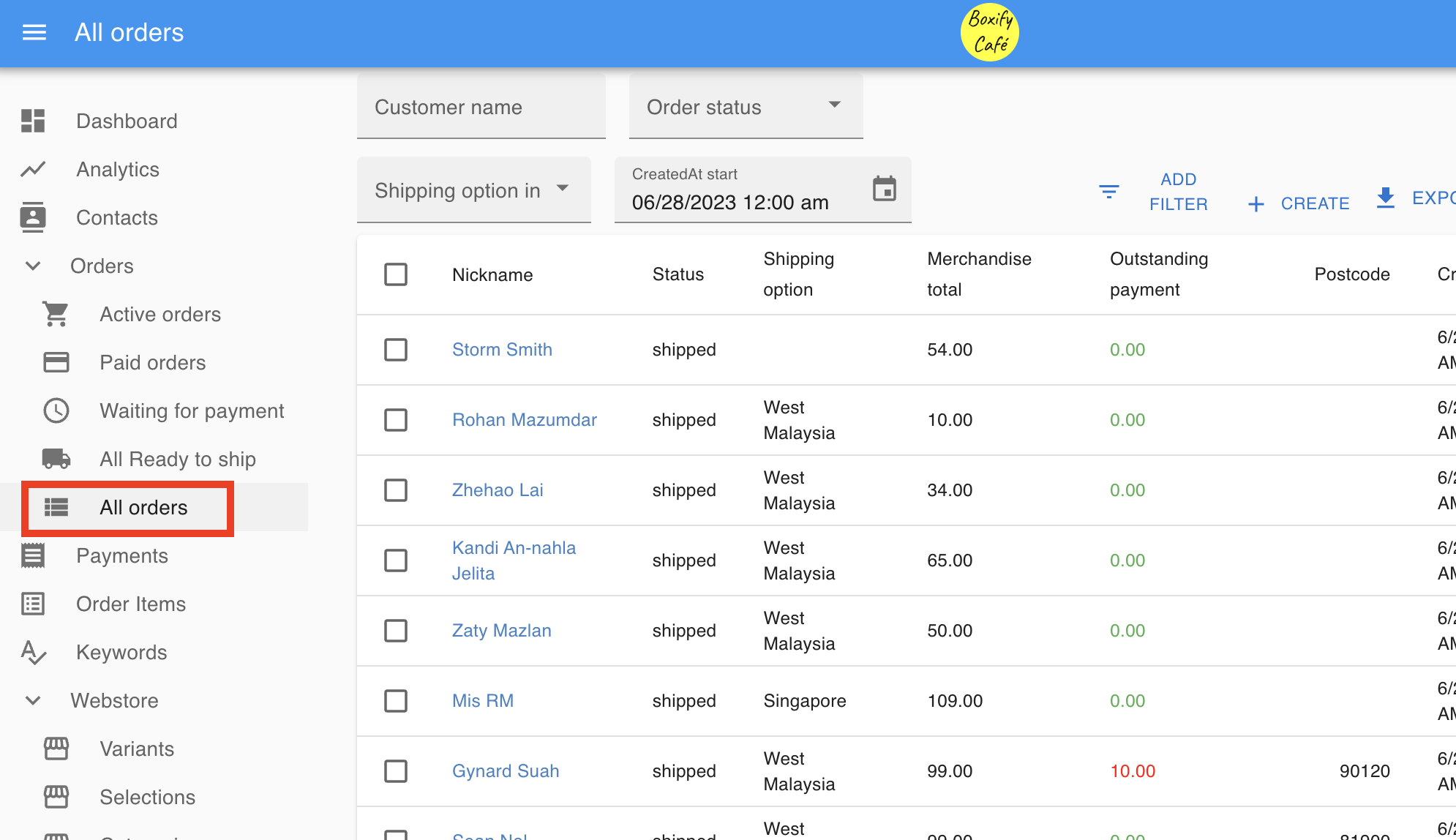
From the left-hand menu, scroll down and click All Orders.
-
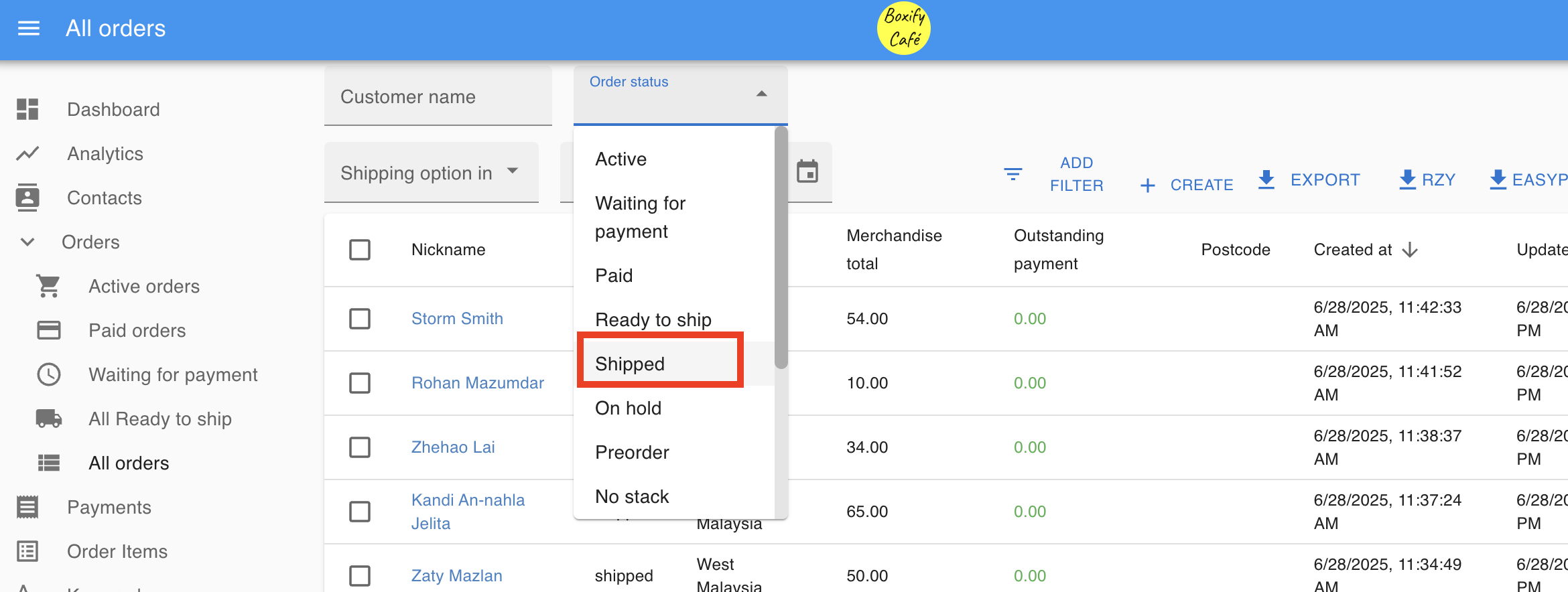
Filter the orders to Status: Shipped to avoid errors.
-
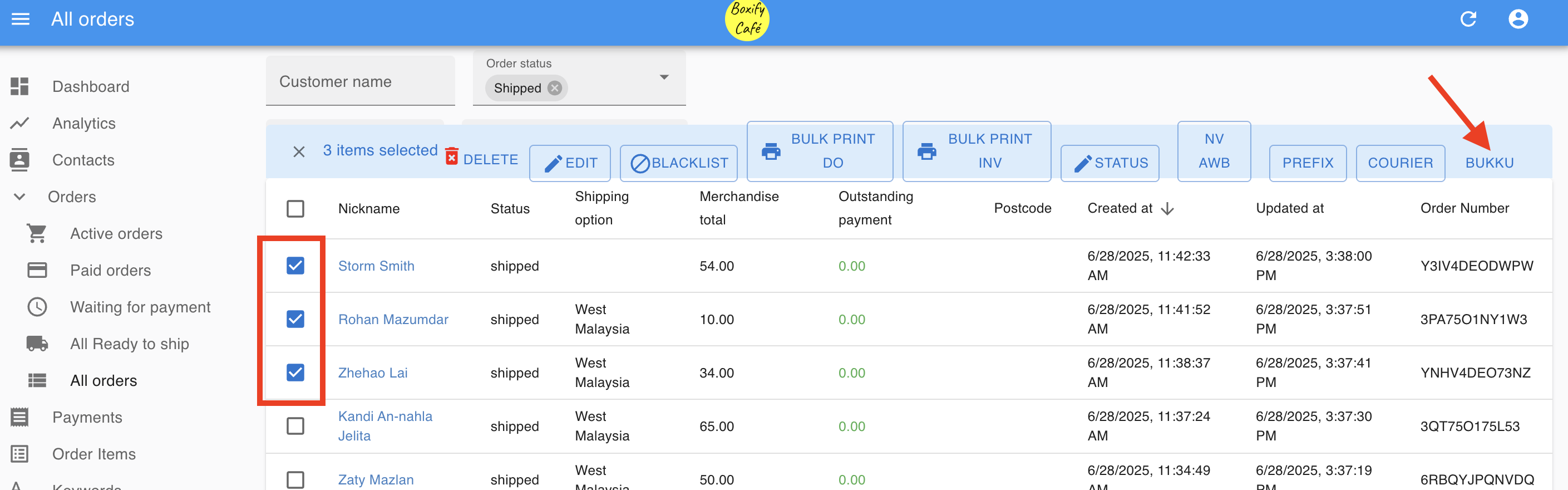
Tick the checkboxes for the orders you want to post, then click the Bukku button at the top right.
-
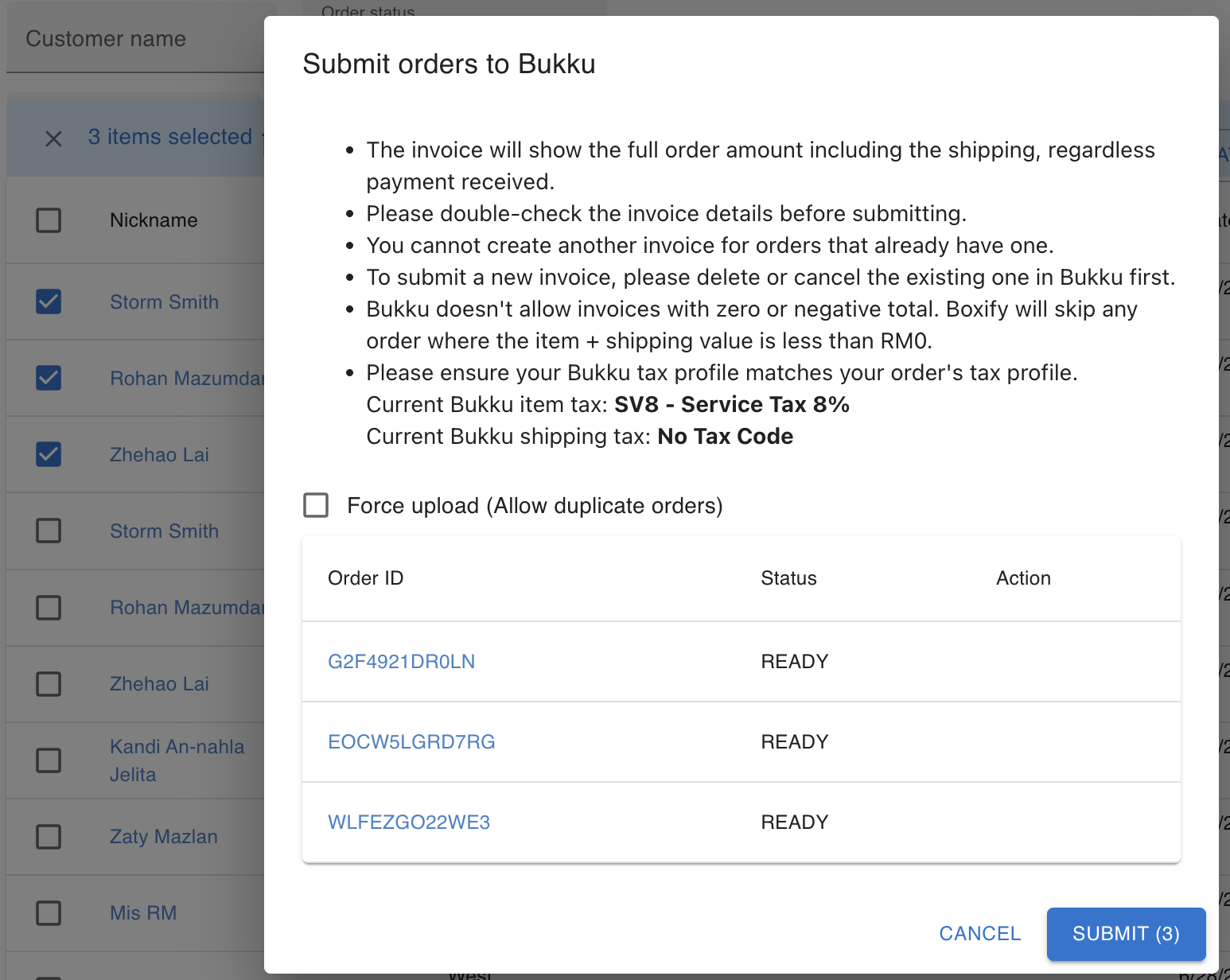
Before you click Submit, check the following:
- The invoice includes the full order amount, including shipping fees, regardless of whether partial payments were received.
- Always double-check the invoice details.
- You cannot create another invoice for an order that already has one in Bukku. To submit a new one, delete or cancel the existing invoice in Bukku first.
- Bukku does not accept invoices with zero or negative totals. Boxify automatically skips any order where the item + shipping total is RM0 or negative.
- Your Bukku tax profile must match your order tax settings. In the current example, item tax is SV8 — Service Tax 8% and the shipping fee has No Tax Code.
-
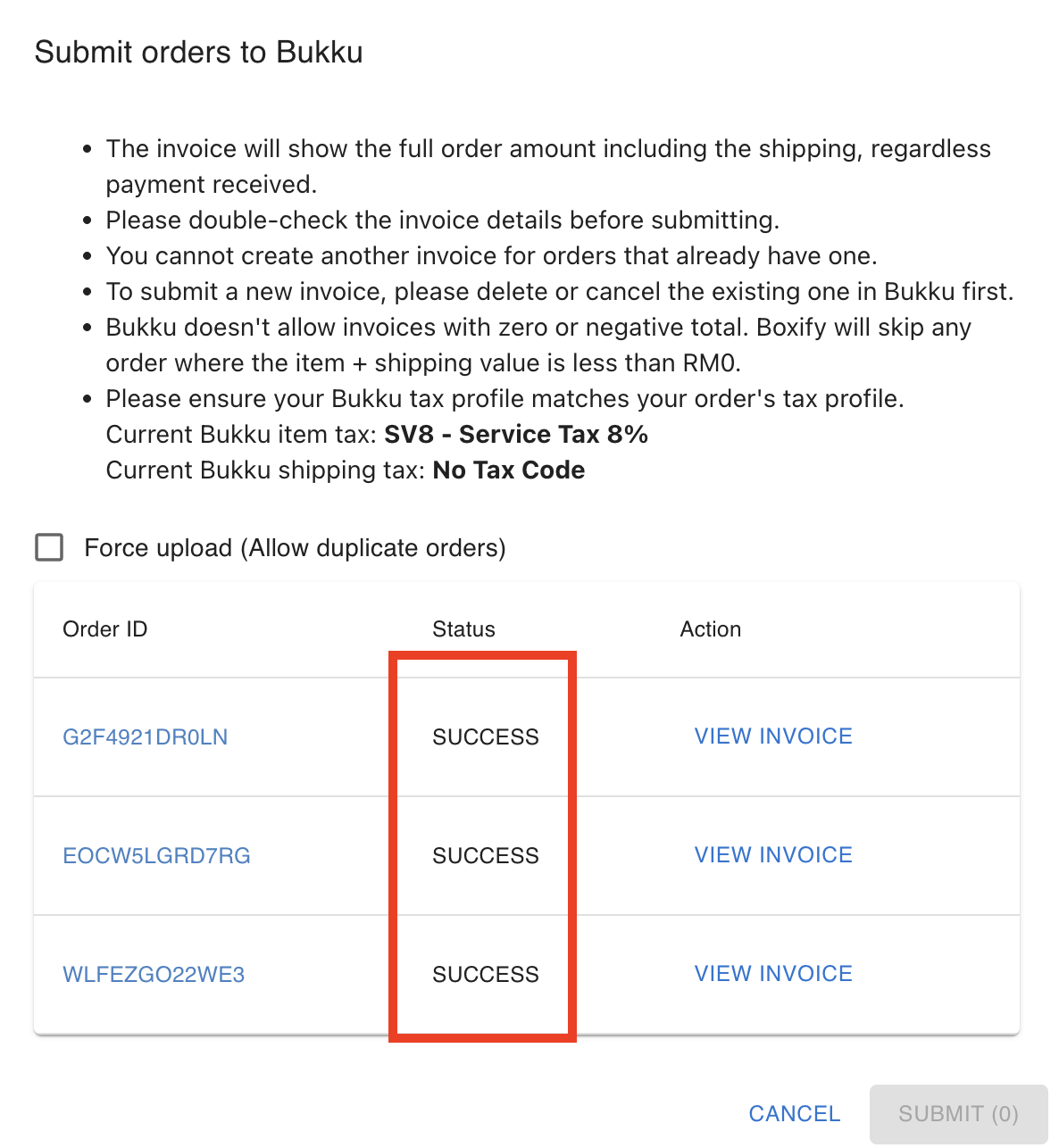
Click Submit. Your selected orders are converted into invoices in Bukku.
Invoice posting notes
Section titled “Invoice posting notes”- The posting date is used as the invoice date in Bukku. LHDN e-Invoice rules require the invoice date to follow the date of supply, so post shipped orders to Bukku on the same day you ship the goods.
- All posted orders are created as Cash Sales in Bukku with the status Normal.
- No shipping details or customer contact details are posted to Bukku. Manage these separately if needed.
- To submit an e-Invoice to LHDN, see the Bukku guide: Submitting e-Invoices to LHDN.
- To submit a consolidated e-Invoice, see the Bukku guide: Consolidated e-Invoices Submission & Cancellation.
- For customer e-Invoice requests, see the Bukku guide: E-Invoice Requests by Customers.