
Credit — Overview & How It Works
Store credit lets you assign a balance to a customer that they can spend on future orders — making it one of the simplest tools for keeping customers coming back.
Credit helps you:
- Encourage repeat purchases
- Retain existing customers
- Reward loyalty
- Handle compensation without refunding cash
- Reduce refund friction
When to use credit
Section titled “When to use credit”Loyalty reward
Section titled “Loyalty reward”Instead of giving an immediate discount, give RM10 credit for the customer’s next purchase. The customer returns to spend it, and you secure a second order.
Compensation or service recovery
Section titled “Compensation or service recovery”When something goes wrong — a late shipment, a minor defect, or a service issue — issue credit instead of a cash refund. You maintain revenue and preserve the customer relationship.
Promotional campaign
Section titled “Promotional campaign”Example: “Spend RM150 today and receive RM15 store credit.”
The customer gets a reward and you create a reason for them to return.
Shipping offset
Section titled “Shipping offset”Instead of offering free shipping, give credit equal to the shipping cost. Customers feel they “own” the credit, which often converts better than a free shipping offer.
How credit works in Boxify
Section titled “How credit works in Boxify”- Credit is per customer. Each customer has their own balance. It cannot be transferred to another account.
- Credit is not automatic. You issue it manually, and you can adjust a balance at any time.
- Credit has no expiry. It stays in the customer’s account until they use it, unless you remove it manually.
- Credit is used as payment at checkout. With credit payment enabled, customers see their available balance and choose whether to apply it. It reduces the amount they need to pay.
- Placing an order does not deduct credit. Credit is deducted only when the customer chooses to apply it at checkout.
- If credit exceeds the order total, the remaining balance stays in the customer’s account.
Credit vs. Voucher
Section titled “Credit vs. Voucher”| Voucher | Credit | |
|---|---|---|
| Requires a code | Yes | No |
| Has an expiry | Usually | No (unless manually removed) |
| How it works | Campaign-based discount | Stored balance |
| Usage | Applies to one order | Can be used partially across orders |
Credit behaves like stored value. A voucher is a one-time discount.
Why credit is more powerful for retention
Section titled “Why credit is more powerful for retention”A voucher gives an immediate discount and is done. Credit creates a reason for the customer to come back.
Instead of: “RM20 off today”
Try: “Receive RM20 credit for your next purchase”
You secure today’s revenue and create tomorrow’s order at the same time.
Set Up Credit
Section titled “Set Up Credit”Enable credit payment
Section titled “Enable credit payment”Before customers can pay with credit, you must turn on the feature in Settings.
- Log in to your Boxify Dashboard.
- Go to Settings › General › Parameters.
- Scroll down to the *Shopping Cart section.
- Tick Enable Credit Payment.
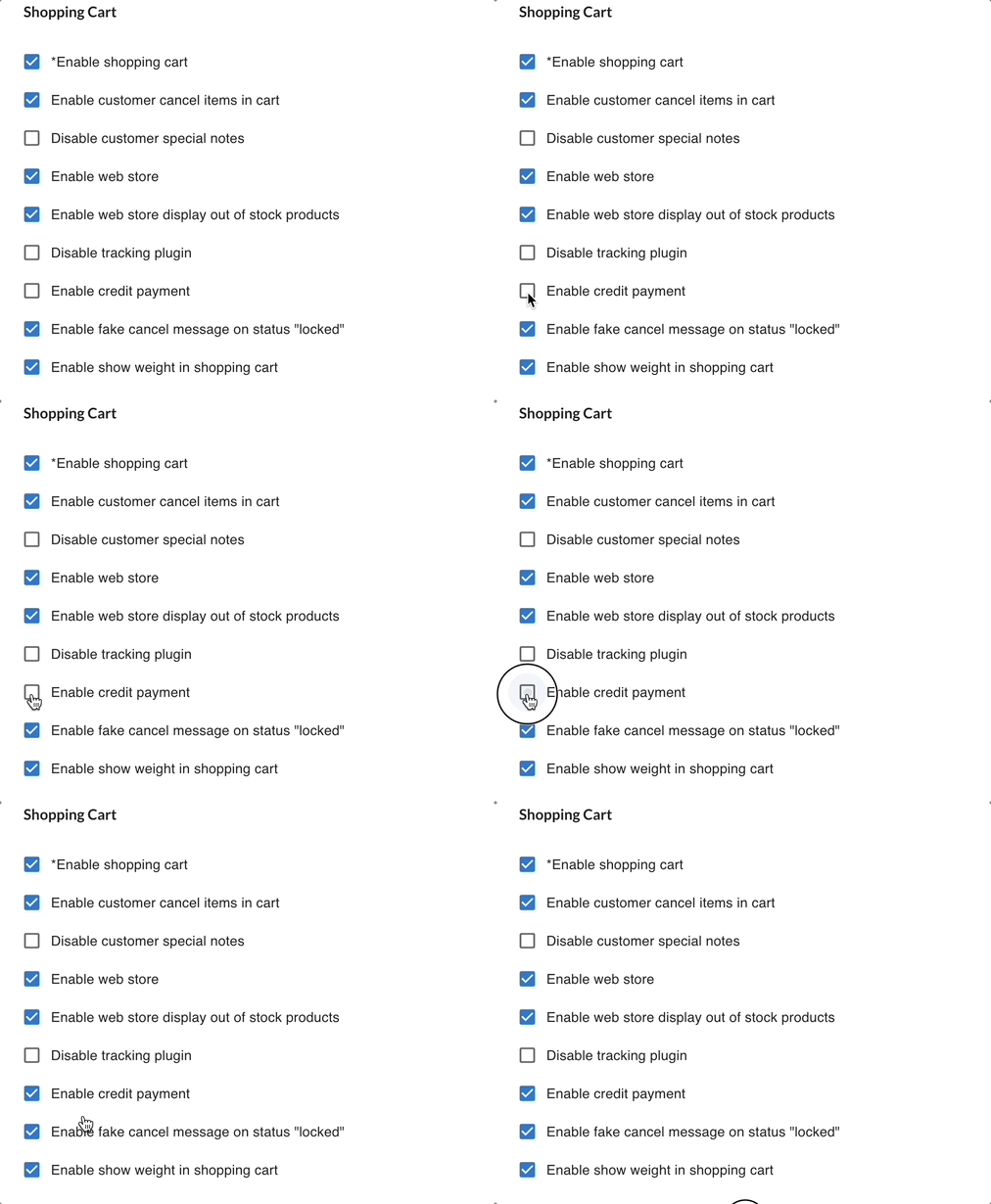
Once enabled, customers see credit as a payment option at checkout and can apply their available balance.
Add credit to a customer
Section titled “Add credit to a customer”Customers cannot add credit themselves.
- Go to Contacts.
- Open the customer.
- Find Credit in their profile.
- Click + to add credit or − to deduct it.
- Enter the amount and click Save.
The dialog shows the resulting balance before you confirm, and warns you if you try to deduct more than the customer has. The customer’s available balance updates immediately.
Check a customer’s balance
Section titled “Check a customer’s balance”- Go to Contacts.
- Select the customer.
- Check Credit shown in their profile.
View credit history
Section titled “View credit history”- Go to Menu.
- Click Credit Logs.
- Search for the customer.
The log shows the customer, the amount, who made the change, and when.
Managing Credit Responsibly
Section titled “Managing Credit Responsibly”Credit is a commitment you make to a customer — when you issue credit, you are promising future value from your store. Manage it carefully.
Common Scenarios
Section titled “Common Scenarios”Customer wants a refund
Section titled “Customer wants a refund”You have two options:
- Option A: Refund cash to the customer.
- Option B: Issue credit instead.
Issuing credit keeps the revenue inside your store and encourages the customer to return.
Customer’s credit is not appearing at checkout
Section titled “Customer’s credit is not appearing at checkout”Check the following:
- Confirm that credit payment is enabled in Settings.
- Confirm the customer has an available credit balance.
- Confirm the customer is logged into the correct account.
You need to adjust a credit amount
Section titled “You need to adjust a credit amount”You can add credit or correct an incorrect balance at any time through the customer’s profile (see Add credit to a customer). Always record the reason internally when you make an adjustment.
See also: