
Combine Text in Excel
If your keywords follow a pattern — such as product code + color + size — you can build them automatically in Excel instead of typing each one.
Step 1: Combine text in Excel
Section titled “Step 1: Combine text in Excel”- Put the product code, color, and size in separate columns (for example, columns A, B, and C).
- In the column where you want the finished keyword, type a formula like
=A2&B2&C2.
Excel will join the values from each column into one keyword automatically.
Step 2: Paste the combined keywords into the upload file
Section titled “Step 2: Paste the combined keywords into the upload file”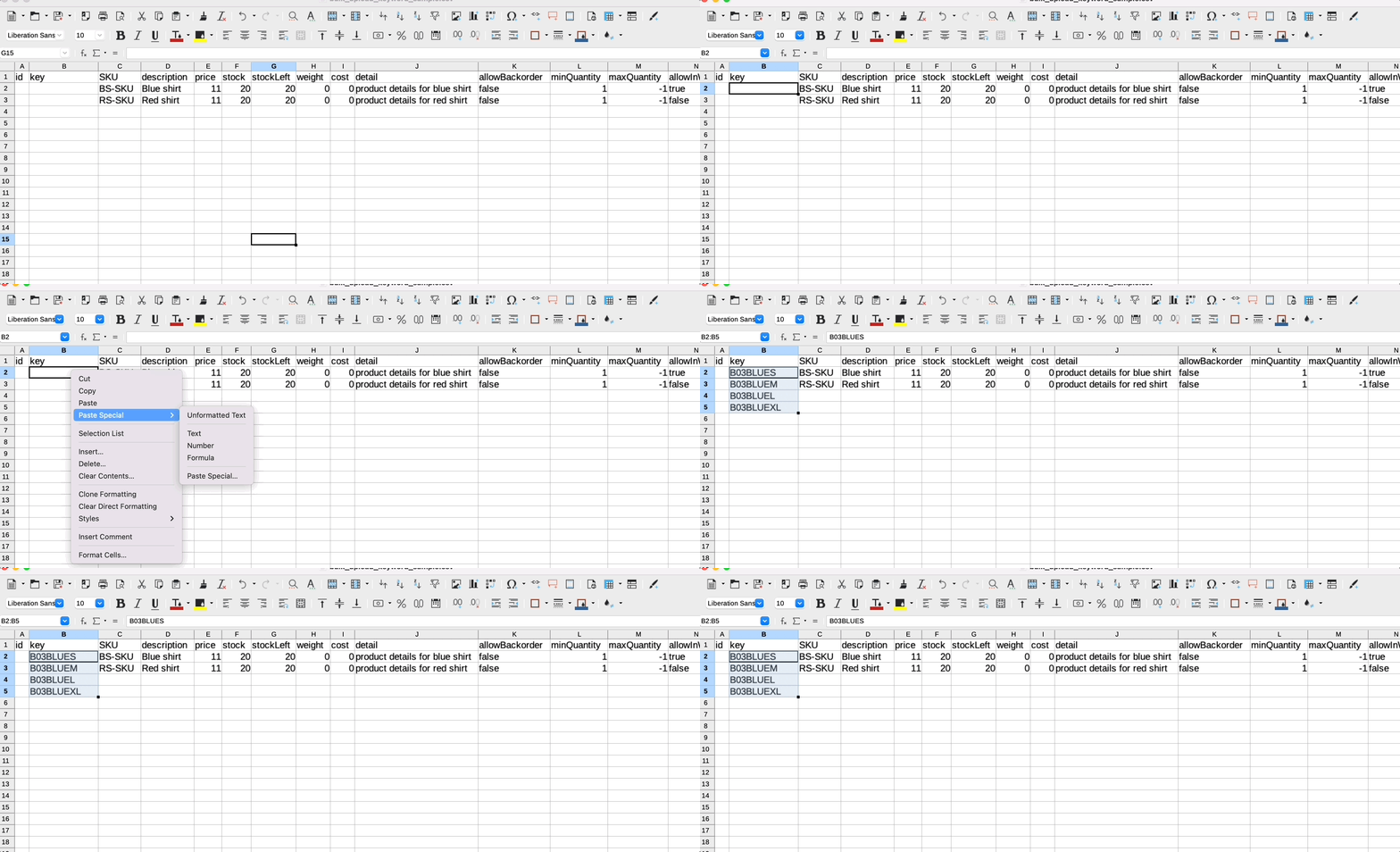
- Copy the keywords you generated.
- Right-click in the destination cell and choose Paste Special › Text.
Option: Use Google Sheets instead of Excel
Section titled “Option: Use Google Sheets instead of Excel”- Upload the downloaded sample file to Google Drive.
- Open a new sheet and prepare your keywords and descriptions using the formula method above.
- Paste all the keywords and descriptions into the sample file.
- Download the file as CSV from Google Drive.
- Go to TOOLS › BULK UPLOAD KEYWORDS and import the CSV.
See also: