
Edit Orders in Bulk
Boxify has two bulk edit screens. Use All Orders to change whole orders, and Order Items to change the individual items inside them.
Both work the same way: tick the rows you want, click Edit, then choose the field to change.
Edit orders in All Orders
Section titled “Edit orders in All Orders”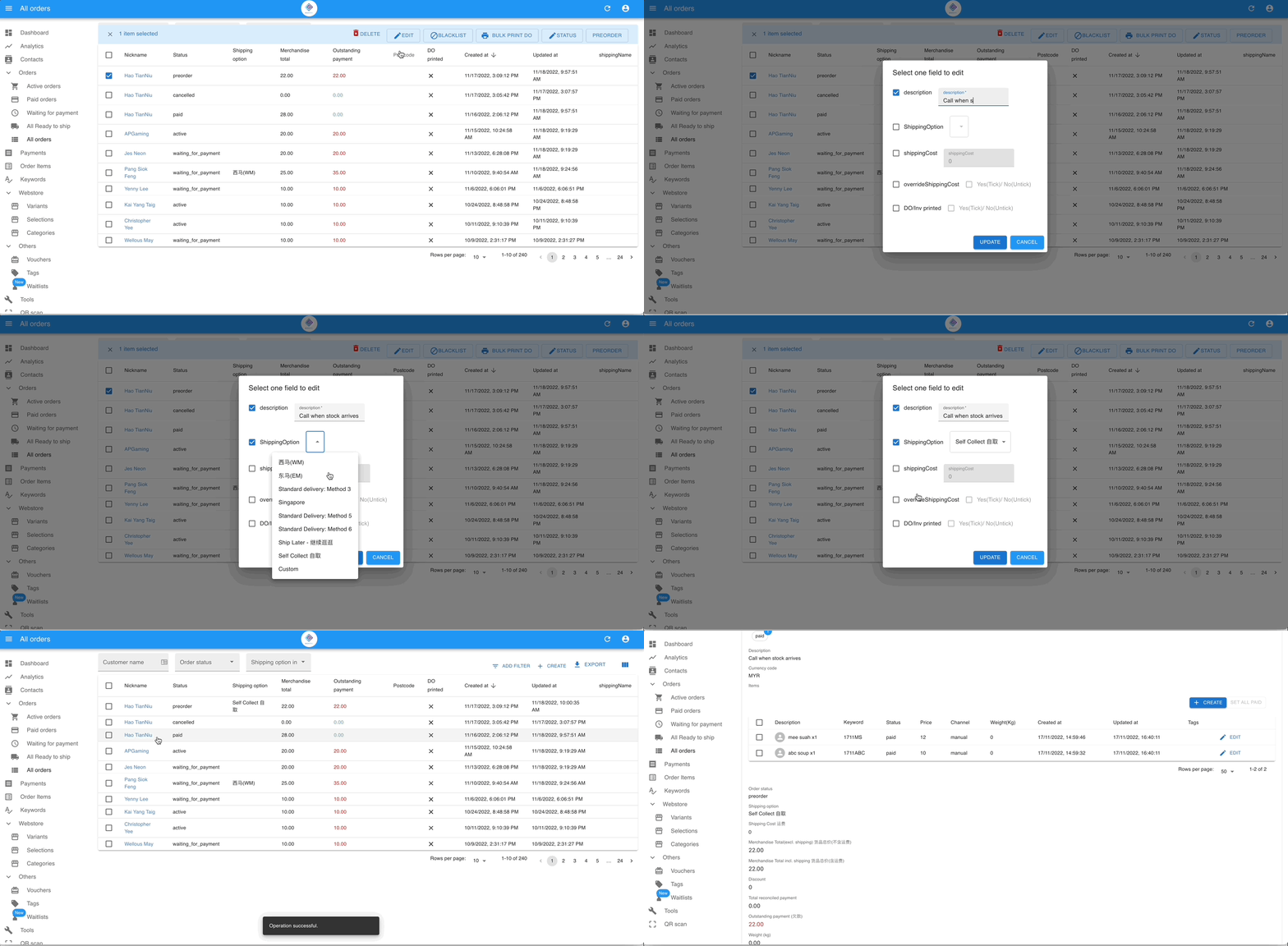
- Go to Orders › All Orders.
- Tick the checkbox next to each order you want to change.
- Click Edit in the top right.
- Choose the field, enter the new value, and confirm.
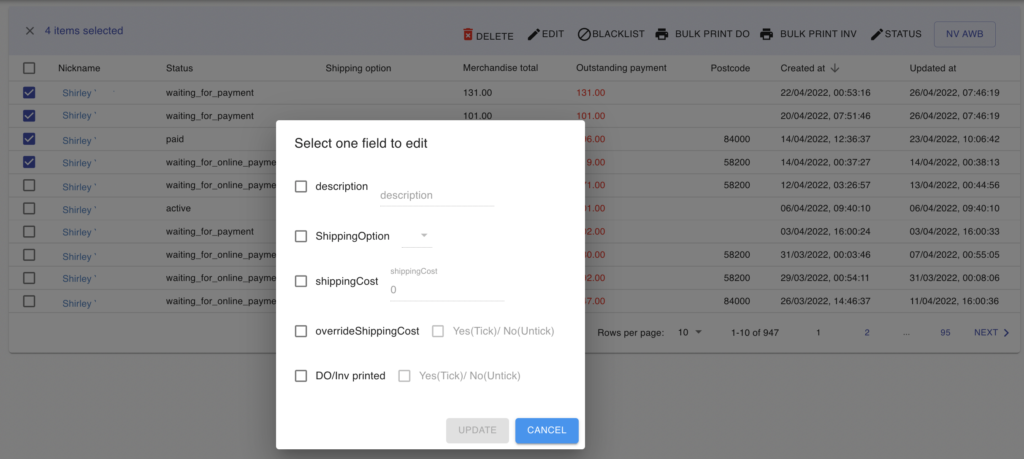
Fields you can edit
Section titled “Fields you can edit”| Field | What it does |
|---|---|
| Order Description | Add a note to the order. |
| Shipping Method | Set the shipping method for the order. |
| Shipping Cost | Set the shipping cost for the order. |
| Shipping Cost Overridden | Turn the shipping cost override on or off. Choose Yes(Tick) or No(Untick). |
| DO/Inv printed | Mark whether the delivery order or invoice has been printed. Choose Yes(Tick) or No(Untick). |
Edit items in Order Items
Section titled “Edit items in Order Items”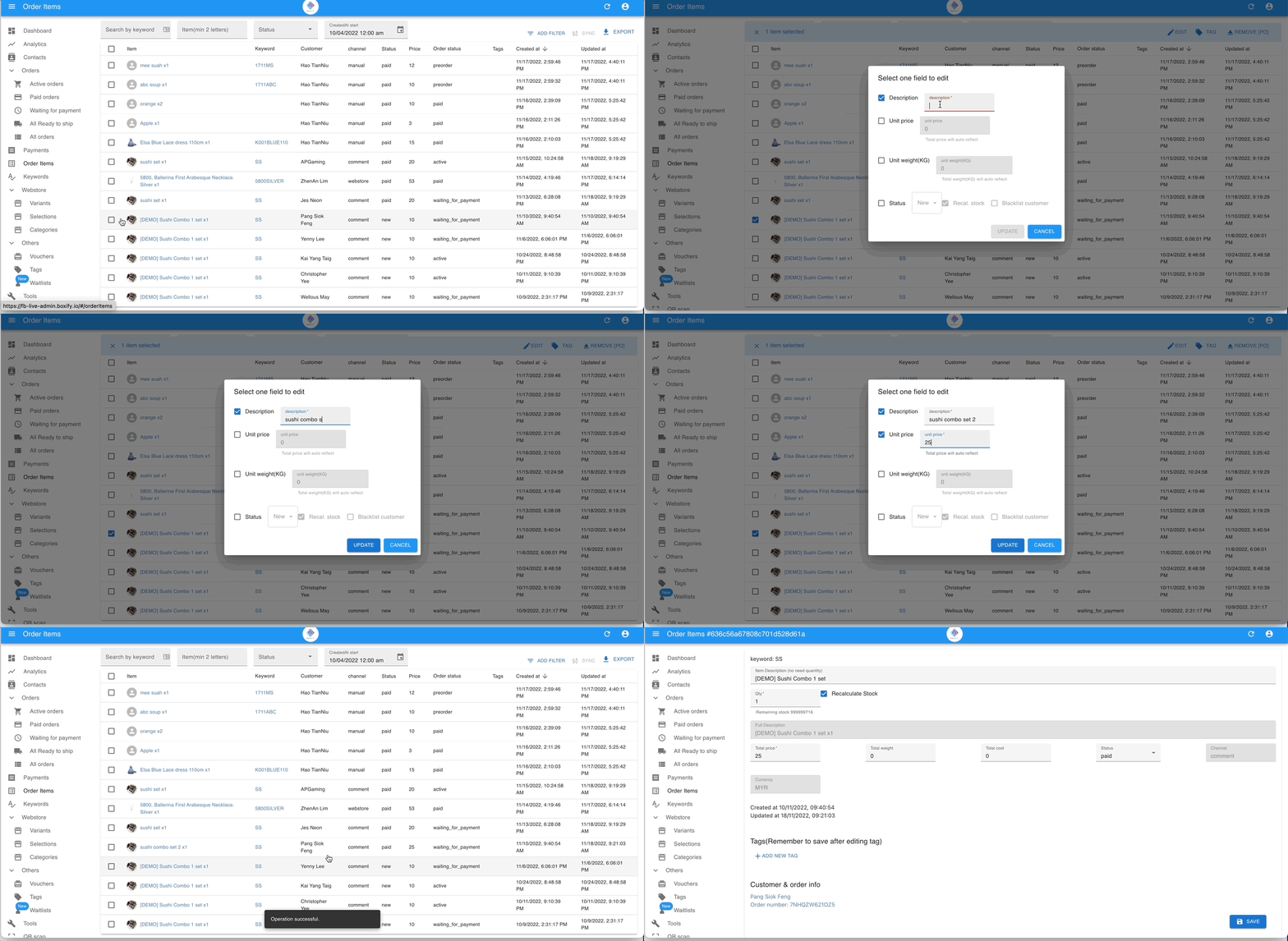
- Go to Order Items in the left menu.
- Tick the checkbox next to each item you want to change.
- Click Edit in the top right.
- Choose the field, enter the new value, and confirm.
Fields you can edit
Section titled “Fields you can edit”| Field | What it does |
|---|---|
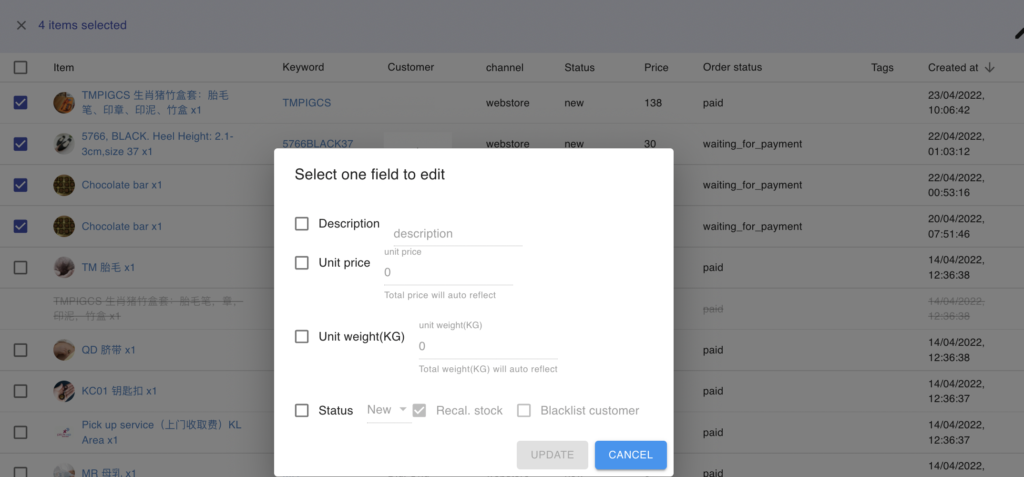
| Description | Change the item description. |
| Unit price | Change the price per unit. |
| Unit weight (kg) | Change the weight of the item, in kilograms. |
| Status | Change the item’s status to New, Paid, or Cancelled. |
| Recalculate stock | Return the quantity of cancelled items to your available stock. Only available when Status is ticked and set to Cancelled. |
| Blacklist customer | Add the customers who ordered these items to your blacklist. Only available when Status is ticked and set to Cancelled. |
Set a fixed shipping cost on one order
Section titled “Set a fixed shipping cost on one order”Override shipping cost lets you set a fixed shipping fee for a single order. Once you set it, the customer cannot choose a different shipping option from their shopping cart.
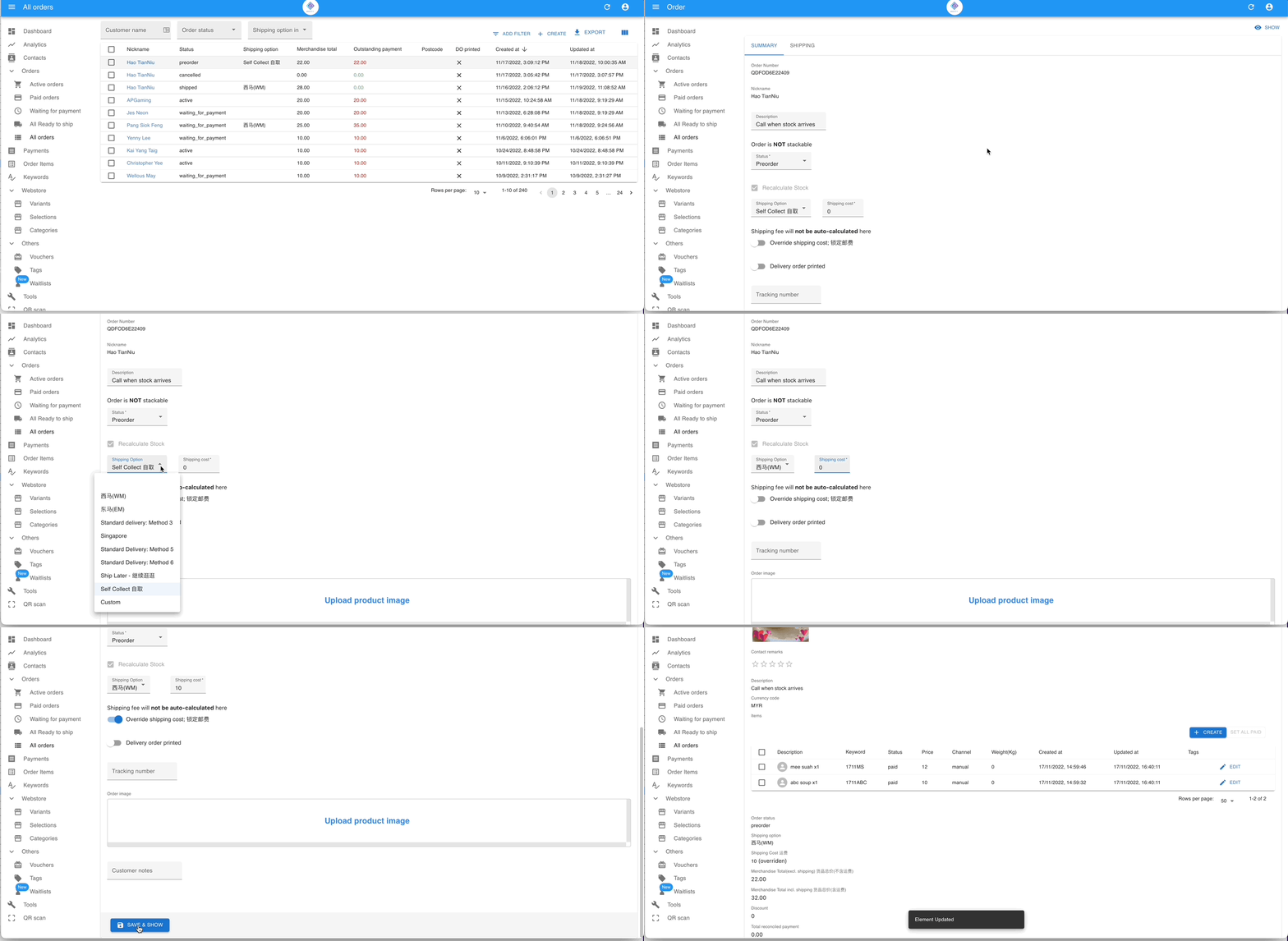
- Click into an order, then click Edit in the top right.
- In the shipping area, choose a shipping option from the list and enter the shipping fee amount next to it, then turn on the Override shipping cost switch below them.
- Click SAVE & SHOW.
See also: