
Set Up Payment Methods
Boxify supports two kinds of payment: online payment (through a payment gateway) and offline payment (bank transfer). This article helps you choose, then shows you how to set up each one.
All payment methods are configured under Settings › Payments › Payment Methods. If you do not enable any method, offline payment is the default.
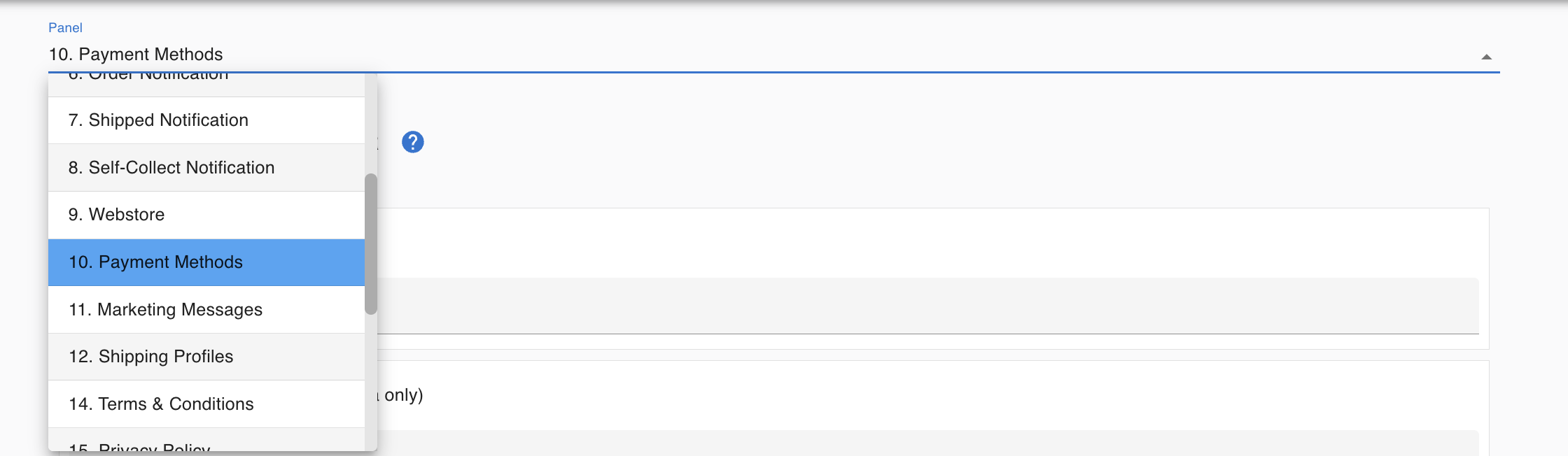
Choose online or offline payment
Section titled “Choose online or offline payment”Online payment (payment gateway)
Section titled “Online payment (payment gateway)”Examples: Hitpay, Billplz.
How it works:
- The customer selects online payment at checkout.
- The customer is redirected to the payment gateway page.
- The customer completes payment.
- The system automatically confirms the payment, marks the item as Paid, and updates the order status.
Benefits:
- No manual confirmation needed
- Faster checkout for customers
- Lower risk of fake payment receipts
- Easier to scale your business
Offline payment (bank transfer)
Section titled “Offline payment (bank transfer)”How it works:
- The customer selects offline payment at checkout.
- The customer transfers payment to your bank account.
- The customer uploads a photo or PDF of the payment receipt.
- The receipt appears in your Payments menu.
- You check your bank statement to confirm the transfer.
- You reconcile the payment in the system and change the item status to Paid.
Comparison
Section titled “Comparison”| Feature | Online payment | Offline payment |
|---|---|---|
| Auto payment confirmation | Yes | No |
| Manual reconciliation required | No | Yes |
| Receipt upload required | No | Yes |
| Faster checkout | Yes | Depends on customer |
| Risk of fake proof | Low | Higher |
| Recommended for scaling | Yes | Limited |
Which should you choose?
Section titled “Which should you choose?”Choose online payment if you want automatic confirmation, less manual work, or are growing your business.
Choose offline payment if you prefer direct bank transfers, do not use a payment gateway, or are comfortable verifying payments manually.
Set up online payment
Section titled “Set up online payment”Boxify supports two payment gateways: Hitpay and Billplz. Both work fully with Boxify. Choose the one that suits your business, or the one you already have an account with.
Supported payment gateways
Section titled “Supported payment gateways”| Gateway | Malaysia | Singapore |
|---|---|---|
| Hitpay | Yes | Yes |
| Billplz | Yes | No |
Hitpay (recommended) is available to Malaysia and Singapore merchants. It has a clear dashboard and a responsive support team, and is the recommended option if you are new to online payments.
- Hitpay pricing
- Register for Malaysia: Sign up — Hitpay Malaysia
- Register for Singapore: Sign up — Hitpay Singapore
Billplz is available to Malaysia merchants only.
- Billplz pricing
- Register: Sign up — Billplz
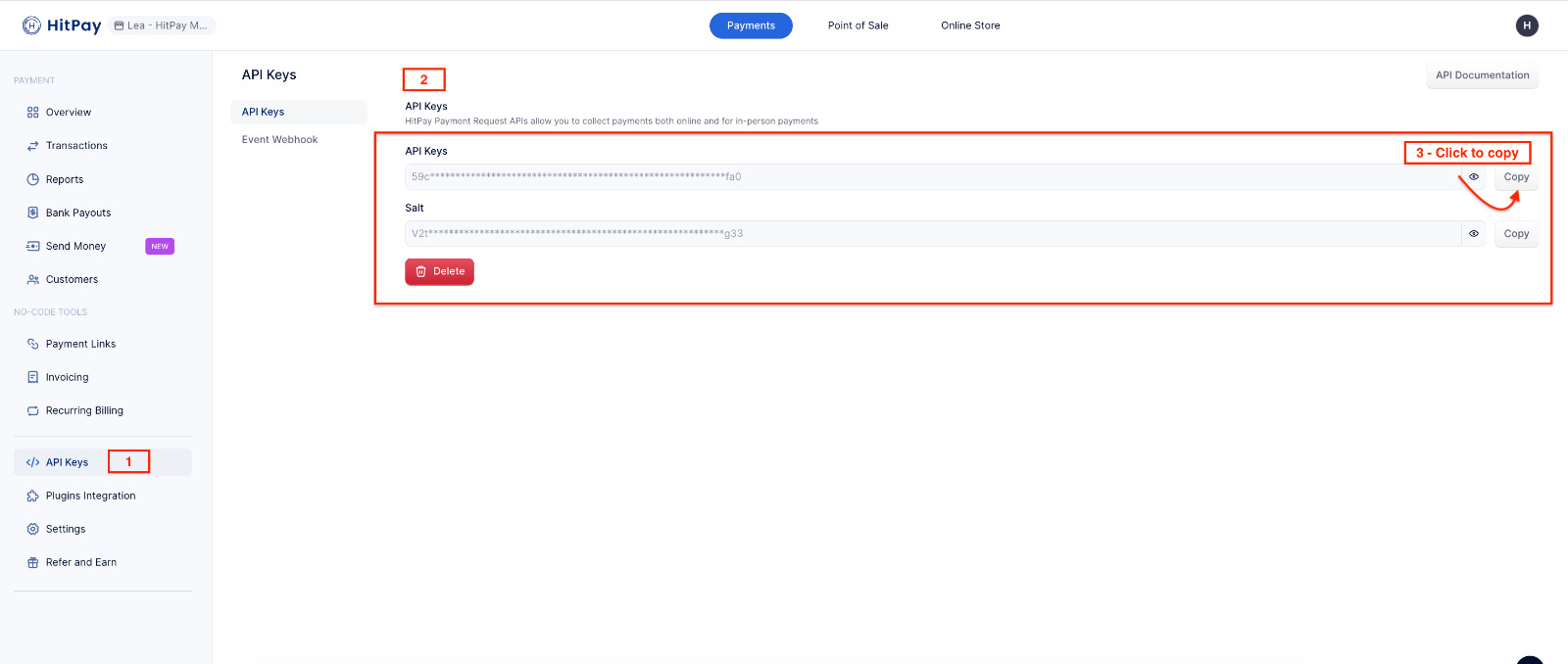
Get your Hitpay API Key
Section titled “Get your Hitpay API Key”-
Log in to your Hitpay dashboard.
-
Go to Payment Gateway › API Settings.
-
Copy your API Key.
-
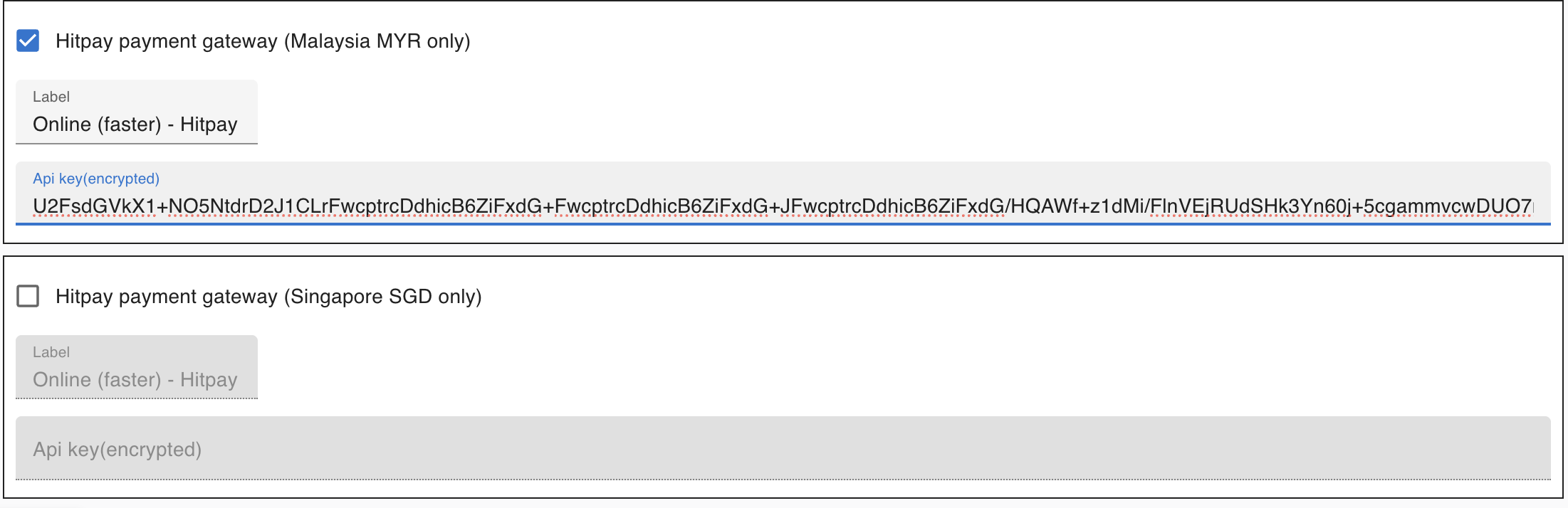
Paste it into Boxify.
To accept PayNow with Hitpay, see Setting up PayNow with Hitpay.
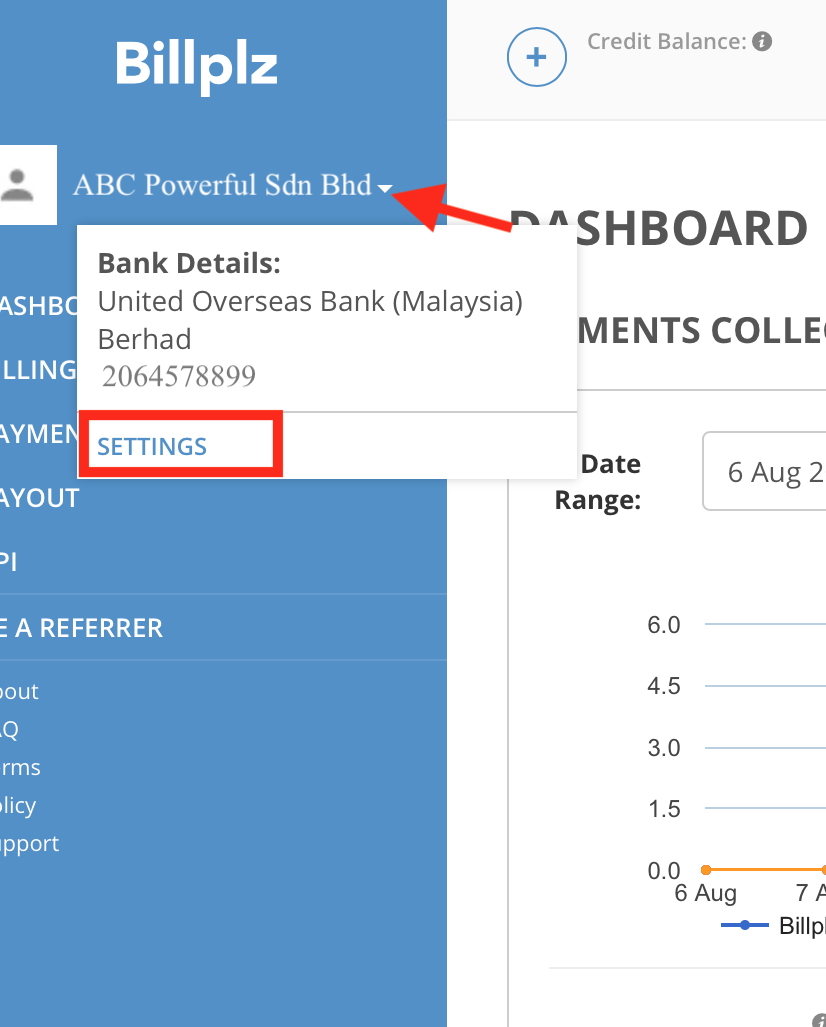
Get your Secret Key and Collection ID from Billplz
Section titled “Get your Secret Key and Collection ID from Billplz”-
Log in to your Billplz dashboard.
-
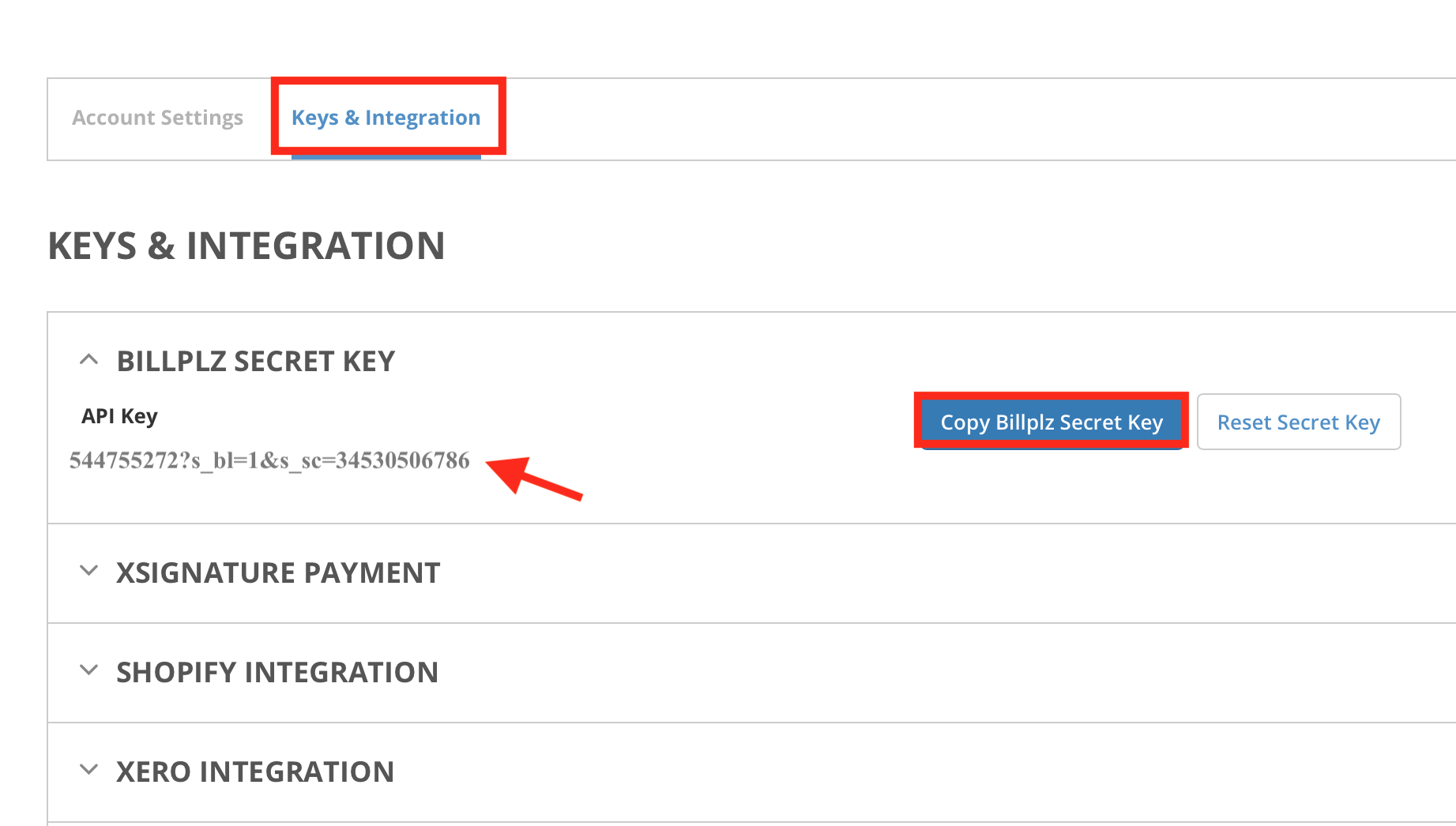
Go to Settings › Keys & Integration.
-
Copy your Secret Key.
-
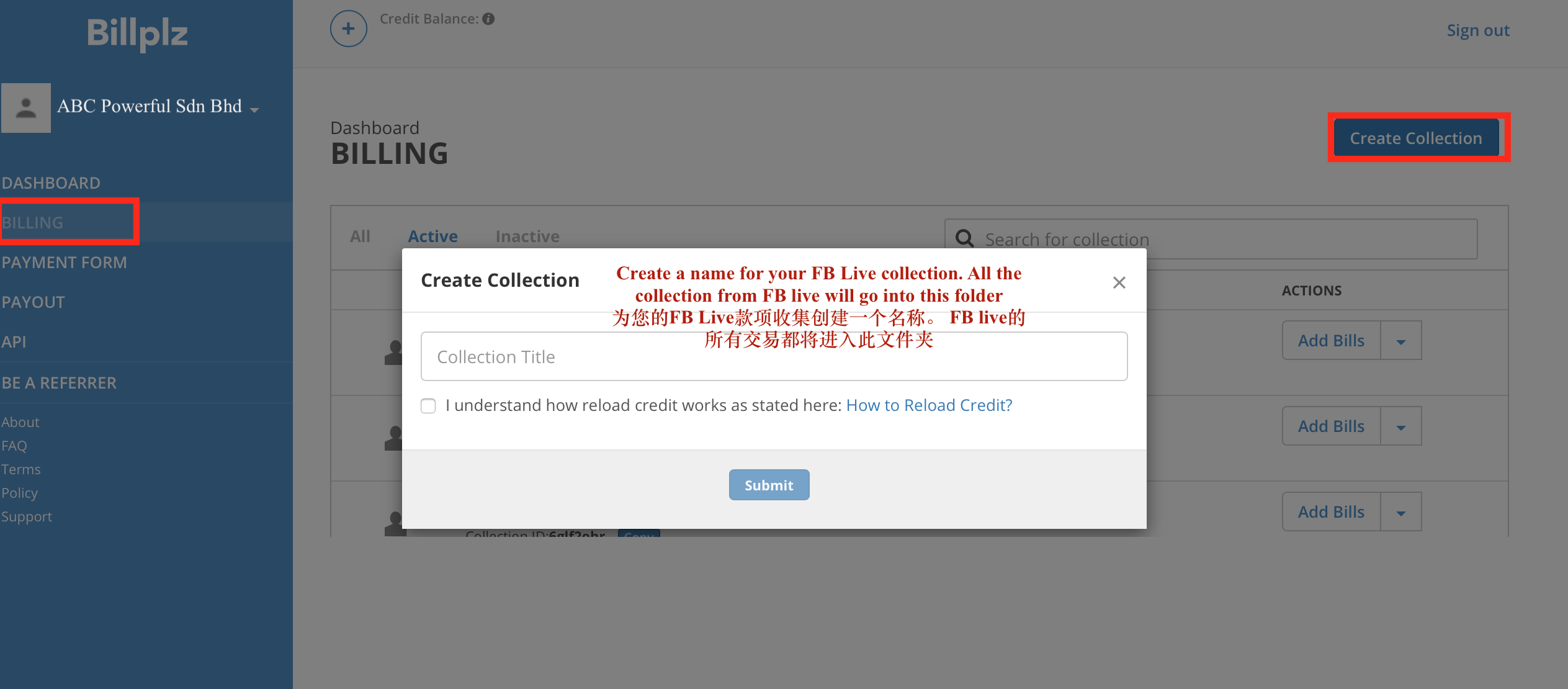
Go to Billing › Create Collections. Name the collection (for example, your Facebook Page name).
-
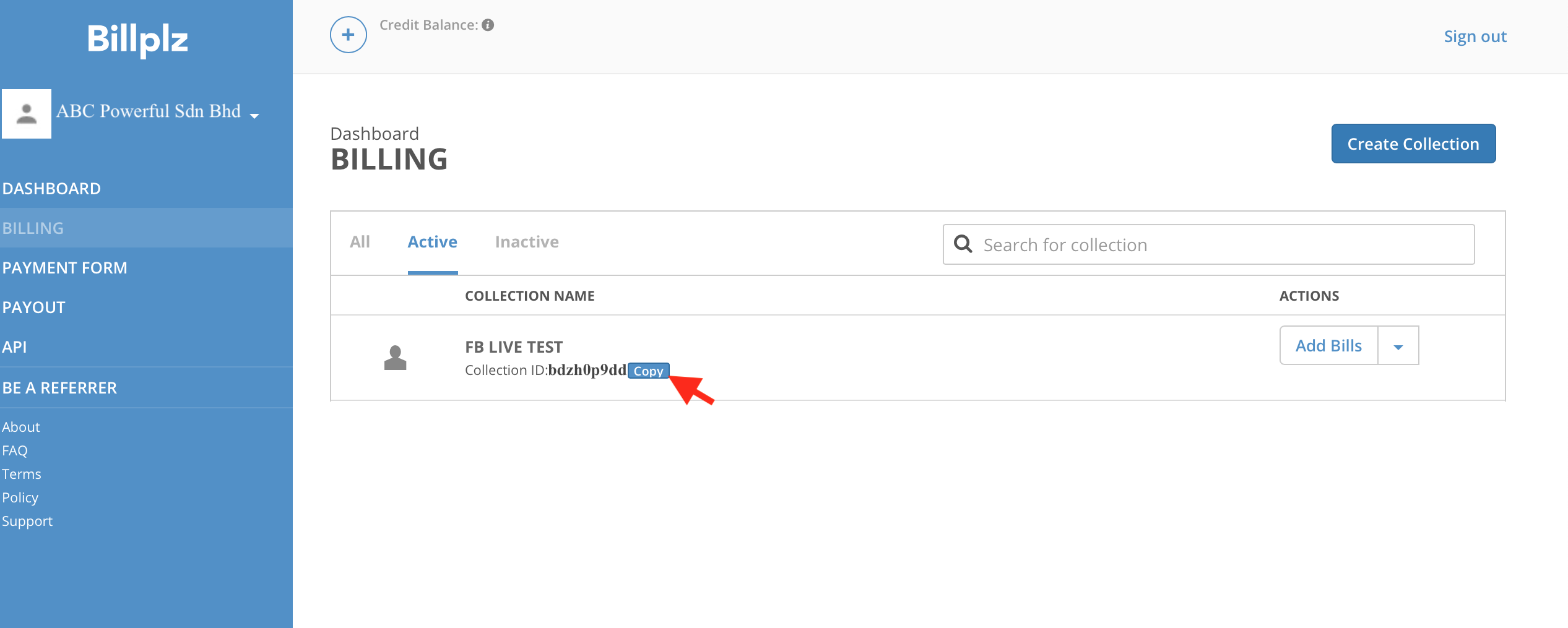
Copy the Collection ID.
-
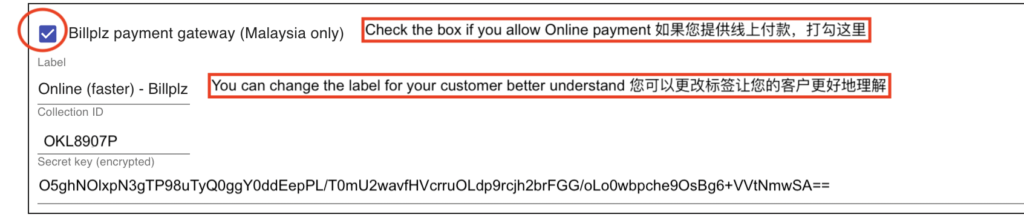
Paste the Secret Key and Collection ID into Boxify.
Enable online payment in Boxify
Section titled “Enable online payment in Boxify”- Go to Settings › Payments › Payment Methods.
- Turn on your gateway: Hitpay (Malaysia MYR or Singapore SGD) or Billplz (Malaysia only).
- Enter the credentials from your gateway account: the API Key for Hitpay, or the Secret Key and Collection ID for Billplz. You can also change the Label, the name customers see at checkout.
- Click Save.
Set up offline payment
Section titled “Set up offline payment”Offline payment lets customers transfer money directly to your bank account and upload a payment receipt during checkout.
Enable offline payment
Section titled “Enable offline payment”- Go to Settings › Payments › Payment Methods.
- Turn on Offline Payment.
- Set the Label, the name customers see at checkout. The default is “Bank transfer, CDM”.
- Click Save.
- Put your bank details (bank name, account name, account number) in your Payment Message and in Important Information, so customers know where to transfer. The Payment Message reaches customers in Messenger; webstore customers see only Important Information in their cart.
Verify before marking an order as paid
Section titled “Verify before marking an order as paid”Before marking an order Paid:
- Confirm the payment amount in your bank statement.
- Make sure the amount matches the outstanding balance.
- Reconcile the payment in the system.
- Change the item status to Paid.
See also: