
How to Assign Variants, Selections & Categories to Products
Assigning a category and variants to each product ensures it appears in the right place in your webstore with the correct options for customers to choose from. A product with no category will not appear in the webstore. It also needs Allow on Website ticked and a Web Price set.
Before you start
Section titled “Before you start”- Create variants before assigning them to products.
Assign to a single product
Section titled “Assign to a single product”- Go to Keywords.
- Click the product and choose Edit.
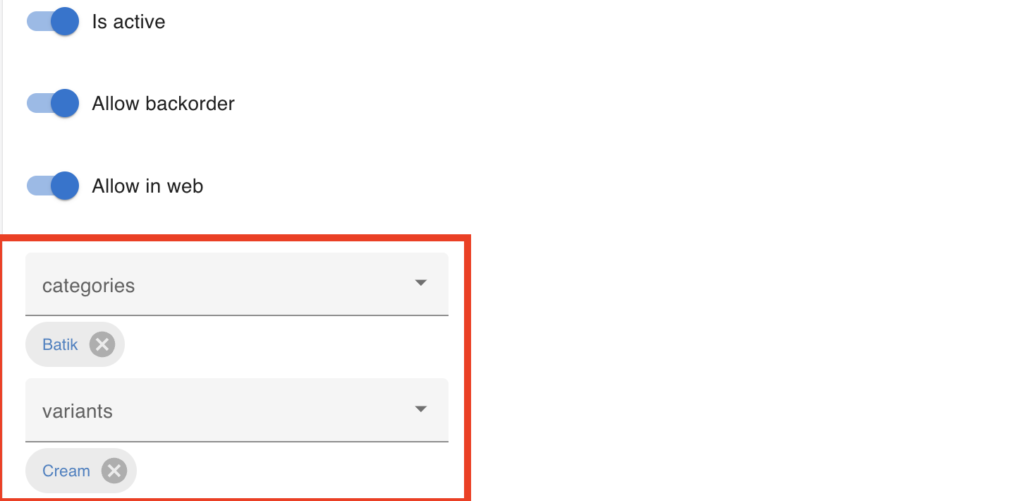
- Scroll to Categories and choose the category this product belongs to (for example, “T-Shirts”).
- Scroll to Variants and tick all the options that apply (for example, “Red”, “Size L”).
- Click Save.
Assign to multiple products at once
Section titled “Assign to multiple products at once”- Go to Keywords.
- Select the products you want to update.
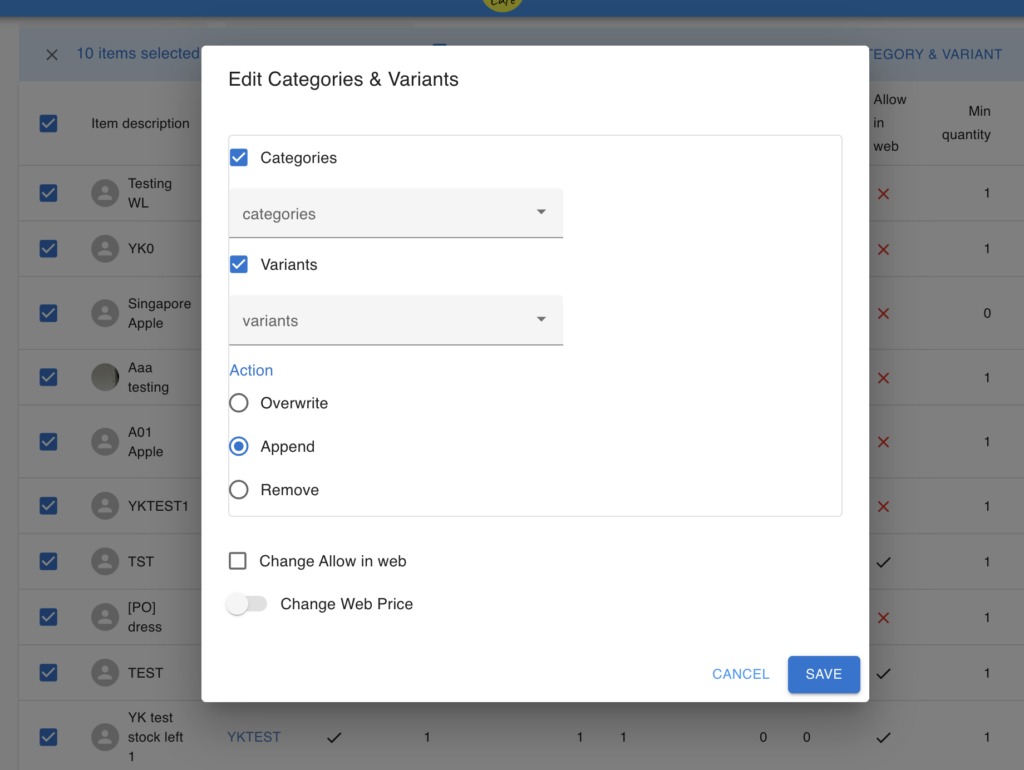
- Click Category & Variant. The dialog is titled Edit Categories & Variants.
- Tick the box for Category and choose the category to apply to all selected products.
- Tick the box for Variants and choose the variants to add to all selected products.
- Click Save.
Variant actions at a glance
Section titled “Variant actions at a glance”| Action | What it does |
|---|---|
| Overwrite | Replaces the product’s variants with the ones you selected |
| Append | Adds the selected variants, keeping the ones already there |
| Remove | Unlinks the selected variants — they stay in the system |