
ParcelDaily
ParcelDaily is a booking platform that gives you many couriers with one account. Connect it once, then pick the courier you want for each batch of orders — no separate account with every courier.
Before you start
Section titled “Before you start”- A ParcelDaily account with credit topped up. Boxify checks out your parcels using that credit.
- Your Token and Merchant ID from the ParcelDaily portal.
Set up the shipping profile
Section titled “Set up the shipping profile”- Log in to Boxify and go to Settings › Shipping › Shipping Profiles.
- Click Create New Profile, choose PARCELDAILY_MY from the profile type list, then click Create.
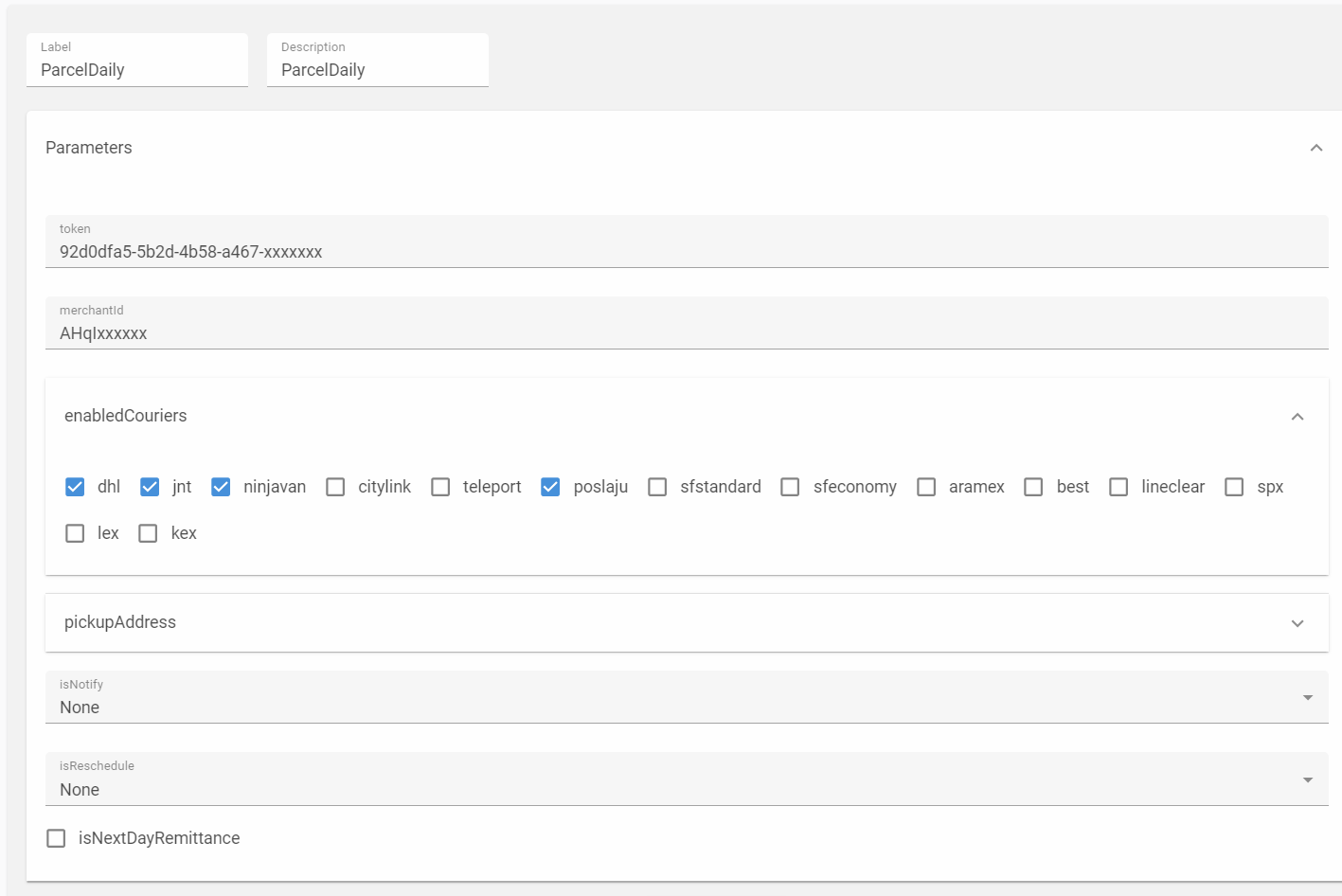
- Fill in the fields.
Main fields
- token — Your ParcelDaily API token.
- merchantId — Your ParcelDaily merchant ID.
- isNotify — How ParcelDaily notifies your customer: None, SMS, WhatsApp, Email, or a combination.
- isReschedule — Set to WhatsApp to let customers reschedule delivery, or None to switch it off.
- isNextDayRemittance — Tick this if your ParcelDaily account is on next-day remittance for COD.
enabledCouriers
Tick every courier you want to see when you create labels. J&T, DHL, Ninja Van and Pos Laju are ticked by default. The full list is: dhl, jnt, ninjavan, citylink, teleport, poslaju, sfstandard, sfeconomy, aramex, best, lineclear, spx, lex, kex.
pickupAddress
This is where the courier collects your parcels.
- fullName — Your name or company name.
- countryCode — Leave as +60 for Malaysia.
- phone — Your contact number.
- email — Your email address.
- line1 and line2 — Your pickup address.
- city, postcode, state — Your pickup city, postcode, and state.
- country — Malaysia, Singapore, or Brunei.
- Leave Enabled switched on (blue). Switch it off to stop using ParcelDaily without deleting the profile.
- Click Save Changes.
Create the airwaybill
Section titled “Create the airwaybill”- Go to Orders › Ready to Ship from the left menu.
- Select the orders you want to ship.
- Click Courier in the top right, then choose ParcelDaily.
- Click Add AWBs.
- Choose the Courier for this batch. Only the couriers you ticked in settings appear here.
- Set the weight.
- If you set item weight in Keywords, the system fills in the parcel weight automatically.
- To use one weight for every parcel instead, tick Use Custom Weight and enter a weight between 0 and 30 kg.
- Set the options you need.
- Use Insurance — Only orders valued between RM 201 and RM 2000 can be insured. Ticking it outside that range does nothing.
- Use strict quotation from ParcelDaily — Tick it and the parcel is only created at the exact price you were quoted; if ParcelDaily has changed the price, nothing is created and you must quote again. Leave it unticked and small price changes are accepted, and you are charged the new price.
- COD Amount — Optional. The same amount is applied to every order you selected, so use it only when the whole batch is the same COD amount.
- Click Get Quotation. Each order shows its price, for example
Quoted: RM 7.50 (jnt). - Check the prices, then click Create.
A green tick means the parcel was booked and paid. A red icon means it failed — hover over it to read the reason.
Print the airwaybill
Section titled “Print the airwaybill”- In the ParcelDaily window, click PRINT AWB.
- Click PRINT on a row to print one label, or Print All to download every label as one PDF.
Orders showing Pending have no tracking number yet. Create the AWB first.
If an order will not go through
Section titled “If an order will not go through”Boxify checks the delivery address before sending it to ParcelDaily. Fix the order and try again if you see these:
- Recipient name — Required, up to 100 characters.
- Recipient phone number — Required, up to 30 characters.
- Address Line 1 — Required, at least 5 characters and up to 200.
- City, State — Required, up to 100 characters.
- Postcode — Required, up to 10 characters.
Other common messages:
- “No quotation for this order” — Get a quotation before clicking Create.
- ”
is not available” — That courier does not serve this address. Pick another courier and quote again.
See also: