
Manage Preorders with Prefix Tags
Use the [PO] prefix tag to hold preorder items and avoid charging shipping fees before stock arrives.
What does the [PO] prefix tag do?
Section titled “What does the [PO] prefix tag do?”When an order contains both preorder items (tagged [PO]) and regular items, the system excludes the [PO] items from the shipping fee calculation.
Why use the [PO] prefix tag?
Section titled “Why use the [PO] prefix tag?”Shipping fees may change once stock arrives. The [PO] tag lets you collect payment for regular items now without charging shipping for the preorder items until the stock is ready.
Where do I add the [PO] prefix tag?
Section titled “Where do I add the [PO] prefix tag?”Add [PO] to the item description when you create the keyword for the preorder item.
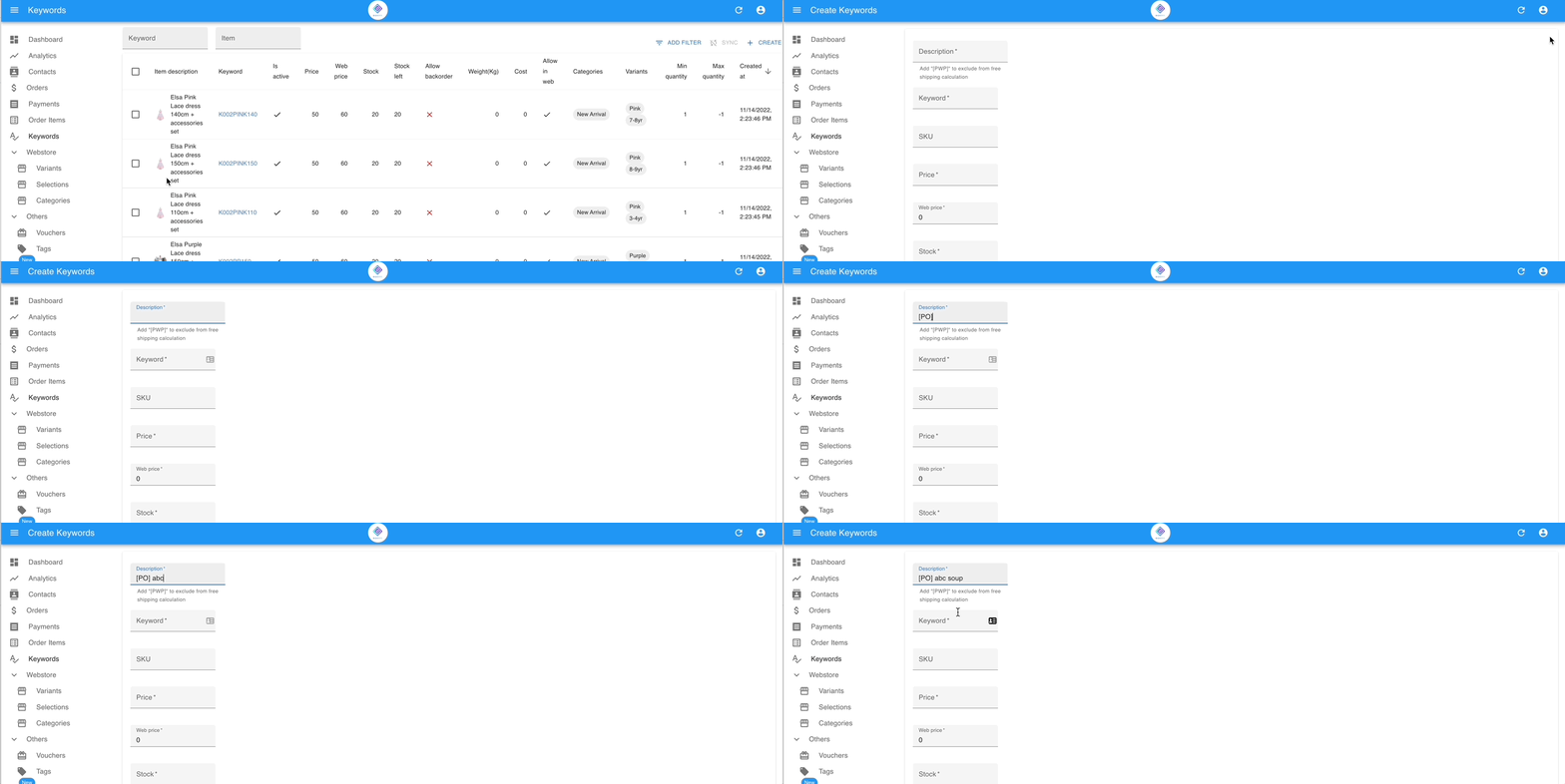
Example
Section titled “Example”Shipping rule: Free shipping for orders over $100, and $10 for orders under $100.
Scenario: A customer buys $80 of regular items and $30 of preorder items in one order. The system calculates shipping based on the $80 of regular items only, so the customer pays $90 total ($80 + $10 shipping).
How to manage a preorder item with the [PO] tag
Section titled “How to manage a preorder item with the [PO] tag”Both actions below live in the Prefix dialog on the All Orders list.
Split the preorder items into their own order
Section titled “Split the preorder items into their own order”Do this after the customer has paid for the regular items.
- Go to Orders › All Orders and tick the orders you want to process.
- Click Prefix in the top right.
- Click Split By Prefix and enter the prefix, for example
[PO].
The preorder items move to a new order, leaving the paid items on the original.
Remove the prefix when stock arrives
Section titled “Remove the prefix when stock arrives”- Go to Orders › All Orders and tick the orders you want to process.
- Click Prefix in the top right.
- Click REMOVE PREFIX and enter the prefix to remove.
- Collect the shipping fee from the customer and arrange shipment.
See also: