
Customer Contacts
The Contacts section gives you a quick view of each customer’s information, including their orders, blacklist status, and rating.
What you can do in Contacts
Section titled “What you can do in Contacts”- View a customer’s order history, blacklist status, and rating at a glance.
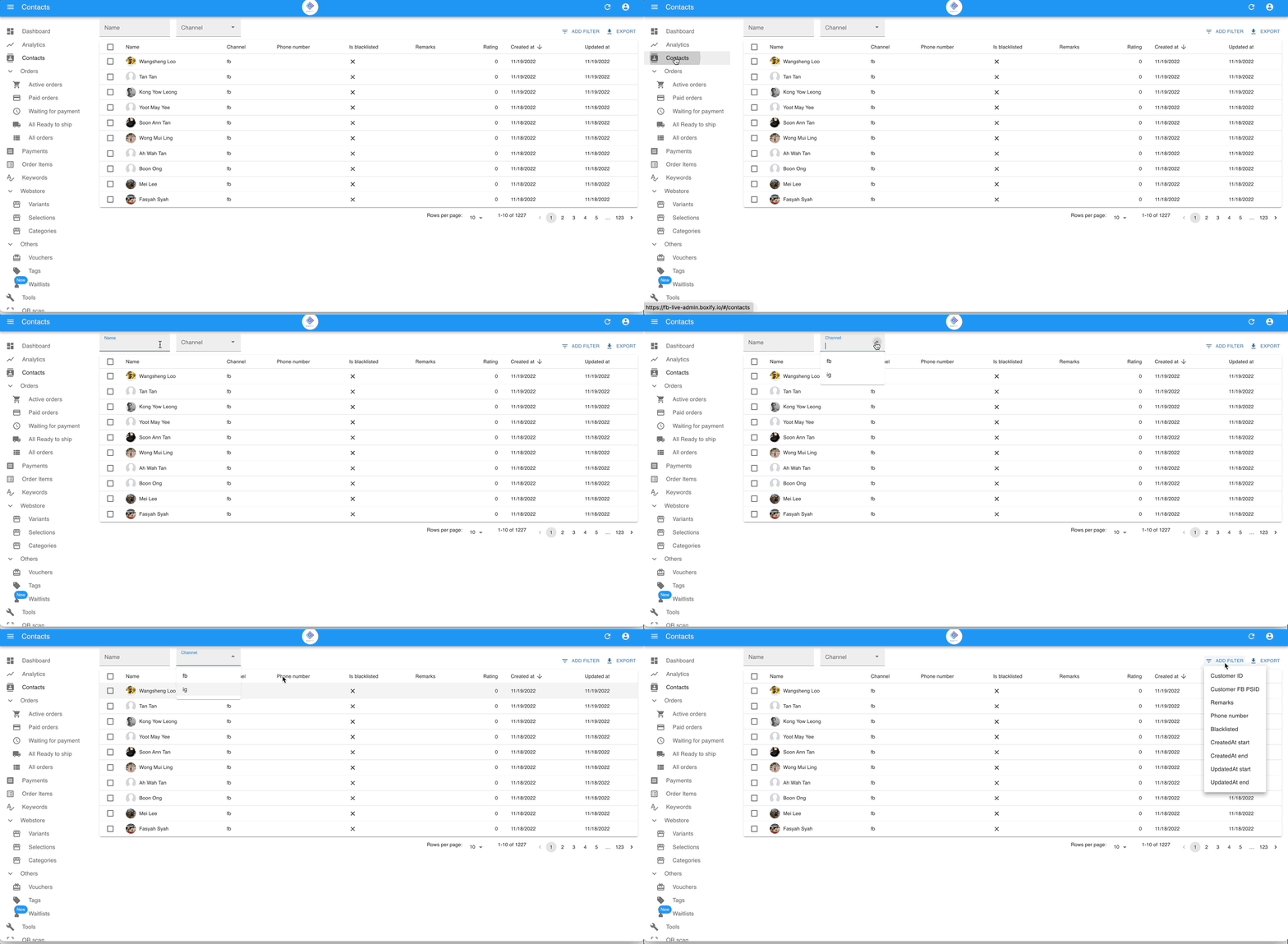
- Use the filter to search for a specific customer.
- Create an order directly from a customer’s contact profile.
Contact page tabs
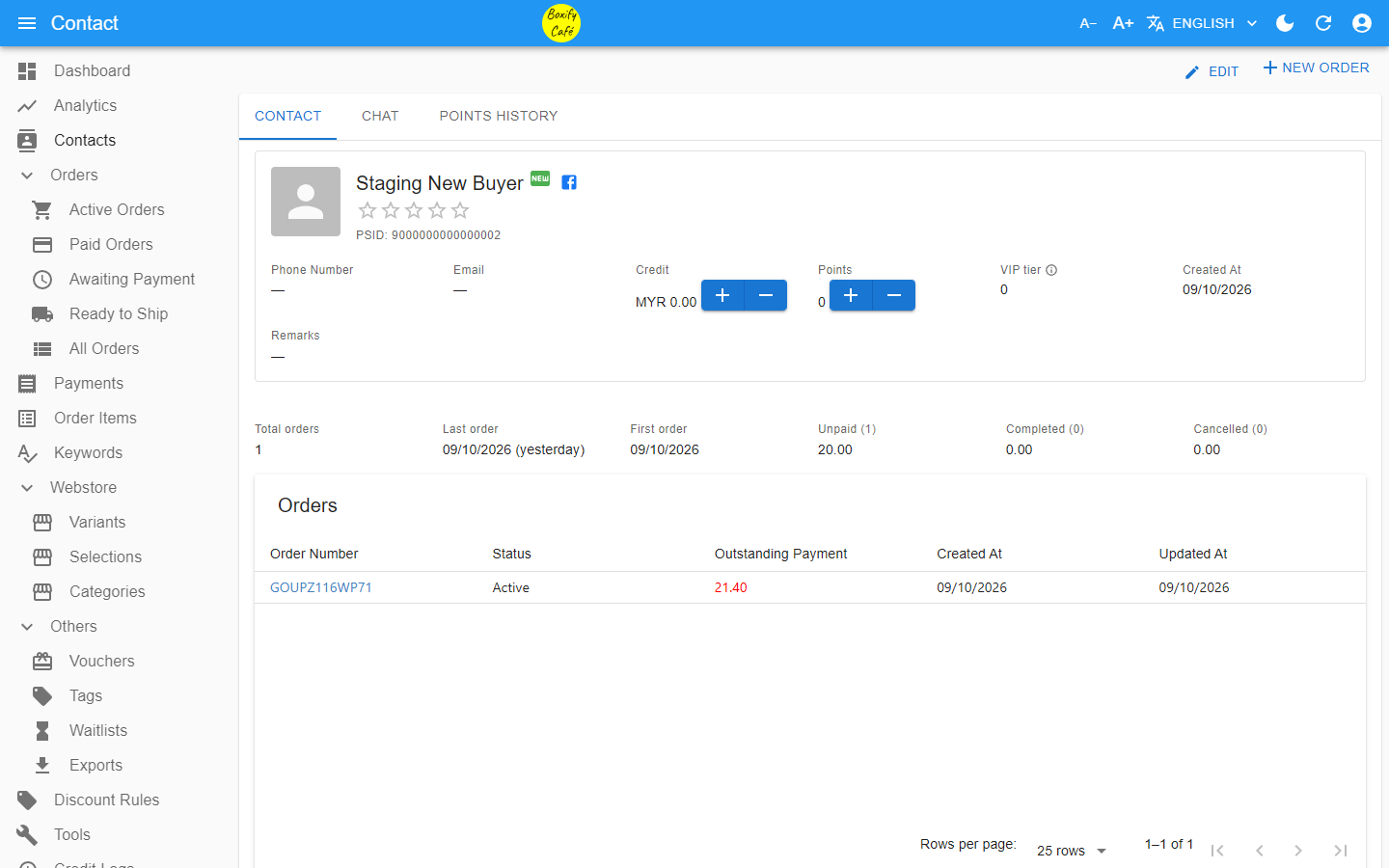
Section titled “Contact page tabs”Open a customer to see these tabs:
- Contact — the customer’s details, credit, points, VIP tier, and order stats.
- Chat — your Messenger or Instagram conversation with the customer.
- Points history — every change to the customer’s points.
You cannot create a contact yourself. Orders you record from outside Facebook and Instagram (for example WhatsApp or a physical store) are offline orders: they are not linked to any contact, so they do not appear here.
Export customer info
Section titled “Export customer info”You can export your customer data as a file for record-keeping, follow-ups, or analysis.
Export basic customer info
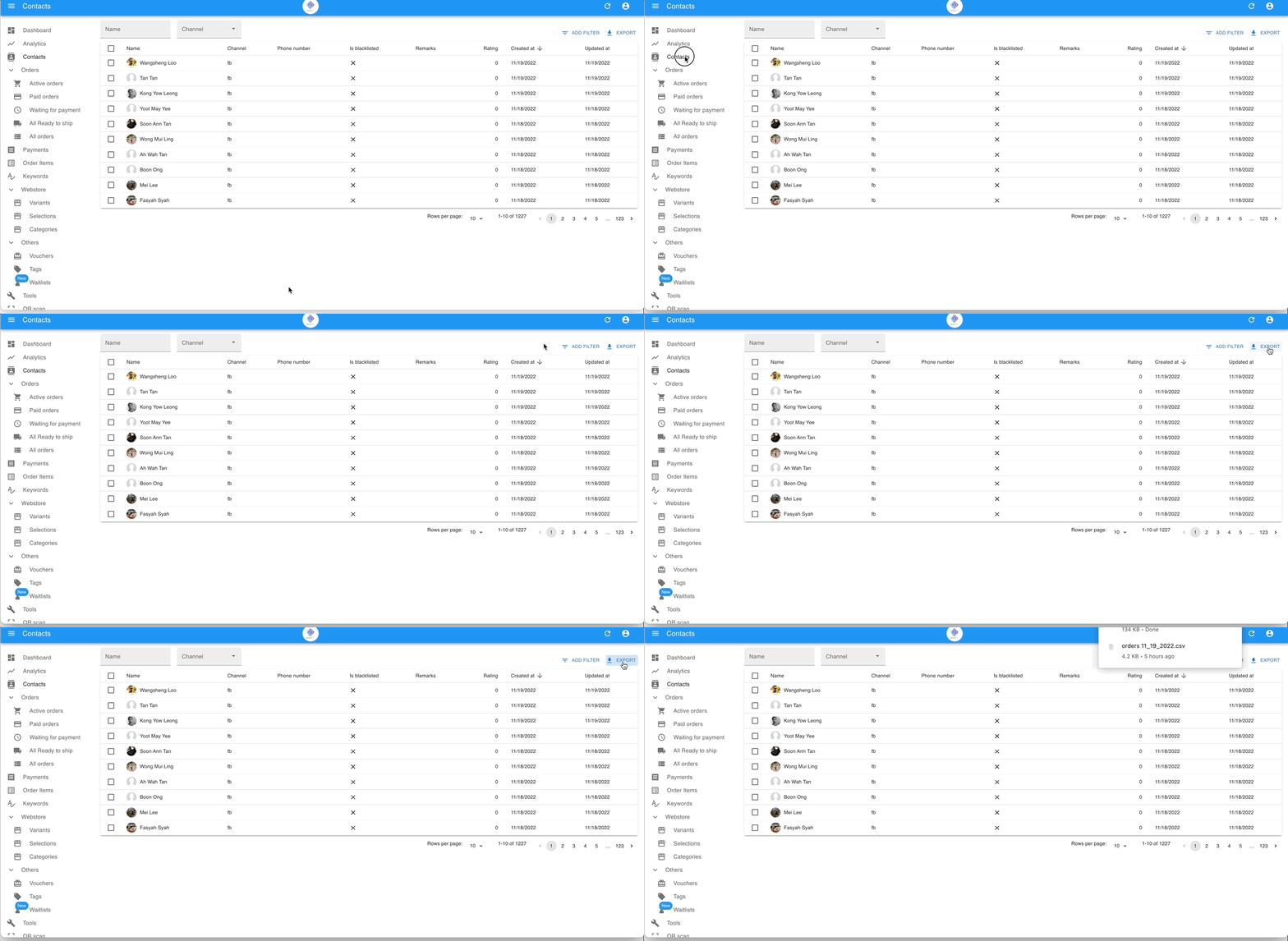
Section titled “Export basic customer info”- Go to Contacts.
- Click Export in the top right corner.
Export customer info with delivery addresses
Section titled “Export customer info with delivery addresses”A customer can have multiple orders shipped to different addresses, so address data is stored at the order level, not the contact level. To include addresses in your export, follow these steps.
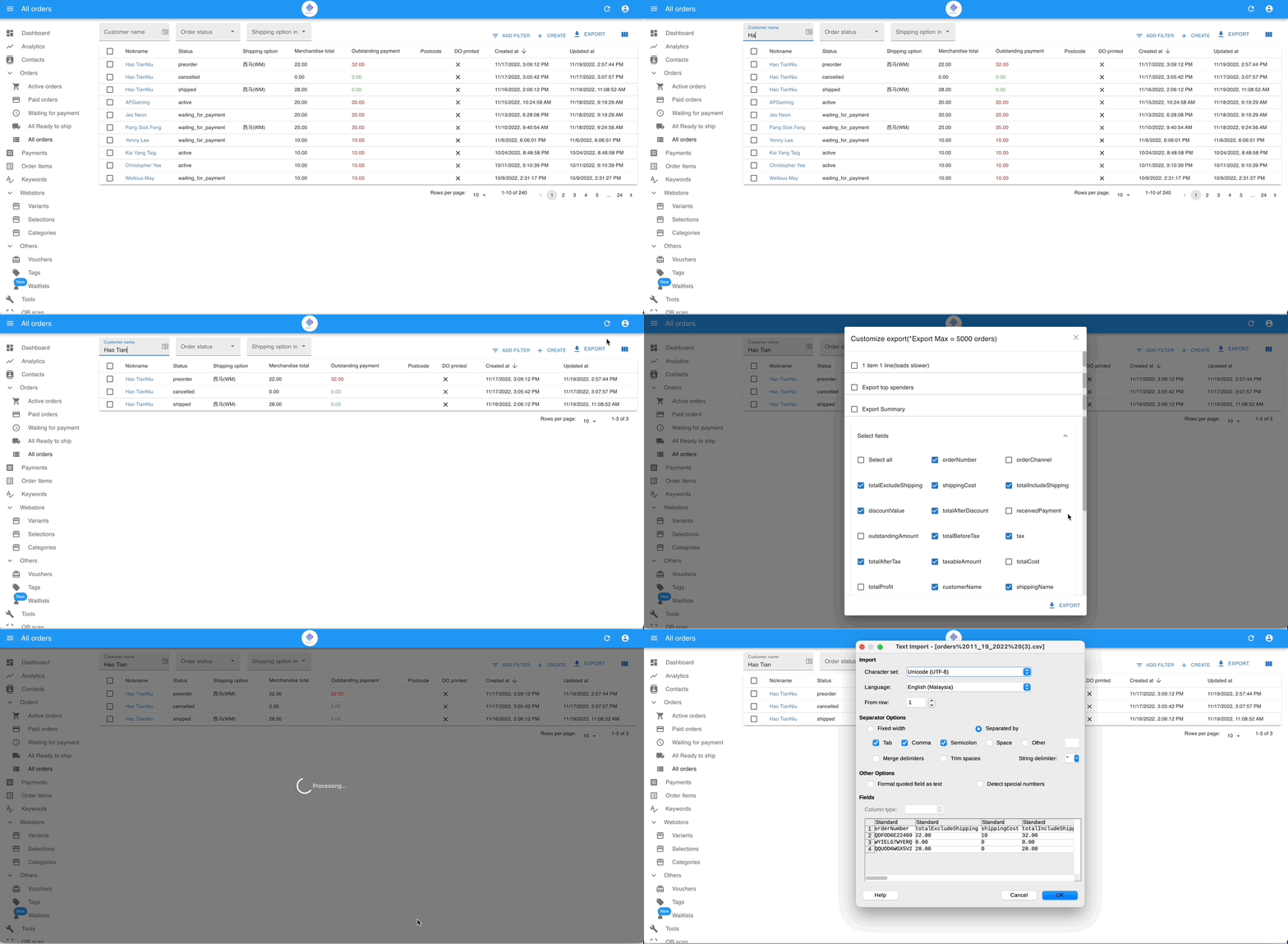
- Go to All Orders.
- Filter by the customer’s name.
- Click Export in the top right. This starts a background export job.
- Go to Others › Exports in the left menu, then click the download icon (
 ) next to the export file.
 - Select Export Standard, choose the fields you want in the file, and click EXPORT.
See also: