
Voucher Setup & Configuration
Vouchers let you offer discounts that customers apply during checkout. This guide explains how to create vouchers and set them up correctly.
Where to Find Voucher Settings
Section titled “Where to Find Voucher Settings”- Log in to the Boxify Dashboard.
- Go to Others in the menu.
- Click Vouchers.
Two Ways to Create a Voucher
Section titled “Two Ways to Create a Voucher”A. Single Voucher (Custom Code)
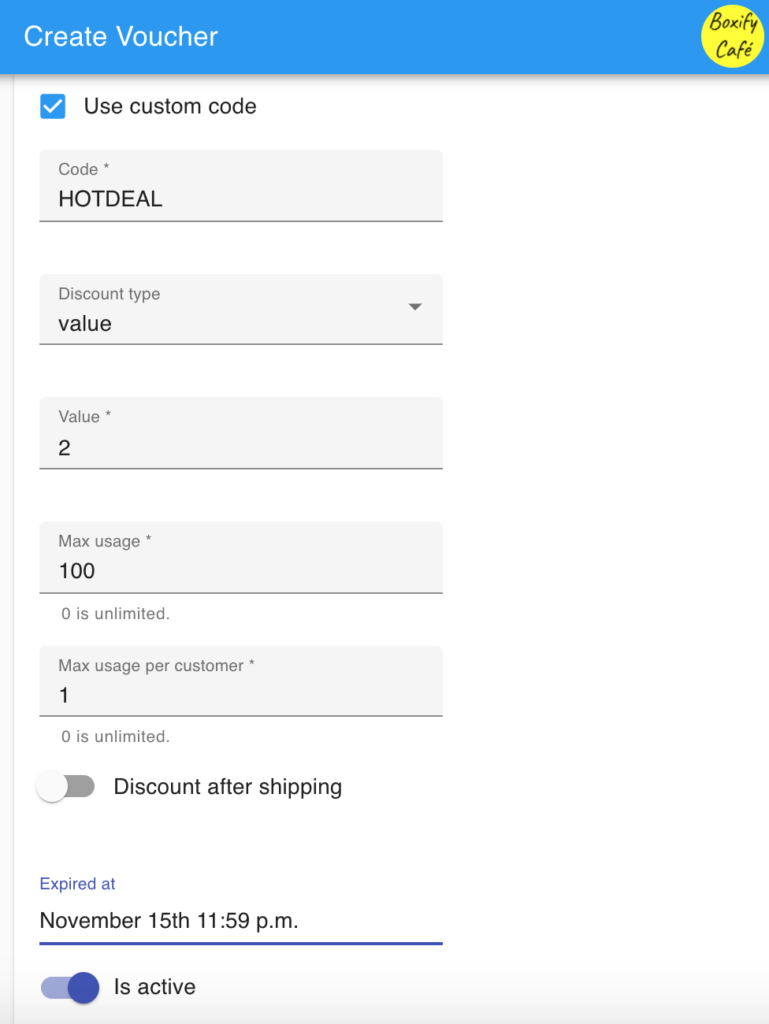
Section titled “A. Single Voucher (Custom Code)”Use this when you want one specific voucher code — for example, a flash sale code or an influencer code.
Best for:
- Public campaign codes
- Flash sales
- Influencer promotions
- Limited-time offers
You can set the voucher code, discount type, minimum purchase, and validity period.
B. Bulk Vouchers (Custom Prefix)
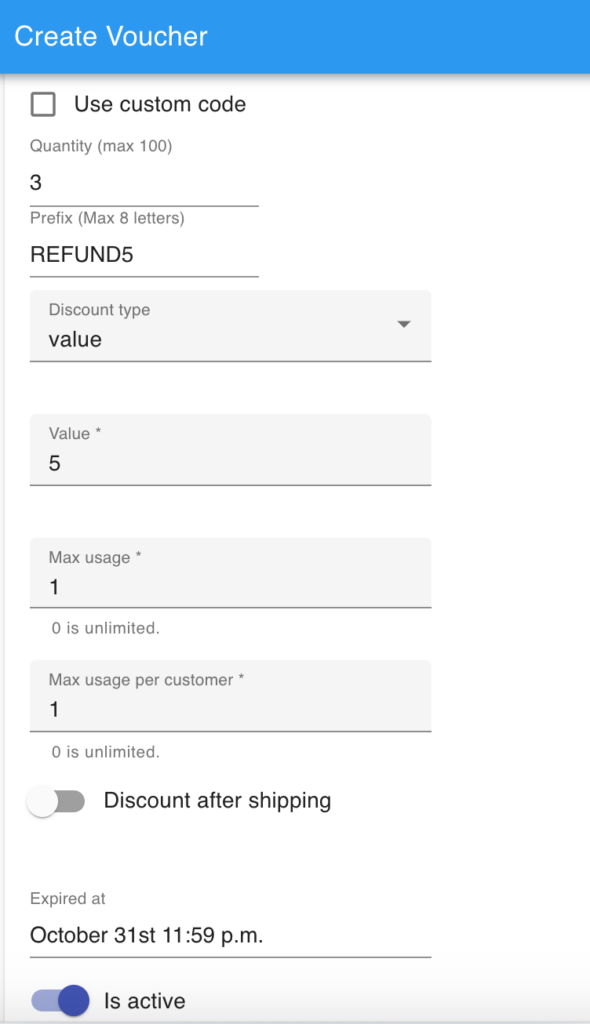
Section titled “B. Bulk Vouchers (Custom Prefix)”Use this to generate many unique codes at once — for example, one code per VIP customer.
Best for:
- VIP customer distribution
- Private campaigns
- Unique per-customer codes
- Controlled usage tracking
Tick Use custom code off to generate a batch. Set a Prefix (Max 8 letters) and a Quantity (max 500).
Batch limit: One generation creates a maximum of 500 vouchers. If you need more, run a second batch.
Key Settings Explained
Section titled “Key Settings Explained”Discount Type
Section titled “Discount Type”Choose one:
- Percentage discount (%) — discount grows with order value.
- Fixed amount discount (RM) — discount is always the same amount.
Max discount amount
Section titled “Max discount amount”Percentage vouchers only. This caps how large the discount can grow on a big order. Enter 0 for no cap.
Expiry Date
Section titled “Expiry Date”Set an expiry date to limit how long the voucher is active.
Minimum Purchase Amount
Section titled “Minimum Purchase Amount”Minimum purchase is calculated on item value only — shipping is not included. Enter 0 for no minimum.
Maximum Usage
Section titled “Maximum Usage”The total number of times the voucher can be used across all customers.
Example: Maximum Usage = 50. After 50 uses, the voucher stops working for everyone. Enter 0 for unlimited.
Use this setting to control the scale of your campaign.
Max Usage per Customer
Section titled “Max Usage per Customer”This limits how many times a single customer can use the same voucher.
- Set to 1 → each customer can use the voucher once.
- Set to 2 → each customer can use it twice in separate orders.
Use Max Usage per Customer = 1 for public promotions to prevent one person from claiming the discount repeatedly.
How Both Limits Work Together
Section titled “How Both Limits Work Together”| Setting | What it controls |
|---|---|
| Maximum Usage | Total uses across all customers |
| Max Usage per Customer | Uses by one individual customer |
Example: Maximum Usage = 100, Max Usage per Customer = 1 → 100 different customers can each use it once.
Discount Include Shipping
Section titled “Discount Include Shipping”This setting decides whether the discount is allowed to eat into the shipping fee as well as the items. It is ON by default.
- ON — the discount can be applied to the shipping fee too.
- OFF — the discount applies to the item subtotal only.
One Voucher Per Order
Section titled “One Voucher Per Order”Each order can have only one voucher applied.
Checklist Before Launching
Section titled “Checklist Before Launching”- Test with a sample order.
- Confirm the minimum purchase logic is correct.
- Verify the expiry behavior.
- Check the shipping fee calculation.
- Review the discount impact on your margin.
- Set Maximum Usage to a safe limit.
- Set Max Usage per Customer to match your campaign type.
See also: