
Webstore Keyword Pattern
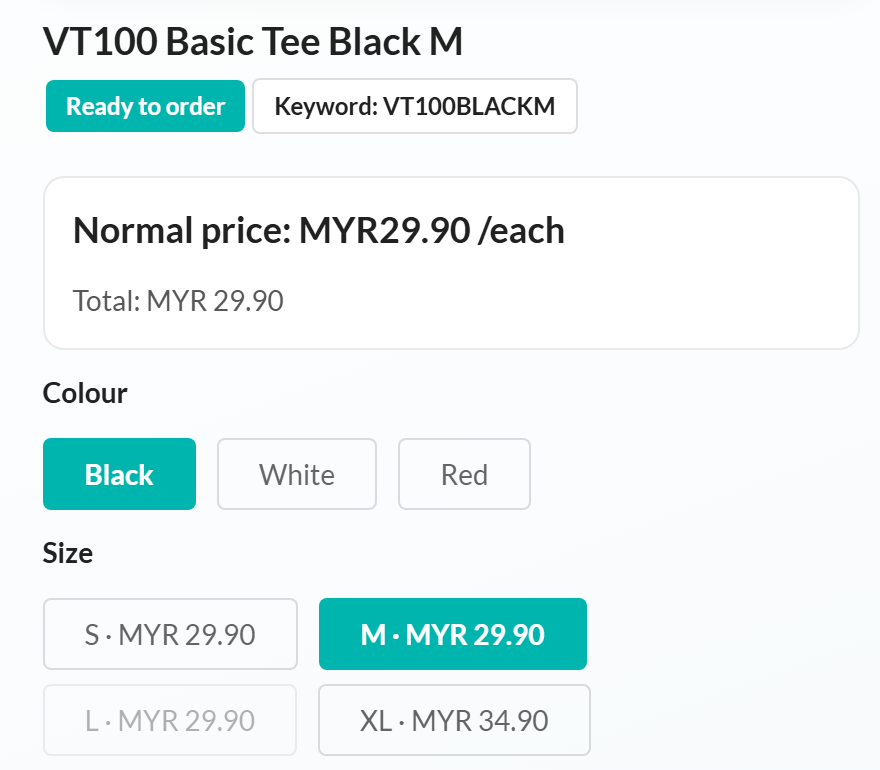
Many sellers create one keyword for each colour and size, for example VT100BLACKM and VT100REDL. A Webstore keyword pattern links these keywords together. On the webstore product page, customers tap a colour or size to switch to that keyword, like on Shopee.
How it works
Section titled “How it works”You tell Boxify how your keywords are written. For example: product code first, then colour, then size.
| Keyword | Code | Colour | Size |
|---|---|---|---|
VT100BLACKM | VT100 | Black | M |
VT100BLACKXL | VT100 | Black | XL |
VT100REDL | VT100 | Red | L |
VT300WHITE | VT300 | White | — |
Keywords with the same code are linked. In this example, the three VT100 keywords show up as one product with Colour and Size options. VT300WHITE has a different code, so it is linked only to other VT300 keywords.
You do not need to change your existing keywords. Boxify reads them as they are.
Set up your keyword pattern
Section titled “Set up your keyword pattern”- Go to Settings › General › Parameters.
- Tick Enable Webstore. The Webstore keyword pattern editor appears below it.
- Click Reset to default. This fills in Code, Colour and Size with common values.
- Check the blocks in the pattern bar. They must be in the same order as your keywords. To move a block, drag it by its handle (the ⋮⋮ dots).
- In each option row, type the values you use, separated by commas. For example:
Black, White, Red. - Click Save Settings at the bottom of the page.
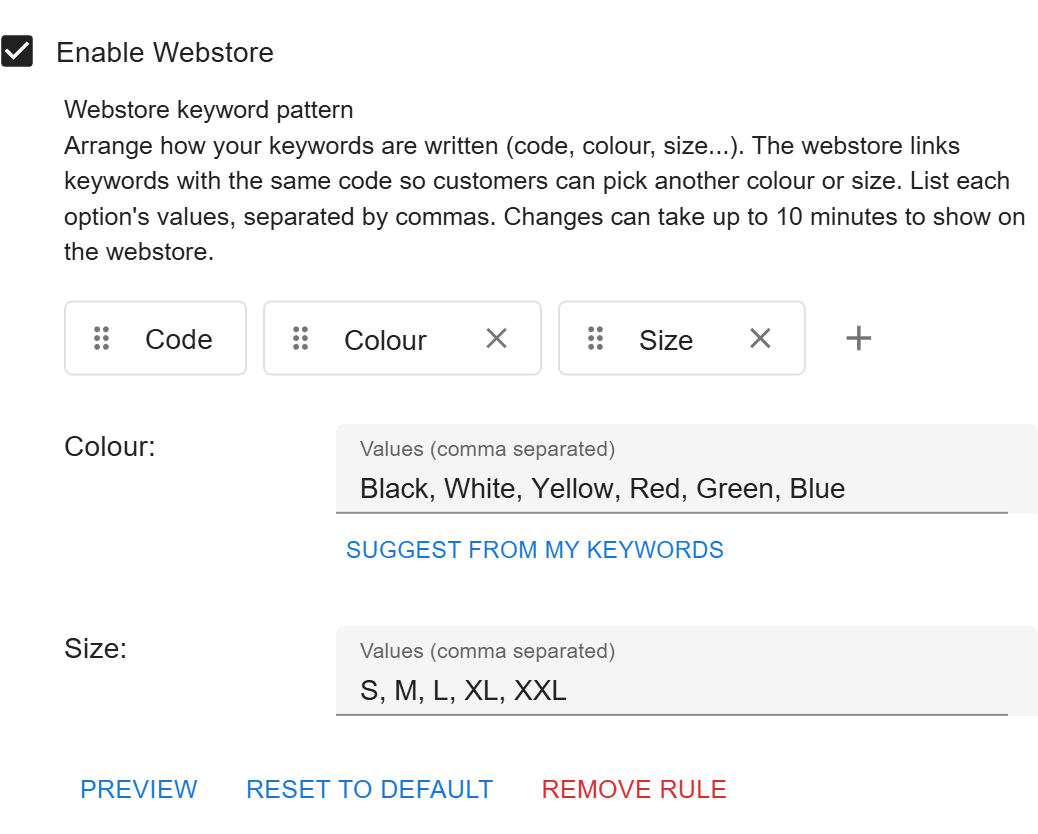
- Click + to add another option, for example “Length”. You can have up to 10 blocks, including Code.
- Click × on a block to remove that option.
- Click the option name to rename it. Customers see this name above the options.
- Capital letters, spaces and symbols do not matter.
Light Bluematches the keywordVT100LIGHTBLUEM.
Find values from your keywords
Section titled “Find values from your keywords”Not sure which colours you have used? Let Boxify look.
- Under the option right after Code (usually Colour), click Suggest from my keywords.
- Boxify checks your latest 500 keywords and lists words it does not recognise yet. The number shows how many keywords use each word.
- Click a word to add it to the values. For example, click NAVY (1) to add
NAVY. - Click Save Settings.
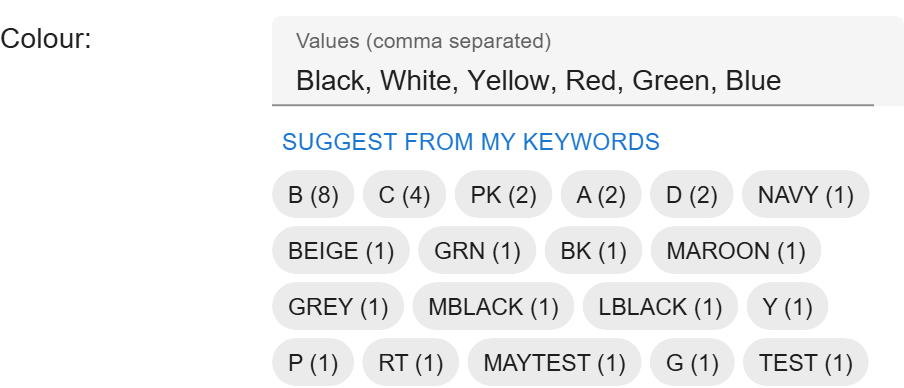
Only add words that are really colours (or sizes). Some suggestions, like B or C, may just be the end of a product code.
Check your pattern with Preview
Section titled “Check your pattern with Preview”Click Preview to see how Boxify reads your latest 50 keywords. You do not need to save first.
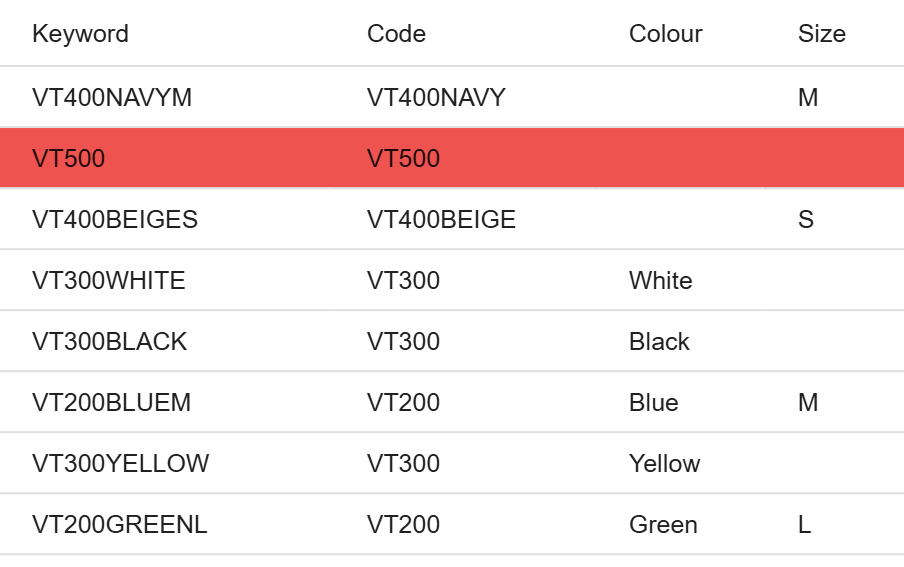
- Each row shows the code and options Boxify found in one keyword.
- A red row means Boxify found no code, or no option, in that keyword. That keyword will not get options on the webstore.
- In this example,
VT400NAVYMfound the size M but no colour, becauseNavyis not in the Colour values yet. AddNavyto fix it.
What customers see
Section titled “What customers see”When a customer opens a linked keyword on the webstore:
- The keyword’s own colour and size are already selected.
- Each size shows the price of that exact keyword. For example, XL · MYR 34.90.
- Tapping another colour keeps the same size when that combination exists.
- The page switches without reloading. The web address changes too, so sharing the link opens the same colour and size.
- Photos of all linked keywords are shown together. Tapping a colour jumps to its photo. Swiping through photos does not change the selection.
- The phone’s back button goes back to the page before the product, not through each colour and size.
Greyed-out options
Section titled “Greyed-out options”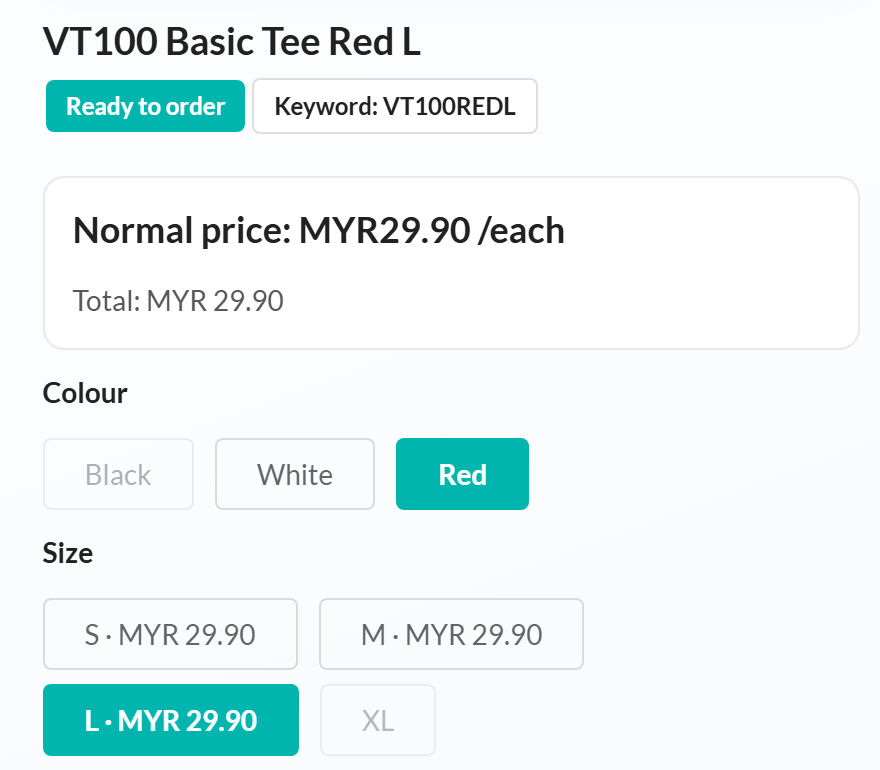
- Sold out — shown in grey but can still be tapped, so customers can join the waitlist. In this example, Black is grey because Black L is sold out.
- Not available — shown in grey and cannot be tapped. In this example, there is no Red XL on the webstore, so XL cannot be picked.
Keywords that are hidden from the webstore or not active are never shown as options.
Similar items
Section titled “Similar items”If your pattern cannot read a keyword, but other keywords start with the same code up to the last number, the webstore shows a simple Similar items list instead.
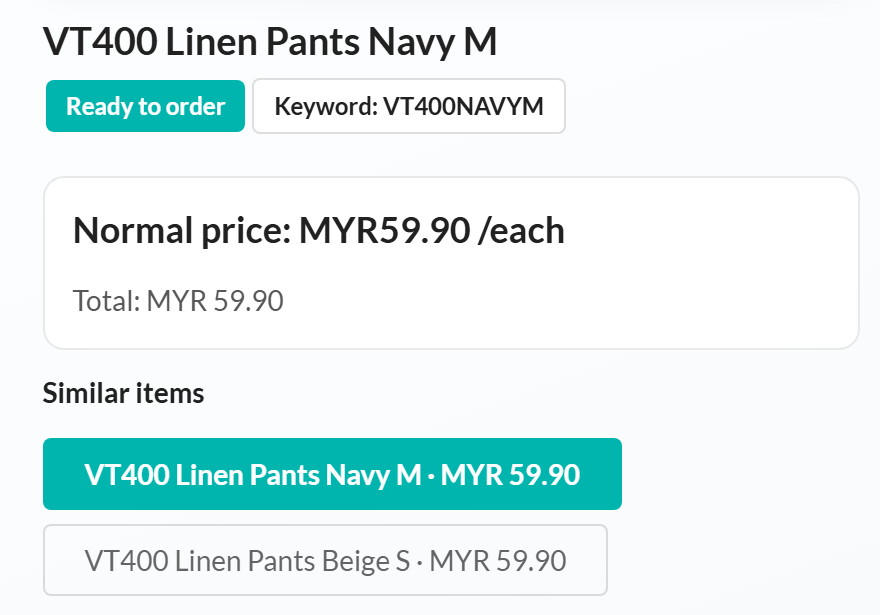
In this example, VT400NAVYM and VT400BEIGES are listed as similar items because Navy and Beige are not in the Colour values. Add them to show proper Colour and Size options instead.
Limits
Section titled “Limits”- Each option can have up to 200 values, each up to 50 characters.
- All values together can have up to 1000 characters.
- Option names must be different from each other.
If a limit is broken, a red message shows under the editor and Save Settings is disabled until you fix it.
Remove the pattern
Section titled “Remove the pattern”- Click Remove rule.
- Click Save Settings.
The webstore stops showing options within 10 minutes. Your keywords are not changed.