
Loyalty Points
Loyalty Points rewards customers who keep buying from you. Every paid order earns points, and your customer turns those points into store credit to spend on a later order.
Points are off until you switch them on.
How it works
Section titled “How it works”- You set how many points a customer earns per RM 1 spent, and how much each point is worth.
- A customer buys and pays. Once you mark the order Shipped, the points are added to their balance.
- On their order page the customer sees their points and taps Redeem.
- The points become store credit, which they use to pay for an order.
Step 1: Turn on Credit Payment first
Section titled “Step 1: Turn on Credit Payment first”Redeemed points become store credit. If credit payment is off, your customer collects credit they cannot spend.
- Go to Settings › General › Parameters.
- Switch on Enable Credit Payment.
- Click Save.
Step 2: Set up your points
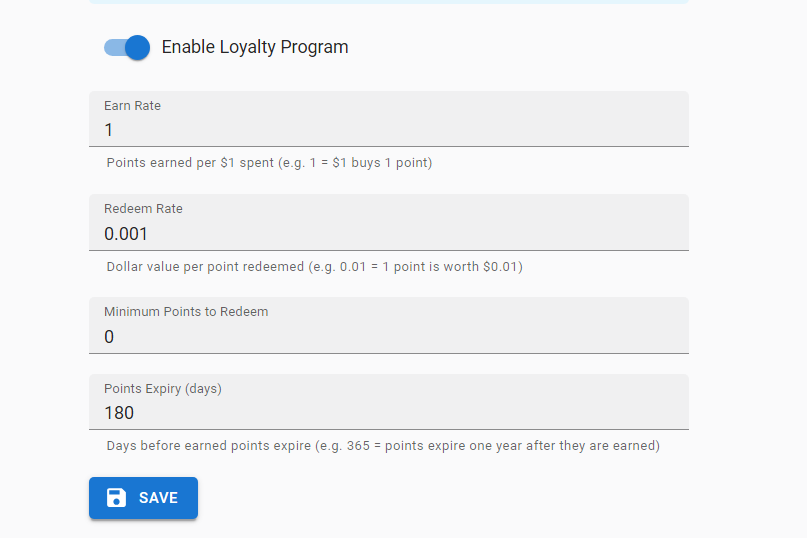
Section titled “Step 2: Set up your points”- Go to Settings › Loyalty Points.
- Switch on Enable Loyalty Program.
- Fill in the settings.
- Earn Rate — Points earned per RM 1 spent.
1means RM 1 spent gives 1 point. - Redeem Rate — What one point is worth in ringgit.
0.01means 1 point is worth RM 0.01, so 100 points is RM 1. - Minimum Points to Redeem — Customers below this number cannot redeem yet. Set
0for no minimum. - Points Expiry (days) — How long points last after they are earned.
365means points expire one year after the order.
- Click Save.
When points are earned
Section titled “When points are earned”Points are added only when all of these are true:
- The order status becomes Shipped.
- The order was actually paid, and not with store credit.
- The order has not earned points before. Each order earns points once only.
Some details worth knowing:
- The shipping fee counts, because it is part of what the customer paid.
- Store credit never earns points. On an RM 100 order paid with RM 50 credit and RM 50 cash, only the RM 50 cash earns points.
- Points are rounded down. With Earn Rate
1, an RM 10.80 payment earns 10 points. - Points are counted from the payments recorded on the order, and are not capped by the order value. If RM 200 of payments is recorded by mistake on an RM 100 order, points are given on the full RM 200 — so keep your payment records clean.
How your customer redeems
Section titled “How your customer redeems”- The customer opens their order page.
- Under the order total they see Points balance and what it is worth, for example
250 (MYR 2.50). - They tap Redeem and confirm.
- All their points convert to store credit at once, and the credit is ready to use at checkout.
If the customer has fewer points than your Minimum Points to Redeem, they still see the balance but no Redeem button, along with a note reading Redeemable from 500 points.
Points that expire within the next 30 days are shown as expiring soon, so the customer knows to use them.
Check or fix a customer’s points
Section titled “Check or fix a customer’s points”-
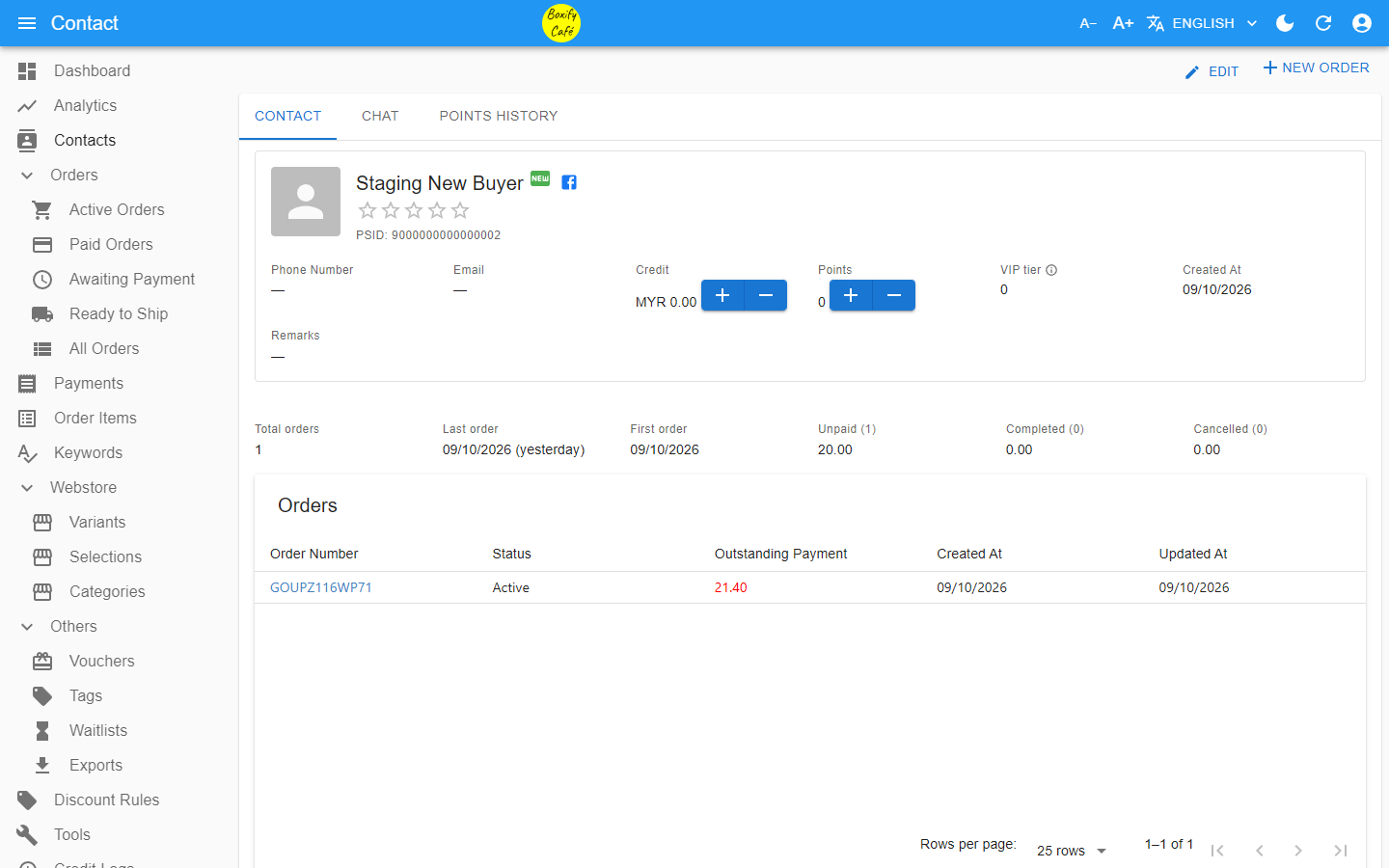
Go to Contacts and open the customer.
-
On the Contact tab, look for Points.
-
Click + to add points, or − to remove them. Enter the number of points and a note explaining why, then click Save.
-
Open the Points history tab to see every change: where it came from, how many points, the ringgit amount, the order, your note, and the date. Manual changes show the name of the staff member who made them.
If the + and − buttons are greyed out, you do not have permission to adjust points. Ask your Facebook Page admin to grant it.
Switching the program off
Section titled “Switching the program off”Switch off Enable Loyalty Program and the points row disappears for your customers, and no new points are earned or redeemed. Nothing is deleted — every balance comes back untouched when you switch it on again.
See also: