
Skynet Malaysia
Link your Skynet account to Boxify so you can create shipments, print labels, and schedule pickups.
Set up the shipping profile
Section titled “Set up the shipping profile”- Make sure you already have a Skynet account.
- Log in to Boxify and go to Settings › Shipping › Shipping Profiles.
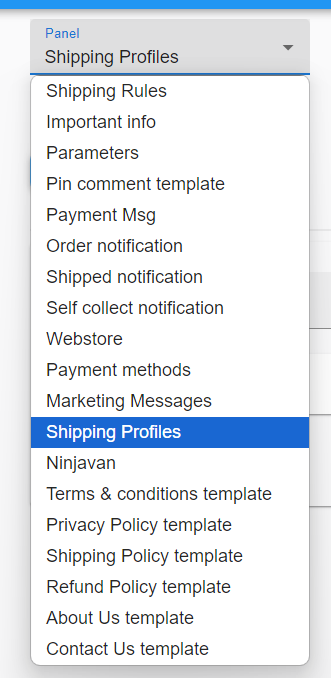
- Click Create New Profile and fill in all required fields, then click Save.
Get your Skynet credentials
Section titled “Get your Skynet credentials”- Log in to your Skynet portal.
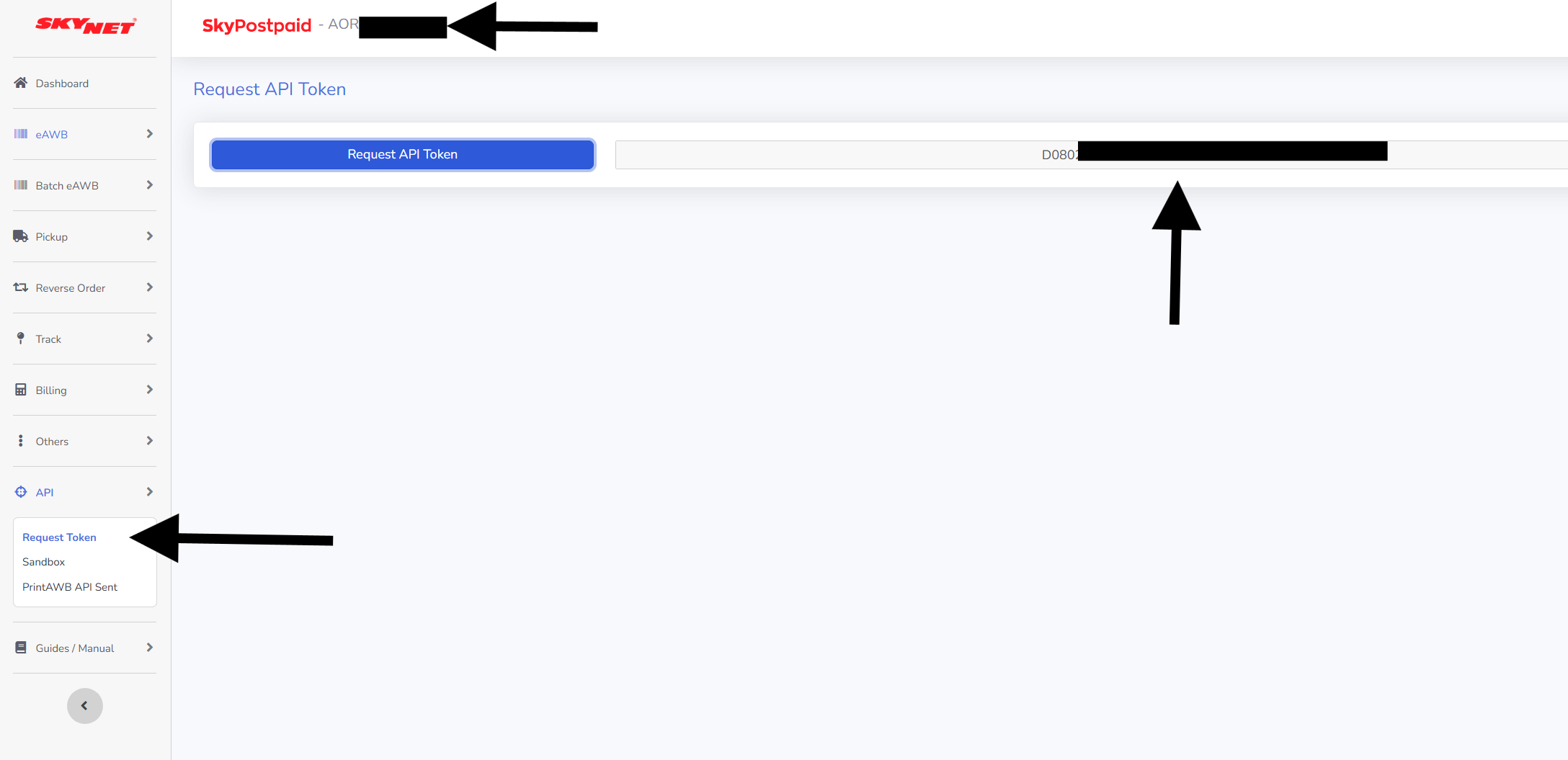
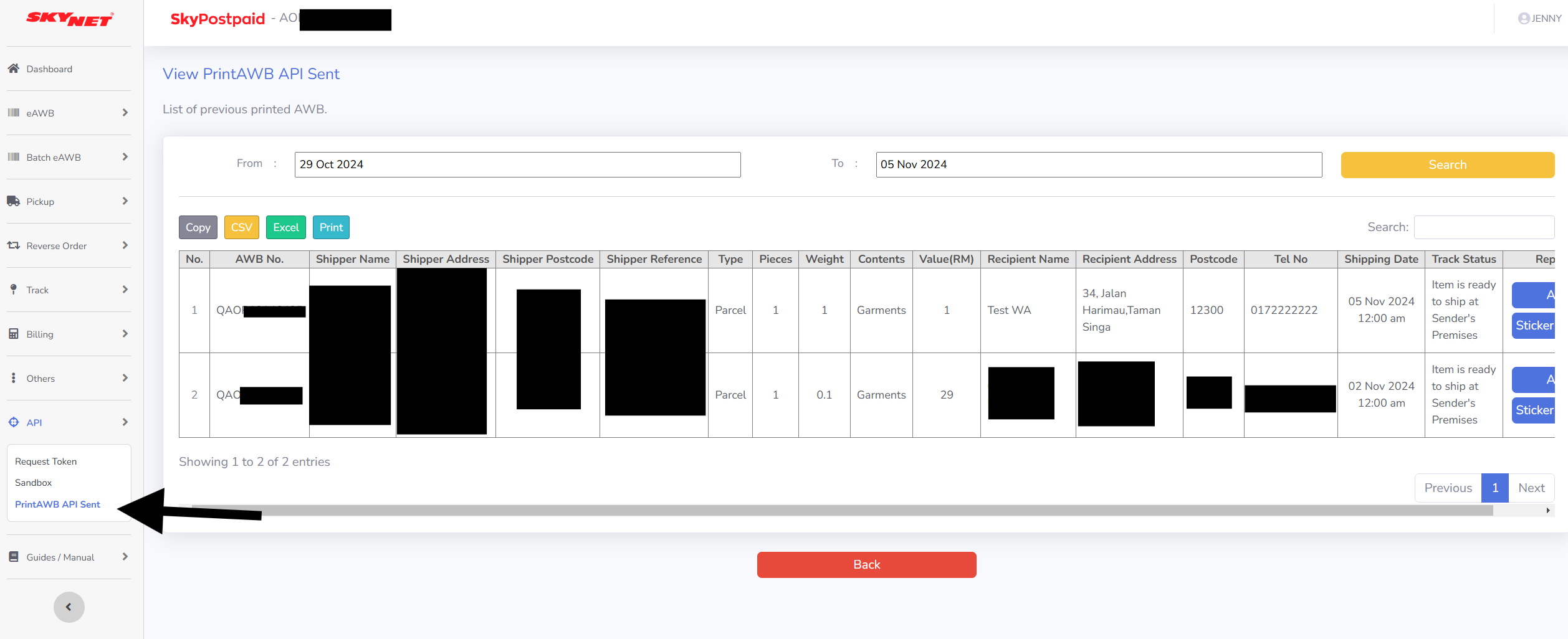
- Go to the API section and select Request Token.
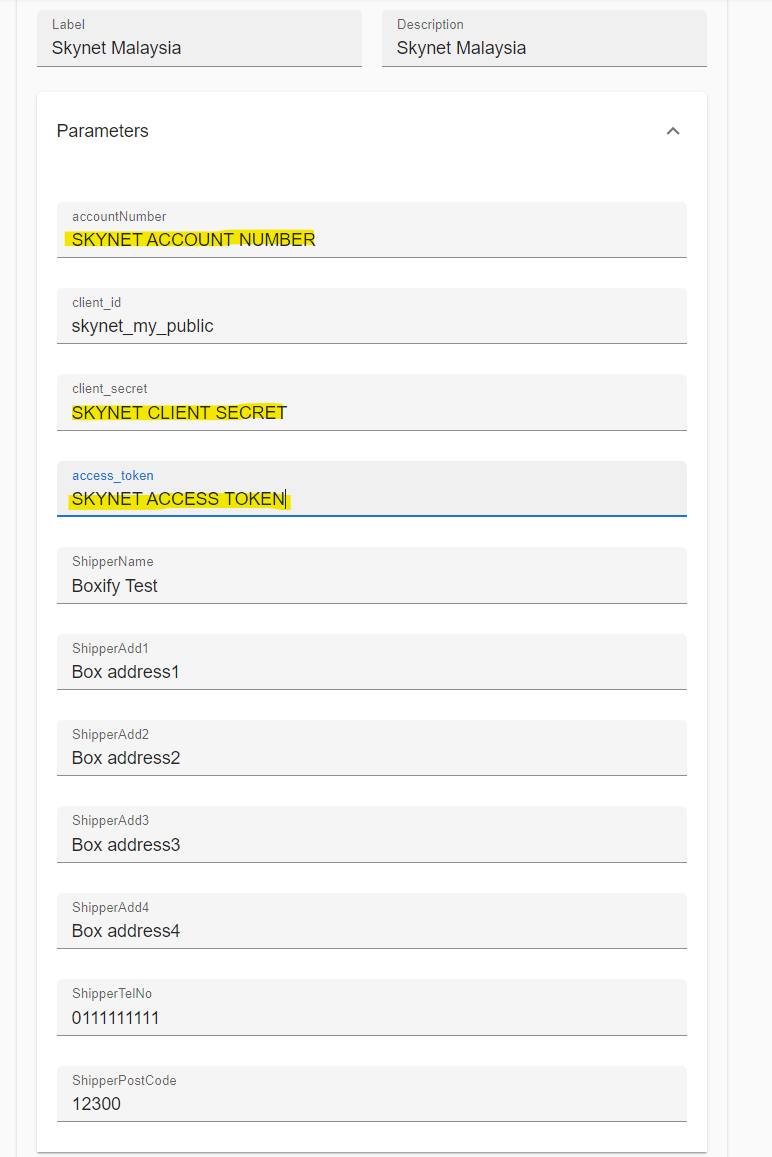
- Copy the accountNumber shown at the top of the screen.
- Click Request API Token to generate your access token.
- Enter skynet_my_public in the client_id field in Boxify.
- Paste the generated API token into both the client_secret and access_token fields in Boxify.
- Save the shipping profile.
Ship an order with Skynet
Section titled “Ship an order with Skynet”- Go to your orders list — for example, All Orders.
- Select the order you want to ship.

- Click Courier in the top bar and select Skynet.
- Choose one of the four actions:
-
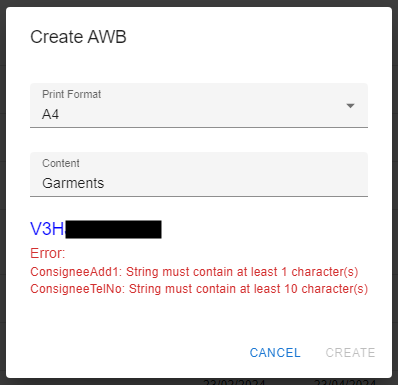
Create AWB — Create a shipping label (airwaybill) for the selected orders. The system shows an error if any shipping fields are incomplete.
-
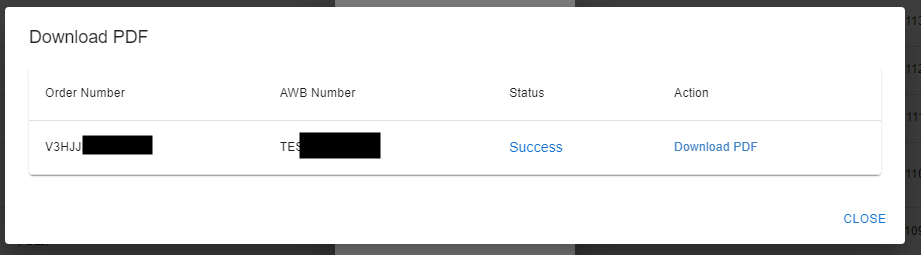
Download AWB PDF — Re-download a label you created earlier. Labels are grouped by batch — if you created 10 labels in one batch, they download as a single PDF.
-
Create Pickup — Schedule a pickup so Skynet collects your parcels from your location.
-
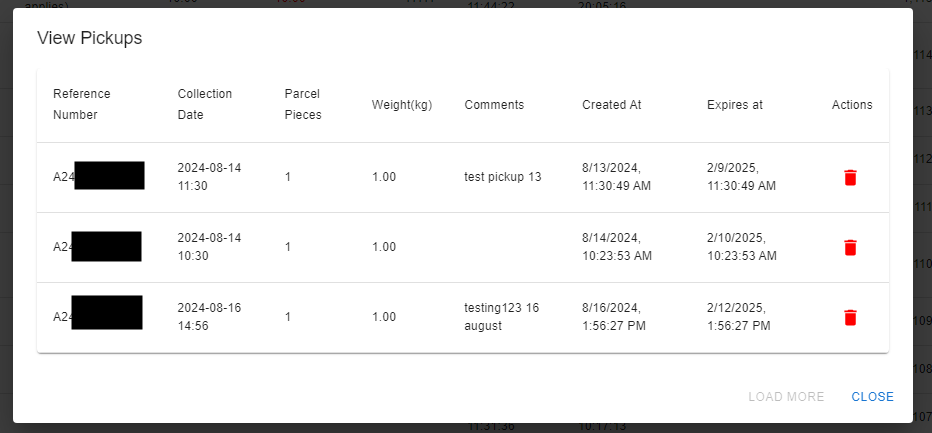
View Pickups — Review and manage pickups you have already scheduled.
-