
Find Orders and Items
Boxify gives you two lists to search: All Orders for whole orders, and Order Items for the individual items inside them. Both use the same ADD FILTER button.
The order lists in the left menu
Section titled “The order lists in the left menu”Under Orders you will find five lists. Four of them are All Orders with a status filter already applied and locked.
| List | What it shows |
|---|---|
| Active Orders | Orders that can still stack: Active, Waiting for payment, Waiting for online payment, Paid, and On hold. |
| Paid Orders | Orders with the status Paid. |
| Awaiting Payment | Orders with the status Waiting for payment or Waiting for online payment. |
| Ready to Ship | Orders with the status Ready to ship. |
| All Orders | Every order, with no status locked. |
Filter the All Orders list
Section titled “Filter the All Orders list”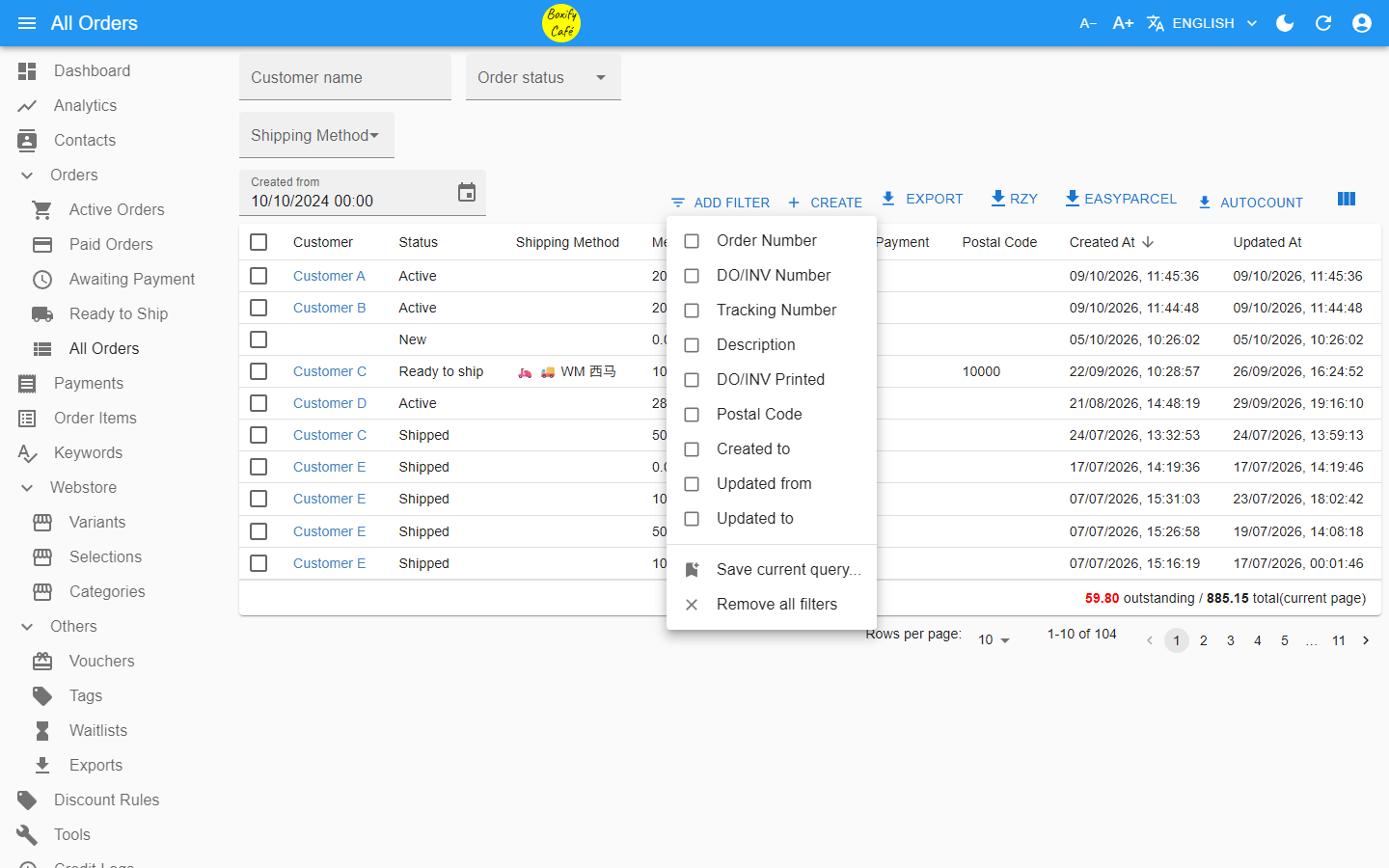
- Go to Orders › All Orders.
- Click ADD FILTER and choose a filter.
- Enter your search value. Add more filters to narrow the results further.
Available filters
Section titled “Available filters”| Filter | What it searches |
|---|---|
| Customer name | The buyer’s name |
| Order Number | Unique order identifier |
| DO/INV Number | Delivery order or invoice number (numbers only) |
| Tracking Number | Courier tracking reference |
| Description | Item description |
| Order status | Current status of the order |
| Shipping Method | The shipping method selected |
| DO/INV Printed | Whether the DO or invoice has been printed |
| Postal Code | Customer’s postcode (numbers only) |
| Created from / Created to | Date and time the order was created |
| Updated from / Updated to | Date and time the order was last updated |
An update can be any change made to the order — such as item status, price, description, order status, shipping option, override shipping, DO/INV printed, tracking number, or image upload.
Filter the Order Items list
Section titled “Filter the Order Items list”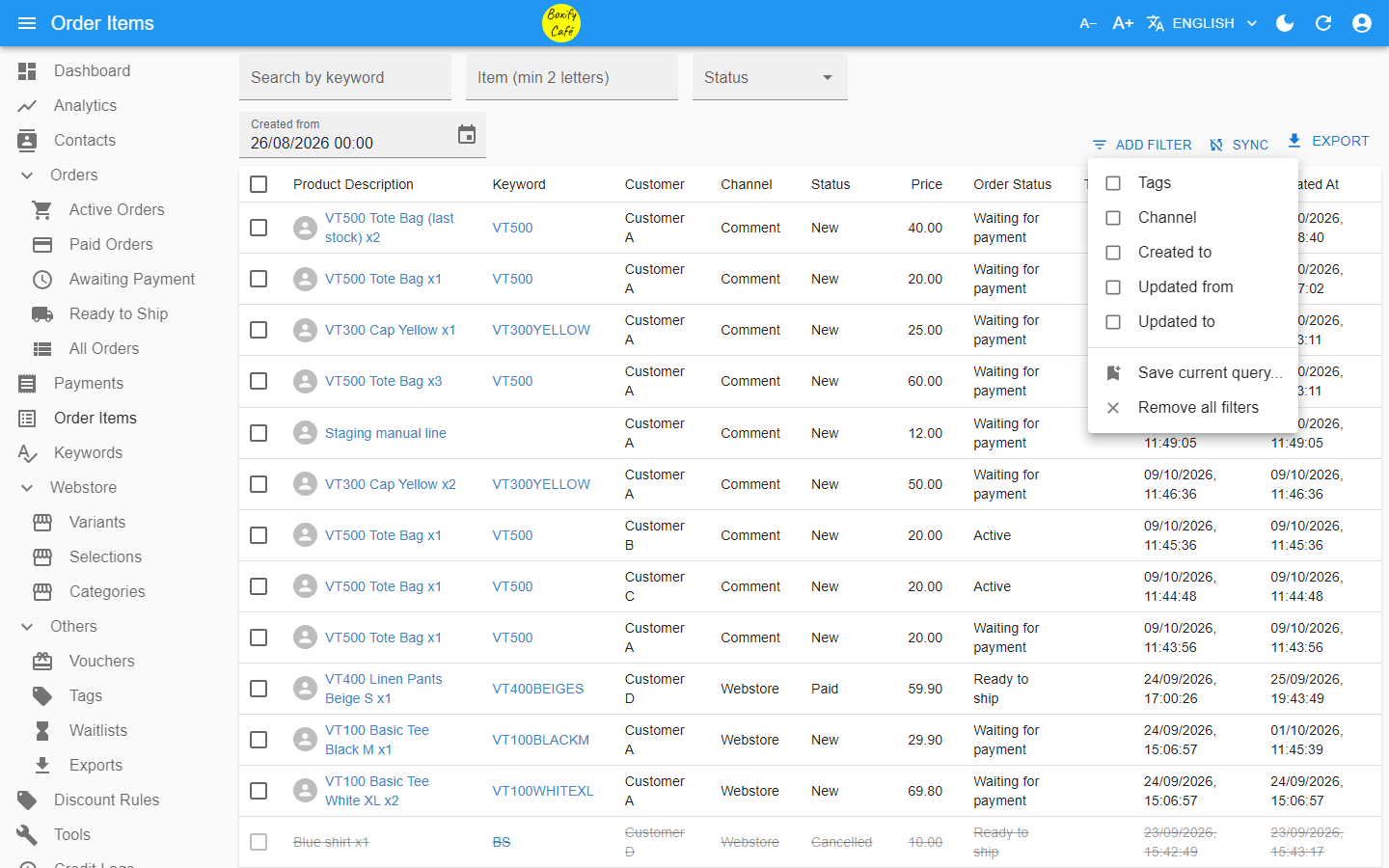
- Go to Order Items in the left menu.
- Click ADD FILTER and choose a filter.
Available filters
Section titled “Available filters”| Filter | What it searches |
|---|---|
| Search by keyword | The keyword used to order the item |
| Item | The item itself |
| Tags | Your internal order item tags |
| Status | The item status — New, Paid, or Cancelled |
| Channel | Where the order came from |
| Created from / Created to | Date and time the order was created |
| Updated from / Updated to | Date and time the item was last updated |
An update can be any change made to the item, such as status, price, description, quantity, weight, or cost.
Find one order by its order number
Section titled “Find one order by its order number”If a customer’s Facebook name has special characters, or the customer changed their name after placing an order, searching by name will not work. Use the order number instead — every order has a unique number that never changes.
Where to find the order number
Section titled “Where to find the order number”From the payment link in Messenger — the order number appears in the shopping cart message sent to the customer.
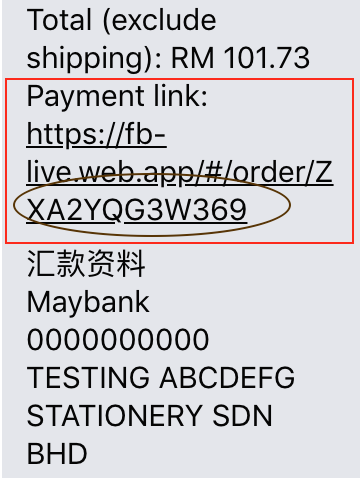
Messenger > Shopping Cart sent to customer
From the order view — open any of the order lists, then click the customer’s name. The order opens in a new tab, and the Order number is shown in the summary on the SUMMARY tab.
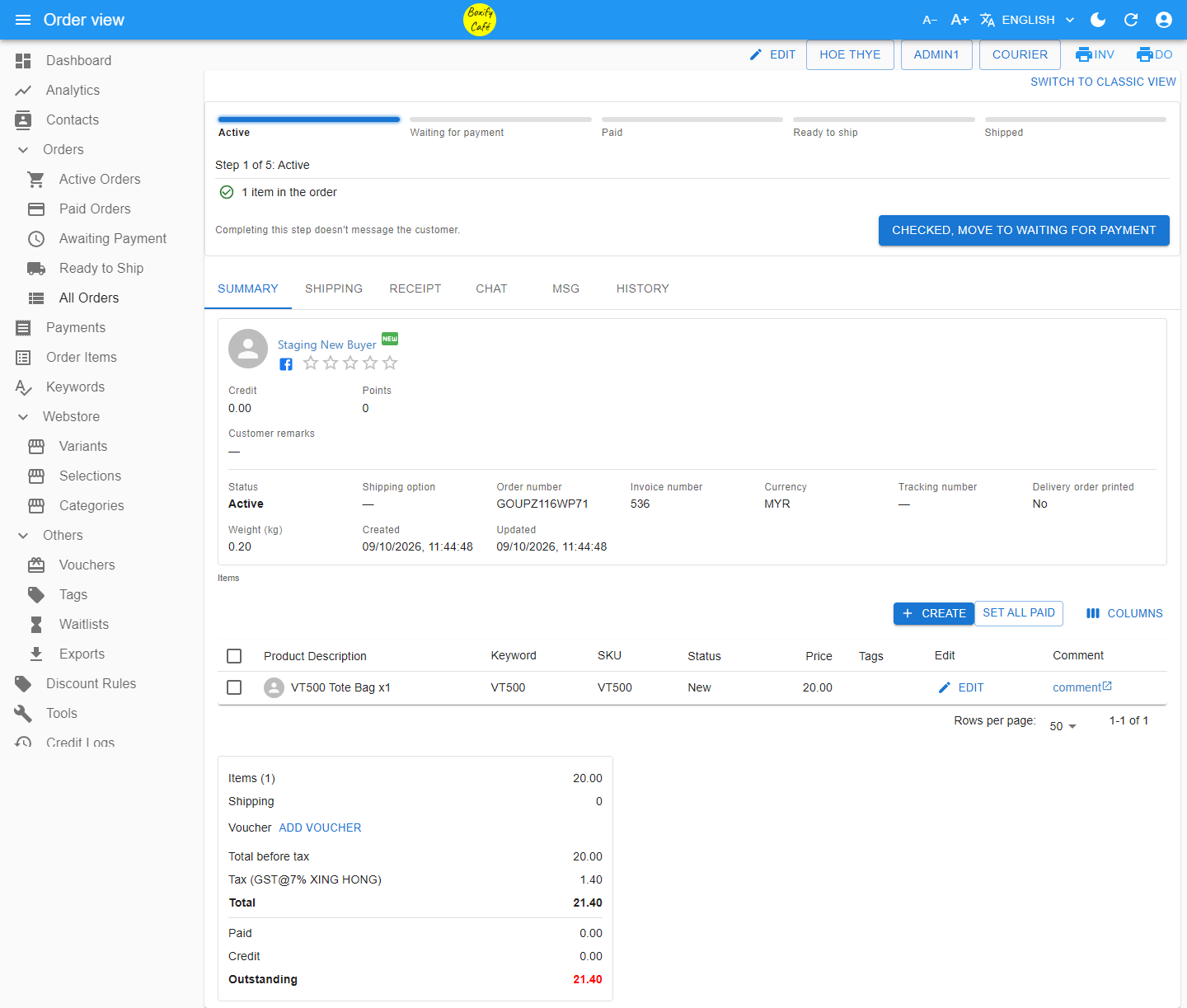
Admin Panel > Orders > click customer name
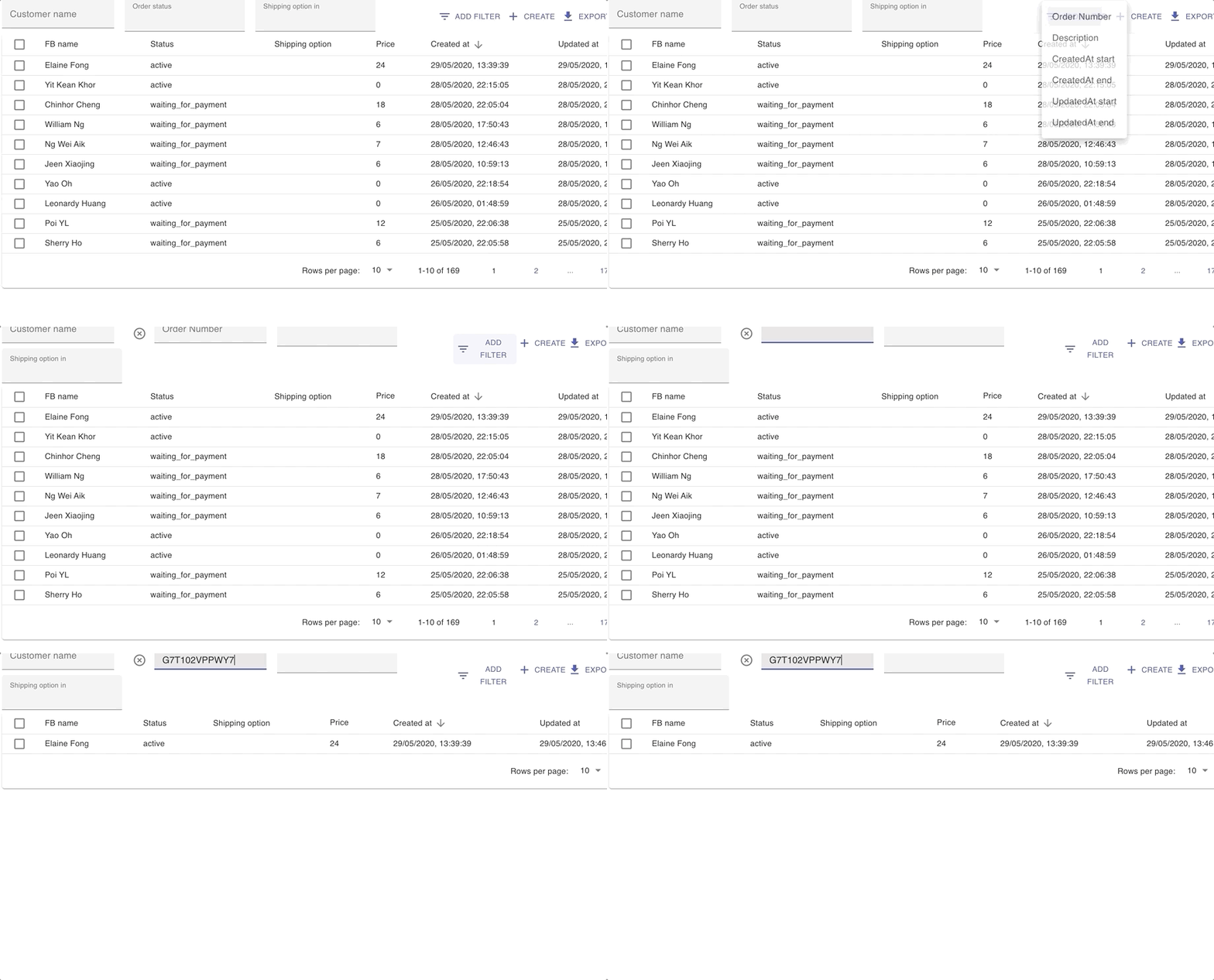
Filter by order number
Section titled “Filter by order number”- Go to Orders › All Orders.
- Click ADD FILTER and select Order Number.
- Enter the order number to find the order.
See also: