
EasyParcel
Export your orders from Boxify, upload them to Easyparcel, then bulk-import the tracking numbers back into Boxify to mark orders as shipped.
Step 1: Export orders from Boxify
Section titled “Step 1: Export orders from Boxify”- Go to All Ready to Ship, apply any filters you need, then click Export in the top right.
- Click Exports in the left menu.
- Click the download icon (
 ) next to the export file and select Easy Parcel.
 - Fill in your sender details in the pop-up window, then click Export.
Step 2: Upload the CSV file to Easyparcel
Section titled “Step 2: Upload the CSV file to Easyparcel”Upload the CSV file you just downloaded to Easyparcel.

Step 3: Bulk-upload tracking numbers back to Boxify
Section titled “Step 3: Bulk-upload tracking numbers back to Boxify”Once Easyparcel provides tracking numbers, upload them to Boxify to update your orders.
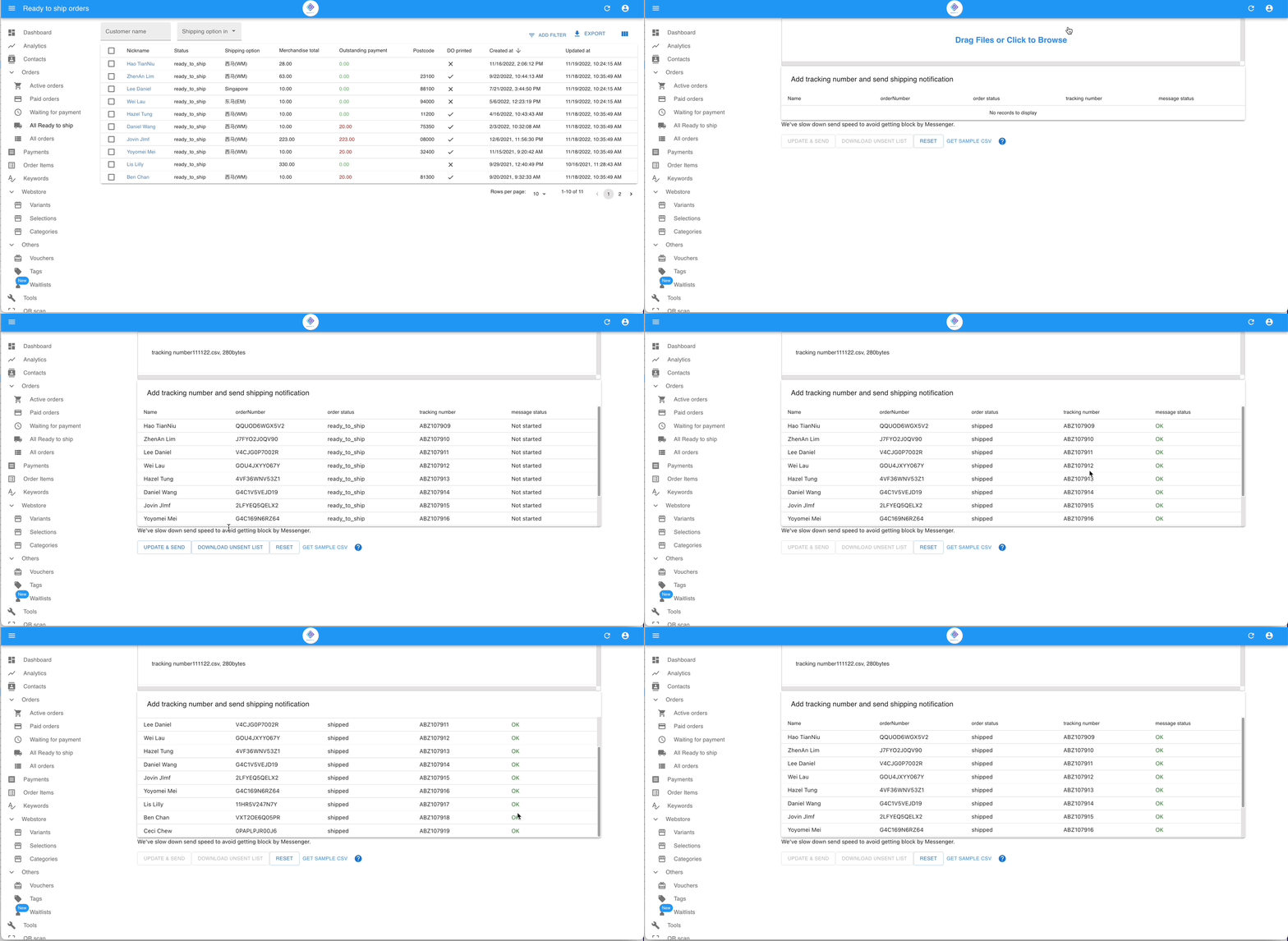
- Go to Tools › Bulk Upload Tracking.
- Upload the CSV file containing the tracking numbers, then click Update & Send.
Boxify updates each order status to Shipped automatically.