
Delivery Order & Invoice Fields
These settings control what information appears on your printed delivery orders (DO) and invoices.
Go to Settings › General › Parameters and scroll to DO & Invoice Settings to access these options.
Company Letterhead
Section titled “Company Letterhead”If you fill in the letterhead field, your company name and logo will appear at the top of every printed delivery order and invoice.
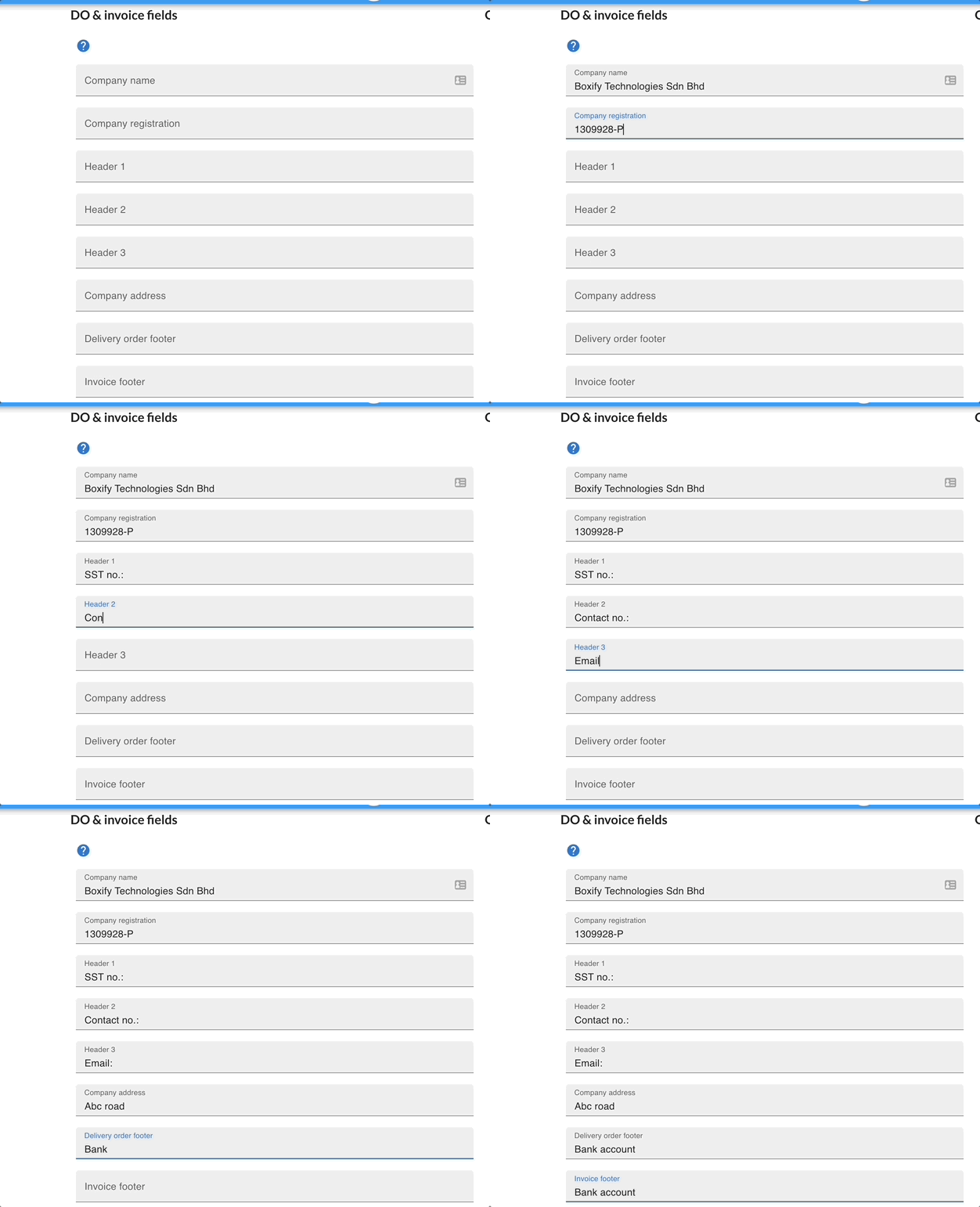
The footer is optional. You can use it to show your bank account details so customers know how to pay you.
Show price on delivery order
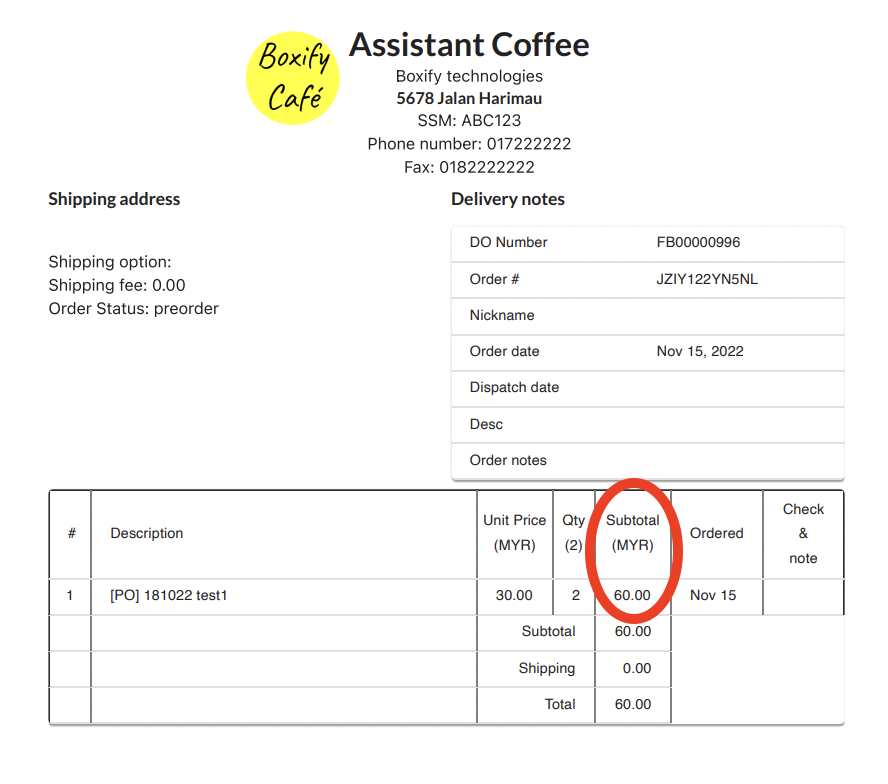
Section titled “Show price on delivery order”Tick this checkbox to show the product price on the delivery order. By default, only the purchased quantity is shown.
Hide unit price on delivery order
Section titled “Hide unit price on delivery order”Tick this checkbox to hide the product price from the delivery order.

Show total weight on DO and invoice
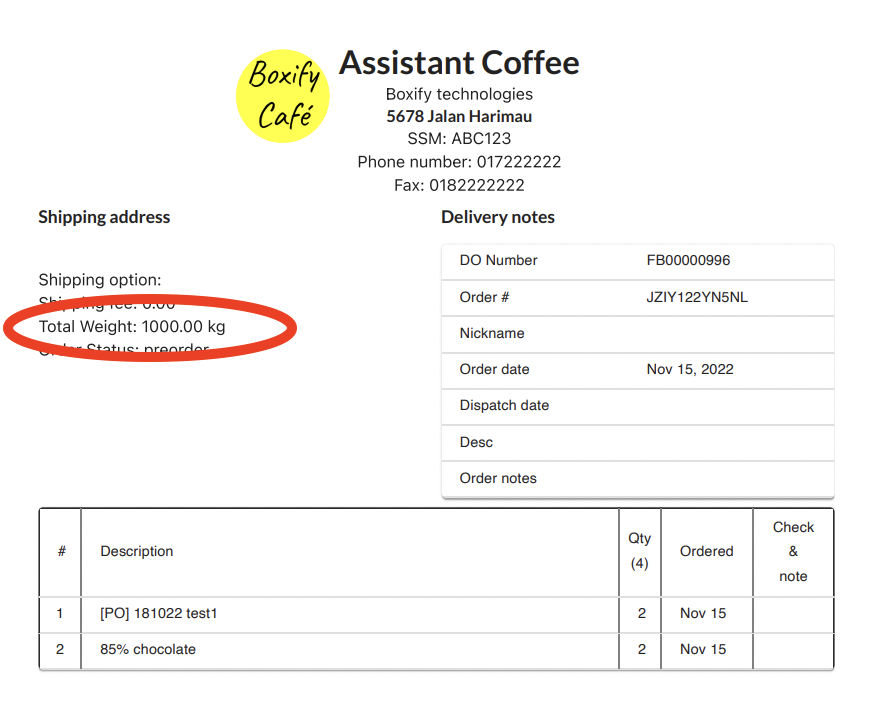
Section titled “Show total weight on DO and invoice”Tick this checkbox to show the total weight of the order on both the delivery order and invoice.
Show print invoice button
Section titled “Show print invoice button”Tick this checkbox to show a Print Invoice button when you open an order. This lets you print both the invoice and the delivery order at once.

Show product image on DO and invoice
Section titled “Show product image on DO and invoice”Tick this checkbox to include the product image on the printed delivery order and invoice.

Enable thermal receipt
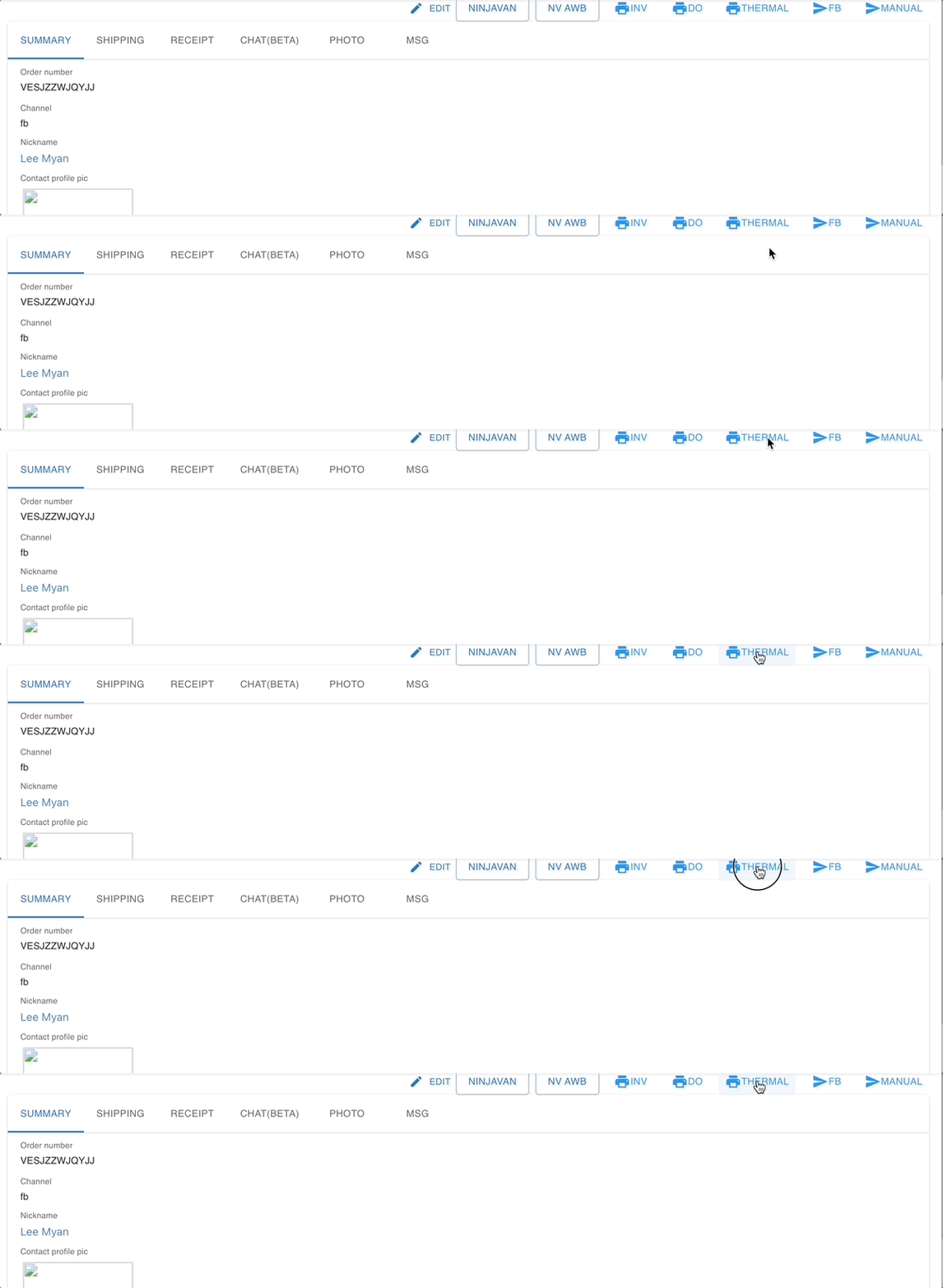
Section titled “Enable thermal receipt”Tick this checkbox to enable thermal receipt printing. Once enabled, a thermal print icon will appear inside the order. Click that icon and select your thermal printer to print.
Sort items alphabetically on DO and invoice
Section titled “Sort items alphabetically on DO and invoice”Tick this checkbox to display items in alphabetical order on the delivery order and invoice.

See also: