Export Reports
Boxify reports are CSV files you export from your orders or order items. Use them to see how your items are selling, how much money you collected, which orders need follow-up, and who your best customers are. Open the files in Excel or LibreOffice — see Work with Boxify Exports in Excel.
Which report to run
Section titled “Which report to run”| Report | Start from | Filters | What it shows |
|---|---|---|---|
| Sales report | Dashboard or Order Items | Item status New and Paid, plus start and end date | How your items sell over a day, week, or month, so you can see which periods perform best. |
| Payment received report | Order Items | Item status Paid, plus start and end date | Total payments collected over a day, week, or month, for items where payment reconciliation is complete. |
| Order status report | All Orders | The order status you want, plus start and end date | How many orders are in each stage, so you can spot stuck orders and follow up with customers. |
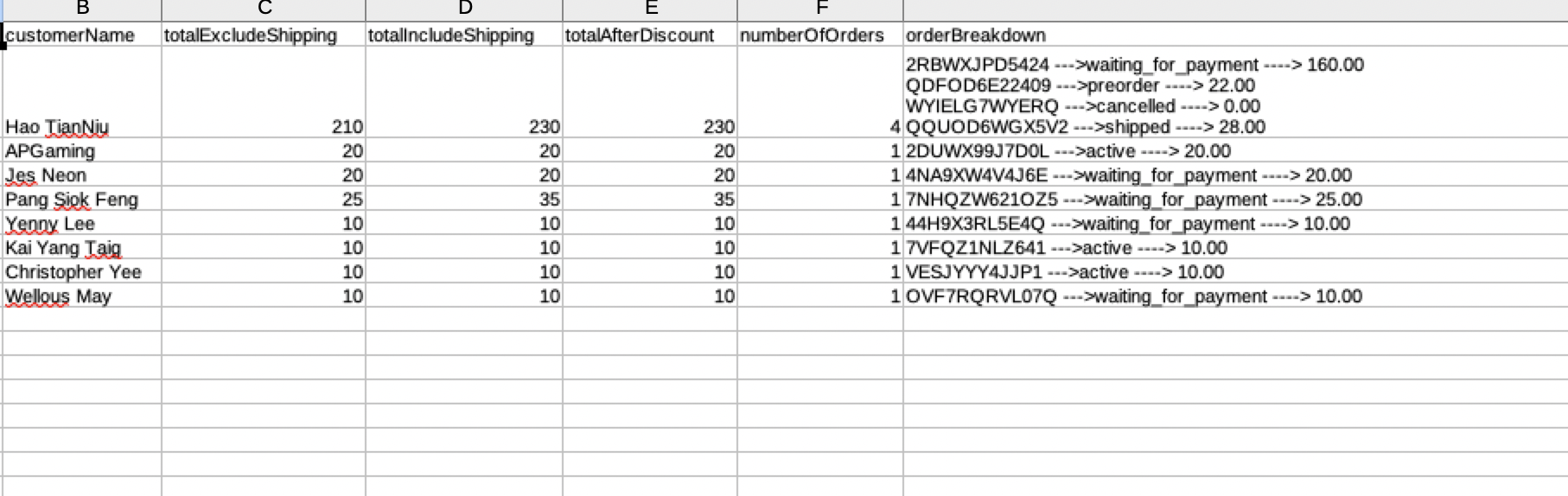
| Top spenders report | All Orders | Order status and start and end date | Your customers ranked by total amount spent, for loyalty programs, VIP rewards, and marketing campaigns. |
For revenue and pending revenue exports, see About Revenue.
Export a sales or payment received report
Section titled “Export a sales or payment received report”These two reports download straight from the order items list.
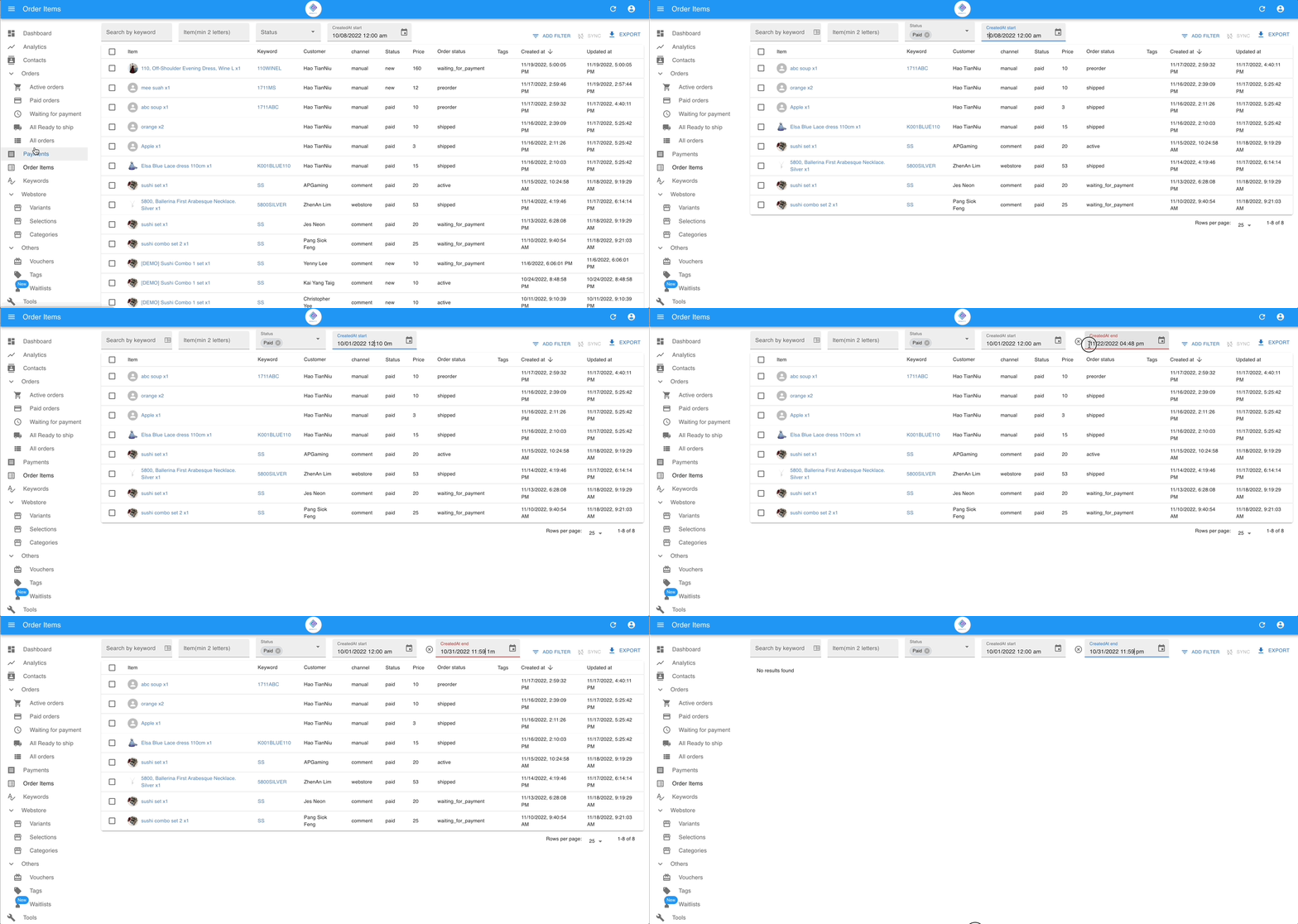
- Go to Order Items in the left menu. For the sales report you can also start from Dashboard.
- Filter the item status:
- Sales report: New and Paid.
- Payment received report: Paid.
- Set the start date and end date:
- Daily report: set both to today’s date.
- Monthly report: set them to cover the full month.
- Click Export to download the CSV file.
Complete payment reconciliation before running the payment received report to get an accurate figure.
Export an order status or top spenders report
Section titled “Export an order status or top spenders report”These two reports start from the orders list and are downloaded from the Exports page.
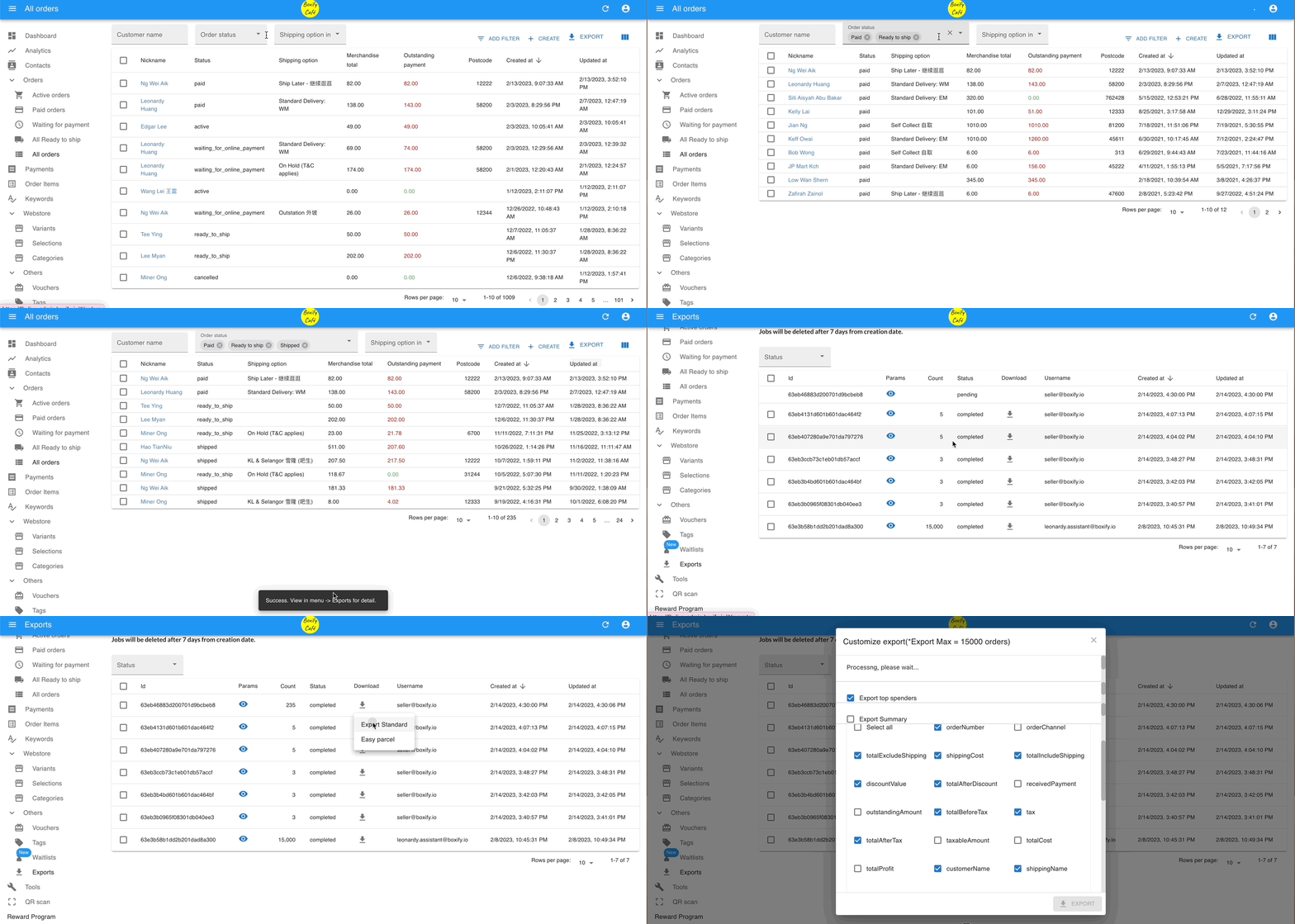
- Go to All Orders in the left menu.
- Filter by order status:
- Order status report: select the order status you want to export.
- Top spenders report: filter by order status as needed.
- Set the start date and end date you want.
- Click Export.
- Click Others › Exports in the left menu.
- Click the download icon (
 ) next to your export file, then select Export Standard.
 - Finish the export:
- Order status report: choose the fields you want in the CSV file, then click EXPORT.
- Top spenders report: select Export top spenders, then click Export.