
SPX Express Malaysia
Link your SPX Express Malaysia (Shopee Express) account to Boxify so you can book pickups and print labels from your order list.
Before you start
Section titled “Before you start”- An SPX Express Malaysia merchant account.
- Your user_id and user_secret from the SPX Open Platform. Ask your SPX account manager if you do not have them.
Set up the shipping profile
Section titled “Set up the shipping profile”- Log in to Boxify and go to Settings › Shipping › Shipping Profiles.
- Click Create New Profile, choose SPX_MY from the profile type list, then click Create. The profile is labelled SPX Express Malaysia once it opens.
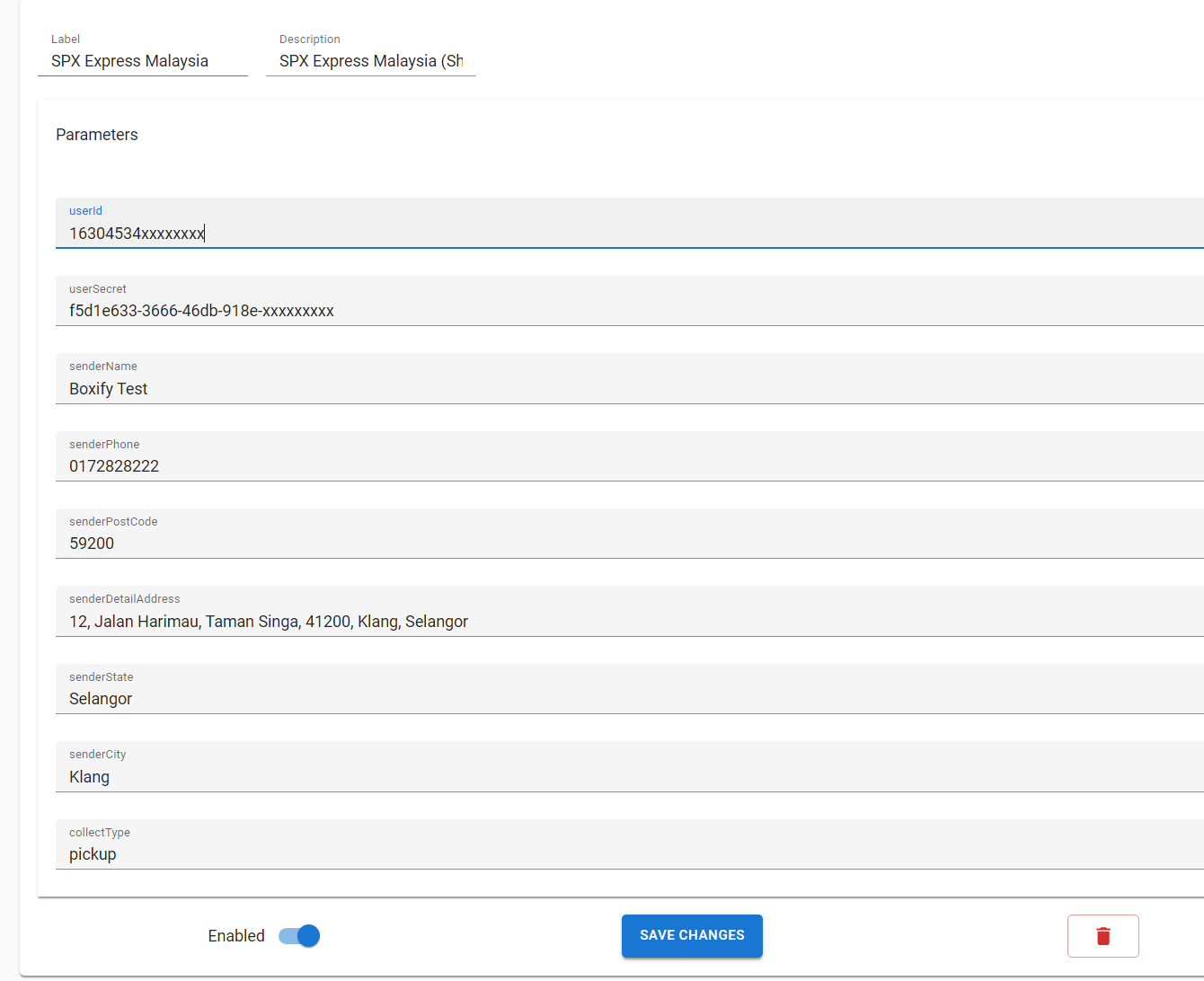
- Fill in the fields.
- userId — Your SPX Open Platform user_id.
- userSecret — Your SPX Open Platform user_secret.
- senderName — Your name or company name, up to 64 characters.
- senderPhone — Your contact number, digits only. Write it as
0123456789or60123456789. Spaces and dashes are rejected. - senderPostCode — Your 5-digit Malaysian postcode.
- senderDetailAddress — Your pickup address, up to 256 characters.
- senderState and senderCity — Optional. Leave them empty and Boxify does not send them to SPX at all. Fill them in if SPX asks you to state the pickup city and state explicitly.
- collectType — pickup if SPX collects from you, or dropoff if you send parcels to an SPX point yourself.
- Leave Enabled switched on (blue). Switch it off to stop using SPX without deleting the profile.
- Click Save Changes.
Create the airwaybill
Section titled “Create the airwaybill”- Go to Orders › Ready to Ship from the left menu.
- Select the orders you want to ship.
- Click Courier in the top right, then choose SPX Express Malaysia.
- Click Add AWBs.
- If your profile uses pickup, choose the Pickup Date. In Malaysia SPX does not offer time slots, so the date is all you need to pick.
- Set the weight.
- If you set item weight in Keywords, the system fills in the parcel weight automatically.
- To use one weight for every parcel instead, tick Use Custom Weight and enter the weight.
- Add a Delivery instruction if the courier needs one.
- Click Create.
A green tick means SPX accepted the parcel and returned a tracking number. A red icon means it failed — hover over it to read the reason.
The most common reason is Tracking number exists: the order already has an AWB. Cancel that label in the SPX portal and remove the tracking number from the order before creating a new one.
Print the airwaybill
Section titled “Print the airwaybill”- In the SPX AWB window, click PRINT AWB.
- Click OPEN on a row to open one label, or OPEN ALL to open up to 30 labels together.
- Print from the tab that opens.
You can come back and print again at any time.
To cancel a parcel
Section titled “To cancel a parcel”Cancel it in the SPX portal. Boxify cannot cancel an SPX booking.
See also: