
Manually Create Orders in the Boxify System
Create new orders
Section titled “Create new orders”Create an order from the Contacts page
Section titled “Create an order from the Contacts page”- Go to Contacts in the left menu.
- Click the customer’s name, then click + New Order in the top right.
- Select the order status and click SAVE & SHOW.
- Click + Create under the Empty Order Items section.
Create an order from Active Orders or All Orders
Section titled “Create an order from Active Orders or All Orders”- Go to Orders › Active Orders or All Orders in the left menu.
- Click + Create in the top right.
- Select the customer’s name. For new customers: ask the customer to message your Facebook page first so they appear in the system.
- Select the order status and click SAVE & SHOW.
- Click + Create under the Empty Order Items section.
Create order items
Section titled “Create order items”Add an item using a keyword
Section titled “Add an item using a keyword”- Click + Create.
- Under KEYWORD WITH STOCK, enter the keyword and quantity.
- Tick Recalculate stock to have the system deduct the quantity from your available stock. (This is ticked by default.)
- Select the item status and click SAVE.
Add an item using free text
Section titled “Add an item using free text”- Click + Create.
- Under FREE TEXT, enter the item description, quantity, and total price.
- Select the item status and click SAVE.
Send the payment link to the customer
Section titled “Send the payment link to the customer”After creating the order, click the FB button in the top right to send the shopping cart to the customer.
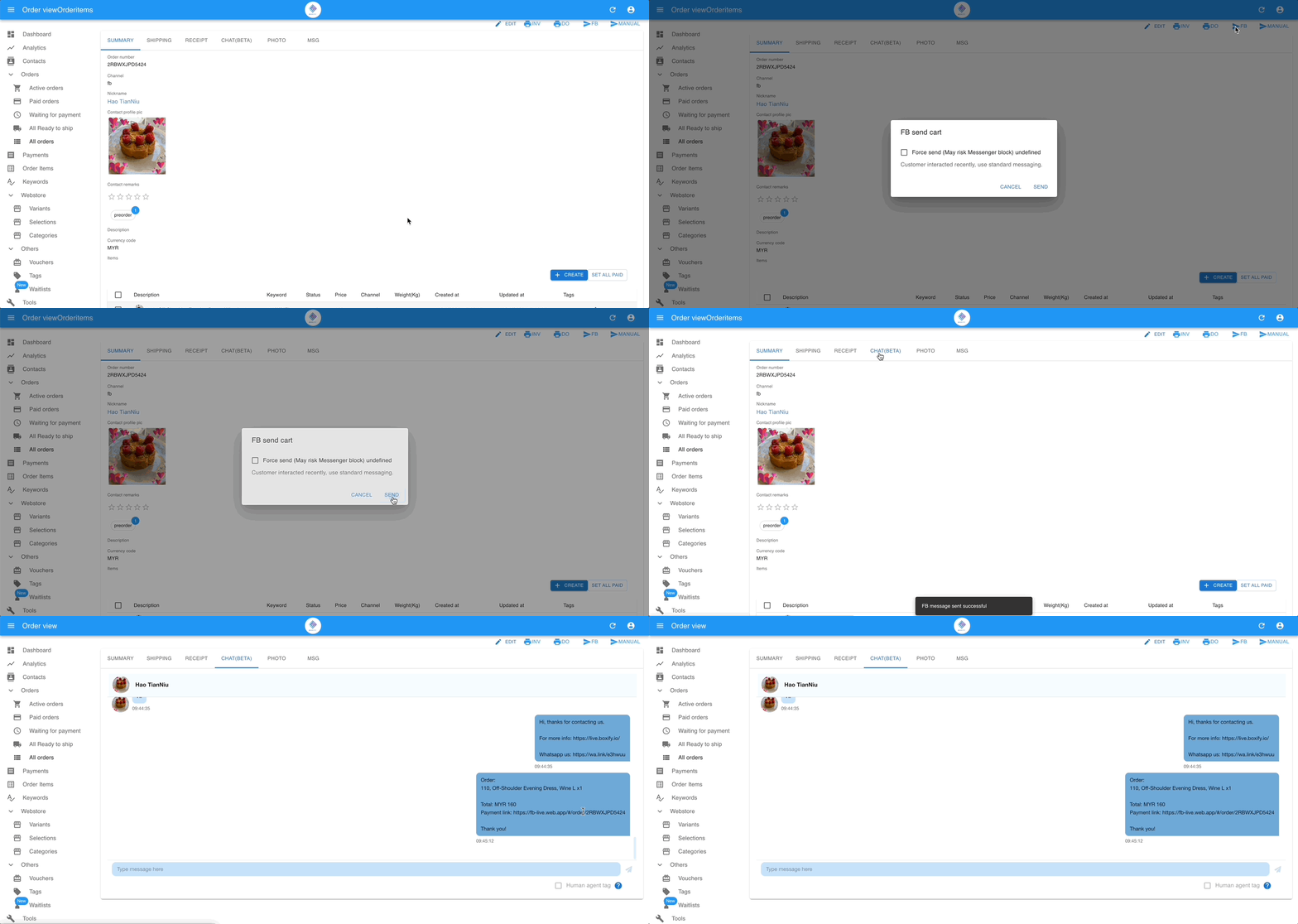
- Click FB.
- Click SEND.
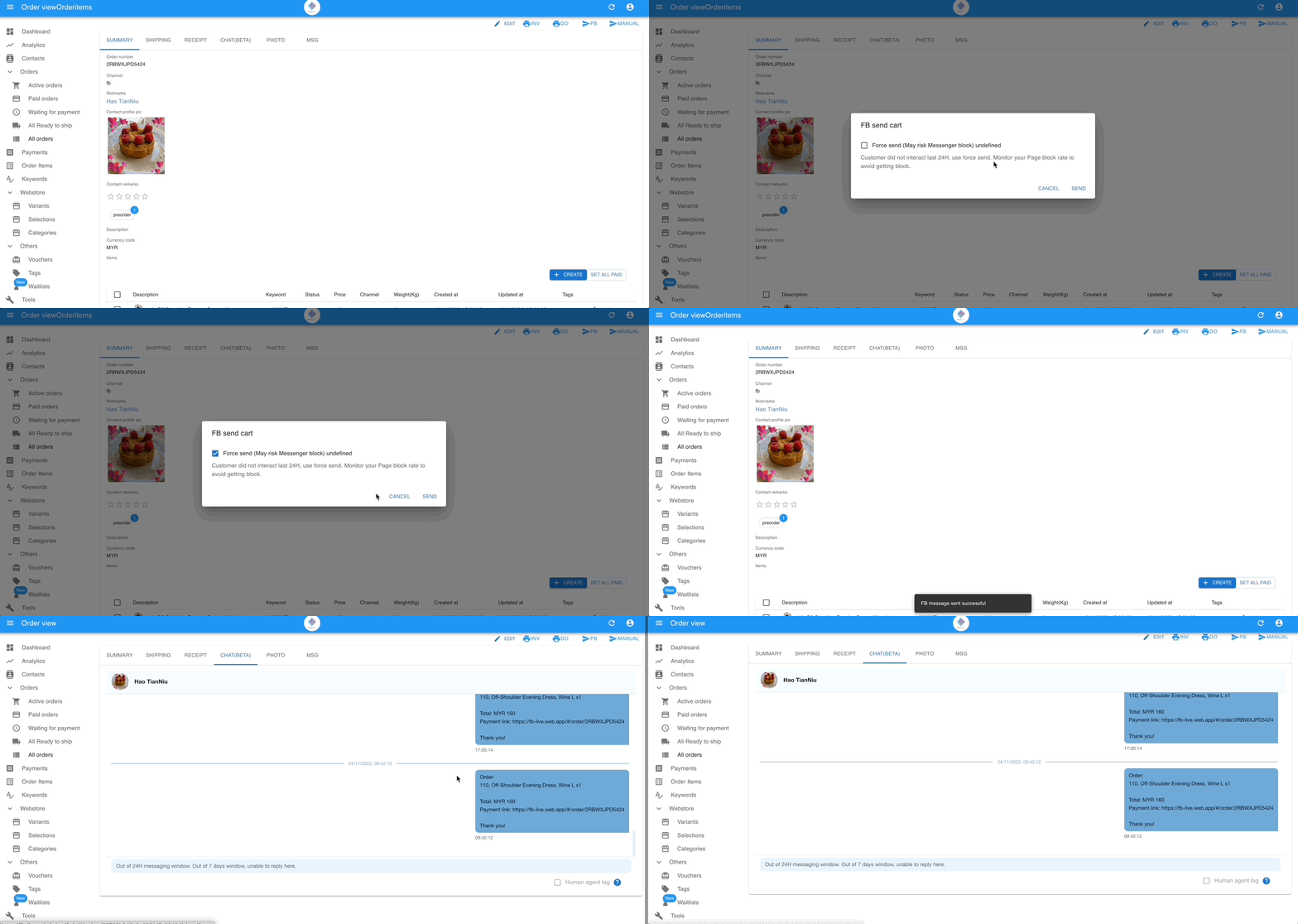
See also: