
Live Settings
These settings control how Boxify behaves during your Facebook Live session and what Live Window shows. Go to Settings › General › Parameters to access them. Live comment options are in the Live section and Live Window options are in the Live Window section.
Comment settings
Section titled “Comment settings”Auto-like successful order comments
Section titled “Auto-like successful order comments”Tick this checkbox and Boxify will automatically like a customer’s comment when their order is placed successfully.
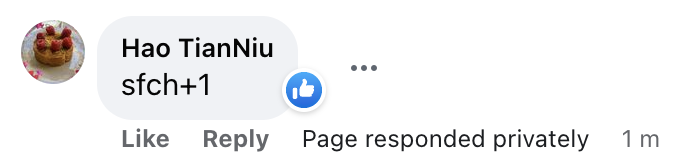
Show buyer names every 3 minutes
Section titled “Show buyer names every 3 minutes”Tick this checkbox and Boxify will post the list of buyers’ names as a comment on your live video every 3 minutes.
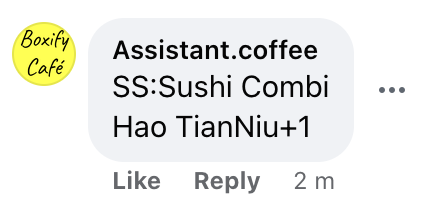
Hide comment after successful order
Section titled “Hide comment after successful order”Tick this checkbox and Boxify will hide a customer’s comment once their order is placed successfully.
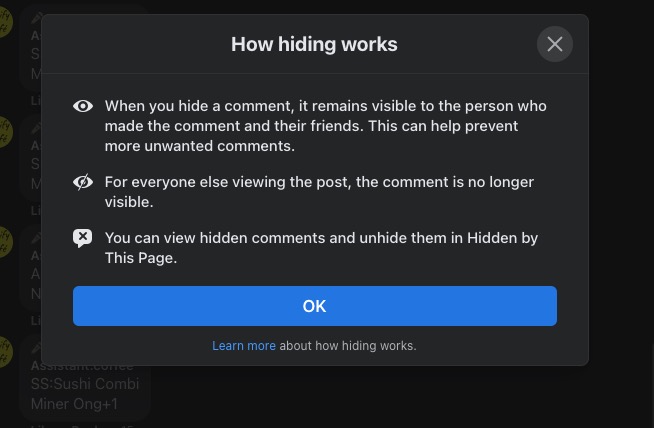
For more information on how Facebook comment hiding works, see the Facebook Help Centre.
Live Window settings
Section titled “Live Window settings”Live Window helps you manage customer orders during Facebook Live sessions, especially when comments come in fast or when Facebook filters some comments out. Use it when you need to:
- View and manage Facebook Live comments in one place
- Add orders manually for customers
- Handle orders that were missed due to Facebook comment filtering
- Run bidding sessions
- Take manual control of orders instead of relying on keywords
To find these settings, go to Settings › General › Parameters and scroll down to the Live Window section.
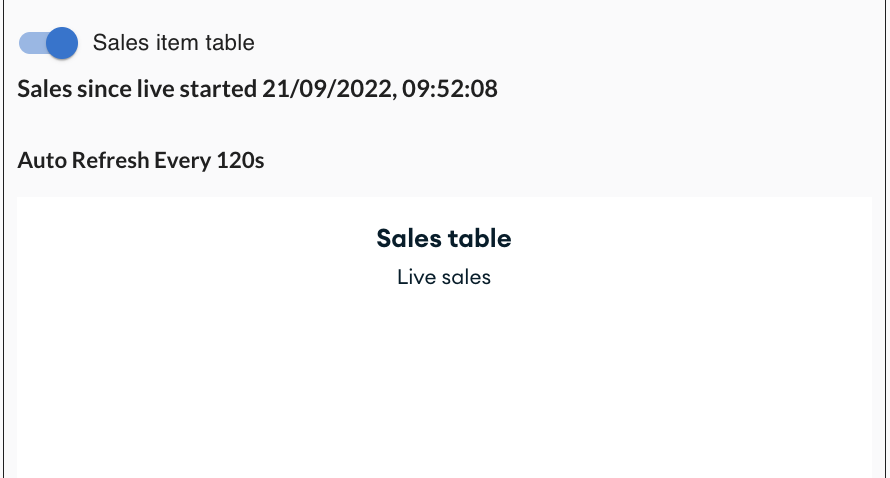
Hide the Sale Table from assistants
Section titled “Hide the Sale Table from assistants”Turn on this option to prevent staff with the Assistant role from seeing the Sale Table.
When turned on:
- Assistants cannot see the Sale Table.
- Full sales data stays visible only to Admin users.
Set when unpaid orders count as outstanding
Section titled “Set when unpaid orders count as outstanding”n hours to outstanding amount sets how old an unpaid order must be before Live Window’s Outstanding icon counts it.
The default is 48 hours: only unpaid orders placed more than 48 hours ago are counted. A larger number counts fewer orders; a smaller number counts more recent ones too.
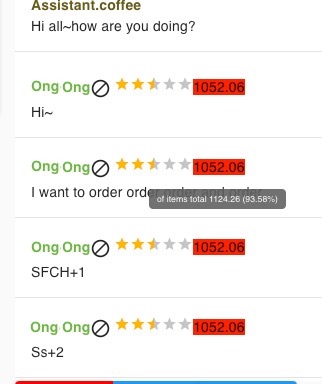
The Outstanding amount is a Business plan feature. Its colour shifts from green to red by how much of the counted orders’ total is still unpaid:
| Colour | Meaning |
|---|---|
| Green | Owes nothing (0%) |
| Yellow | Still owes about half (50%) |
| Red | Owes everything (100%) |
See also: