
Message Settings
This article explains each message setting in Boxify and when to turn it on or off.
These settings control the automatic messages Boxify sends to customers during ordering and fulfilment. You will find them under Settings › General › Parameters.
1. Disable Shipping Notification Message
Section titled “1. Disable Shipping Notification Message”Stops Boxify from automatically sending a shipping notification to customers when their order is shipped.
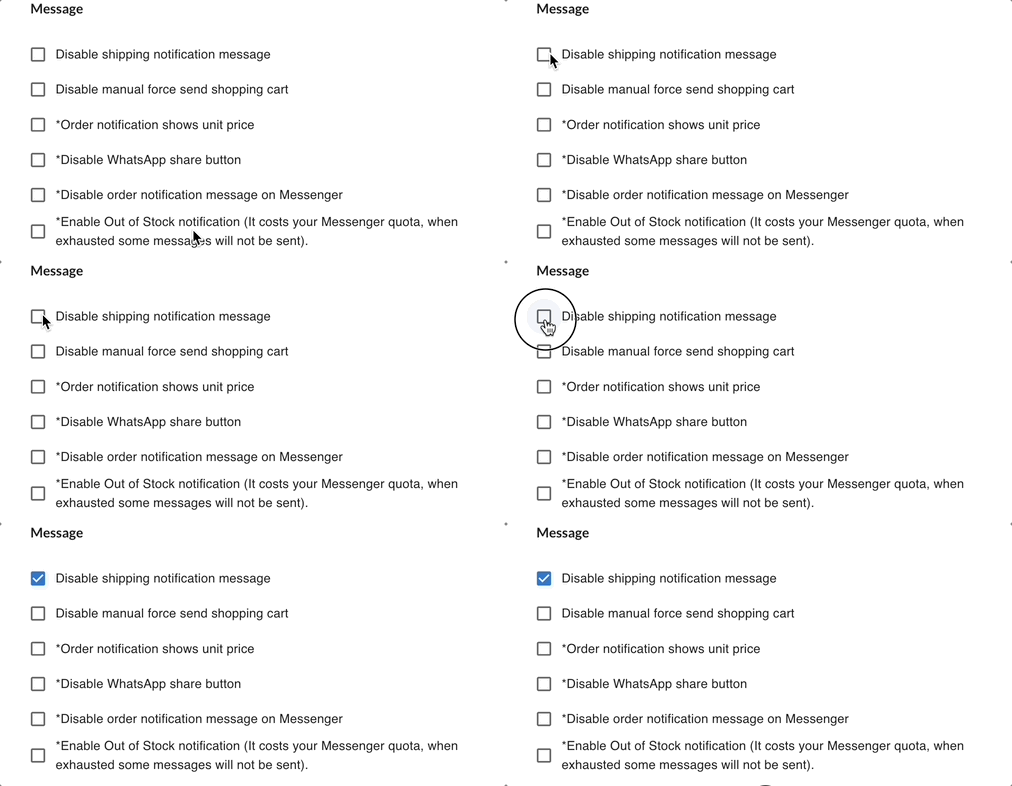
Turn this on if you prefer to notify customers yourself. When on, customers will not receive automatic shipping updates from the system.
2. Disable Manual Force Send Shopping Cart
Section titled “2. Disable Manual Force Send Shopping Cart”Prevents you from manually sending the shopping cart message to a customer.
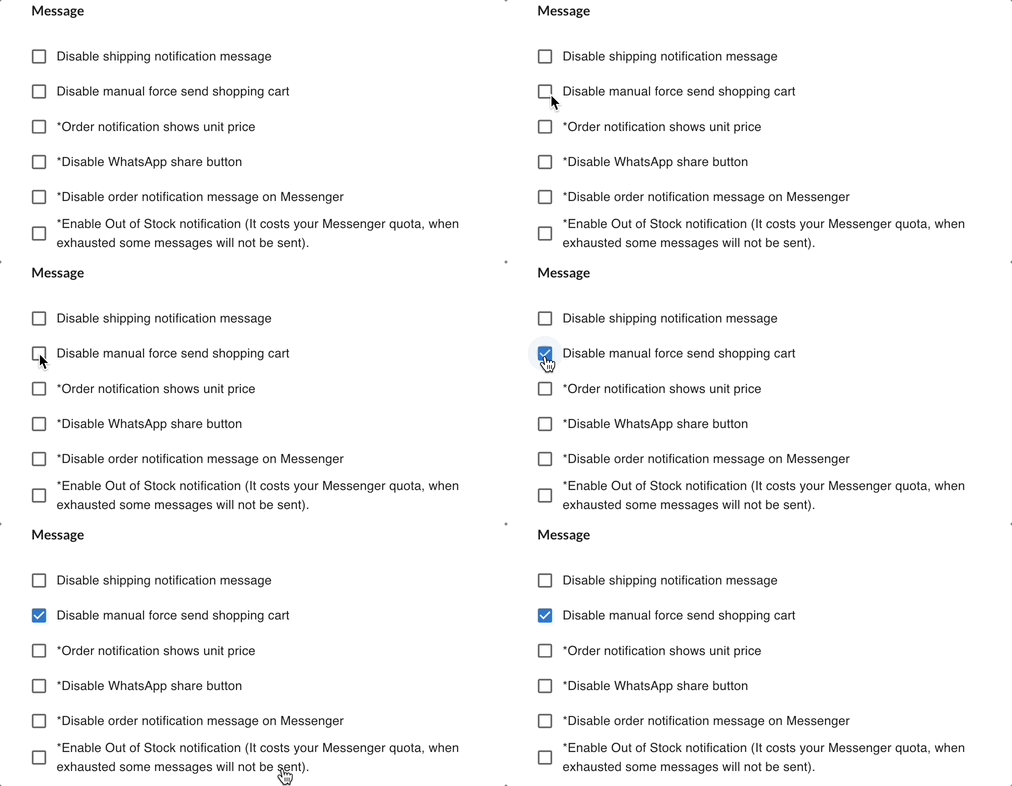
Turn this on if you want the system to control cart messages automatically. When on, manual cart reminders cannot be sent.
3. Order Notification Shows Unit Price
Section titled “3. Order Notification Shows Unit Price”Adds the price of each item to the order notification message customers receive.
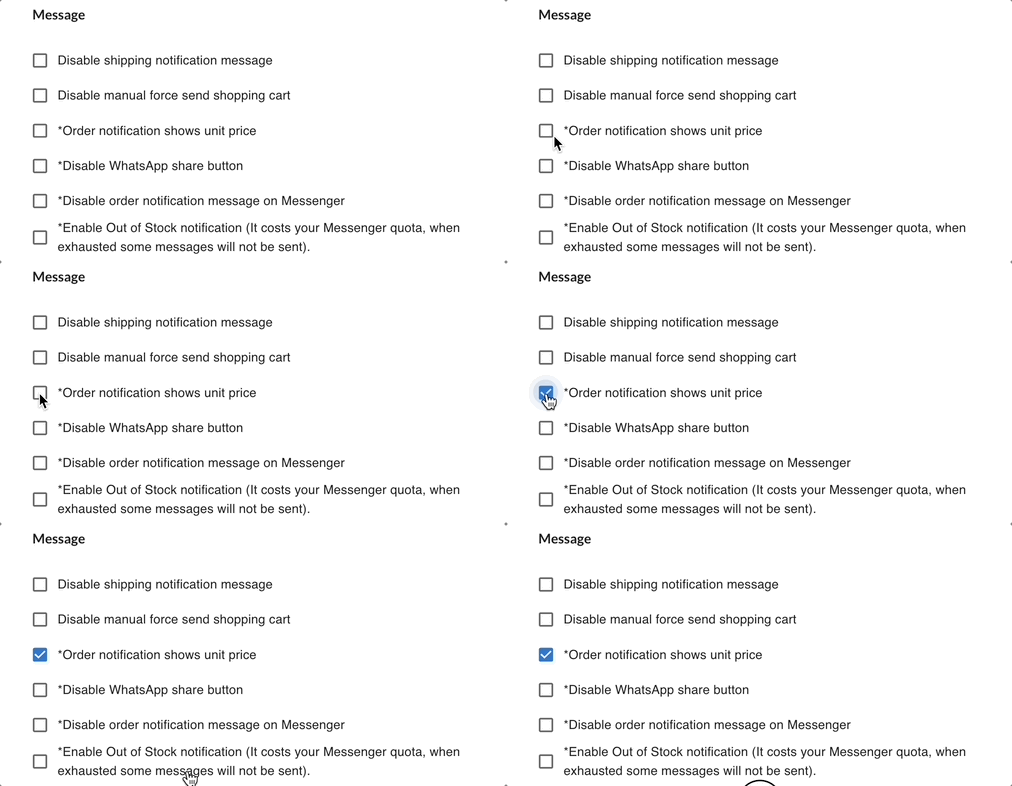
When turned on, customers see a price breakdown per item. When turned off, only the total amount is shown.
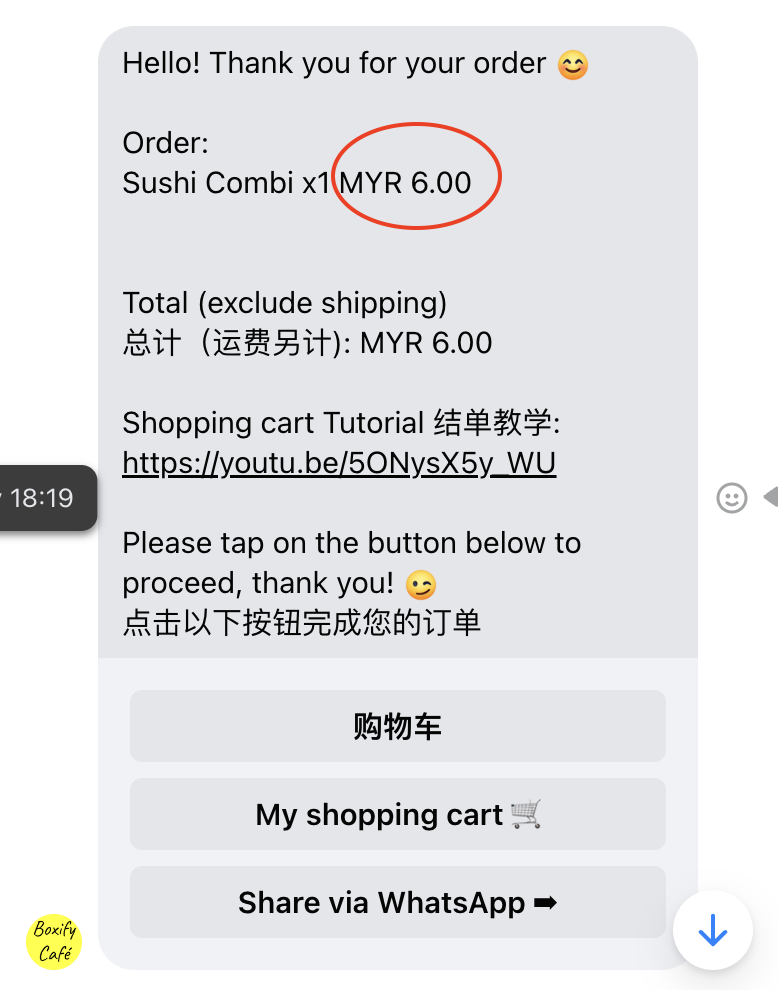
Turn this on if customers regularly ask for a price breakdown.
4. Disable Order Notification Message in Messenger
Section titled “4. Disable Order Notification Message in Messenger”Stops Boxify from automatically sending order confirmation messages to customers.
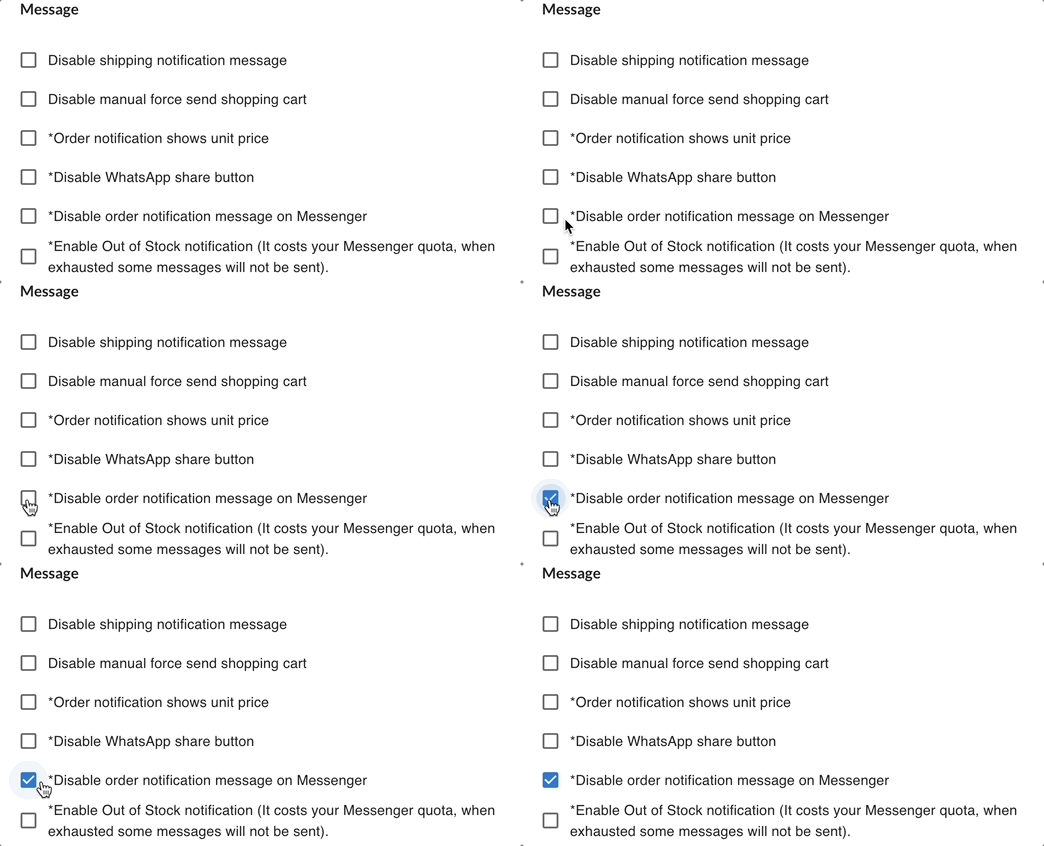
Turn this on only if you have another way to confirm orders with customers. When on, customers will not receive system-generated confirmations.
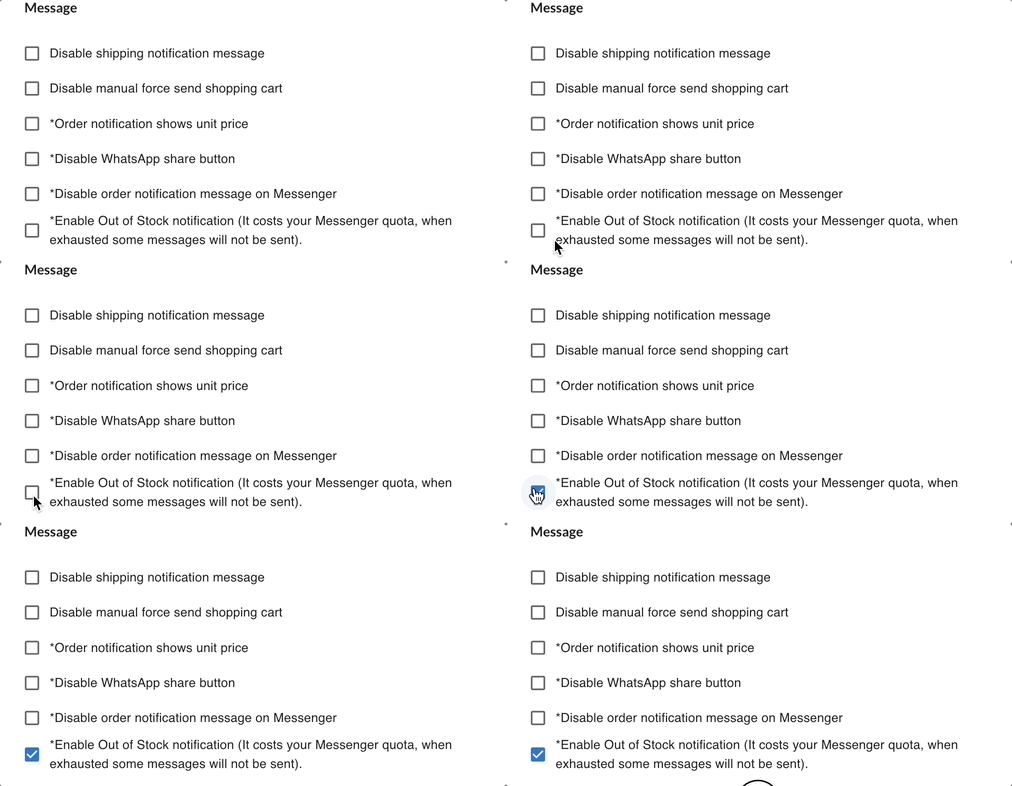
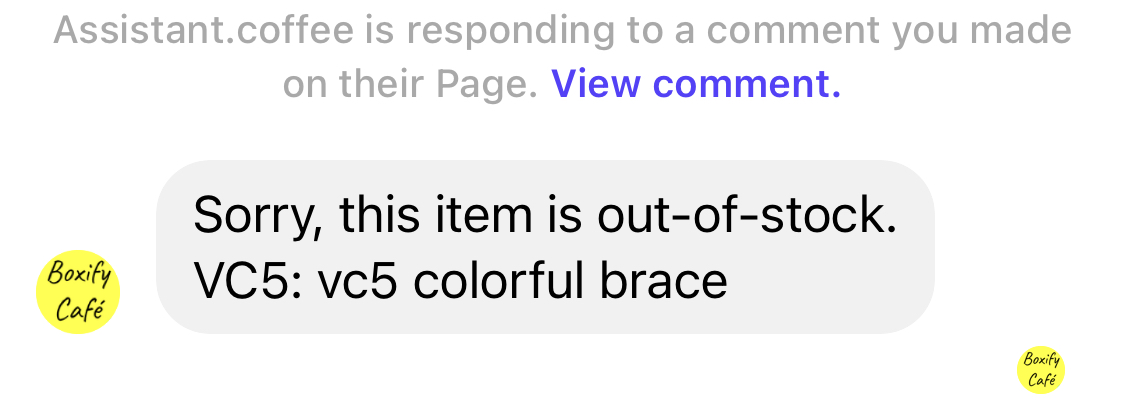
5. Enable Out-of-Stock Notification
Section titled “5. Enable Out-of-Stock Notification”Automatically sends customers a message when an item they tried to order is out of stock.
6. Allow Force Sending of Shipping Message
Section titled “6. Allow Force Sending of Shipping Message”Lets you re-send a shipping notification to a customer who has already received one.
Turn this on if you sometimes need to resend shipping details — for example, after correcting a tracking number.
See also: