
Pack Orders
After reconciling payments, use these steps to prepare and send orders to your packing team.
Print out the orders
Section titled “Print out the orders”Print the delivery orders (DO) or invoices and send them to your packing team.
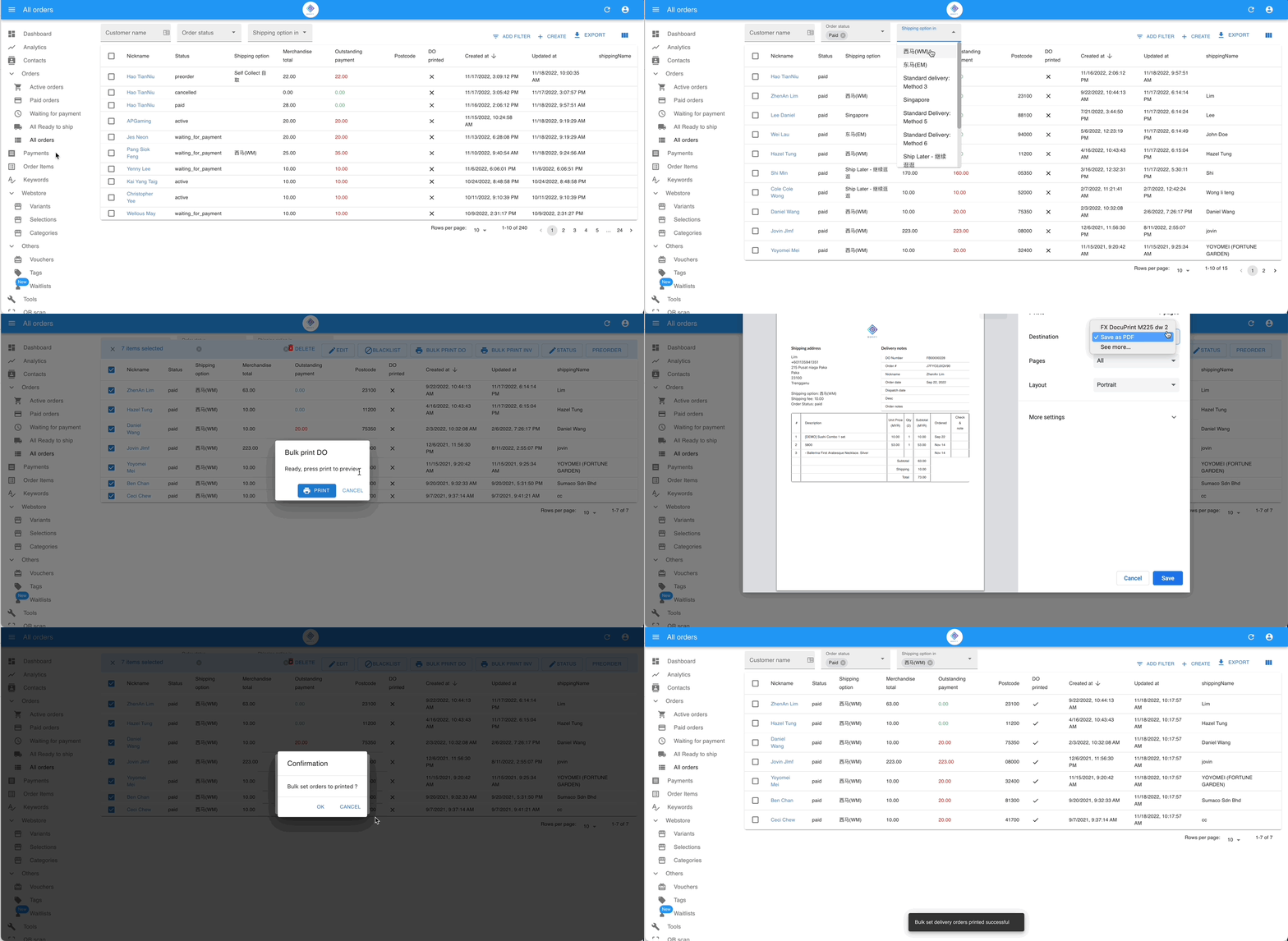
- Go to All Orders, filter by order status, then filter by shipping option.
- Select the orders, click the print icon in the top right, and choose Bulk print DO or Bulk print INV. Optionally, click Export to download a CSV file.
- Mark the DO/Inv as printed to keep a record.
- Send the printed orders to your packing team.
Export the orders to CSV
Section titled “Export the orders to CSV”If you prefer a CSV file for packing, follow these steps.
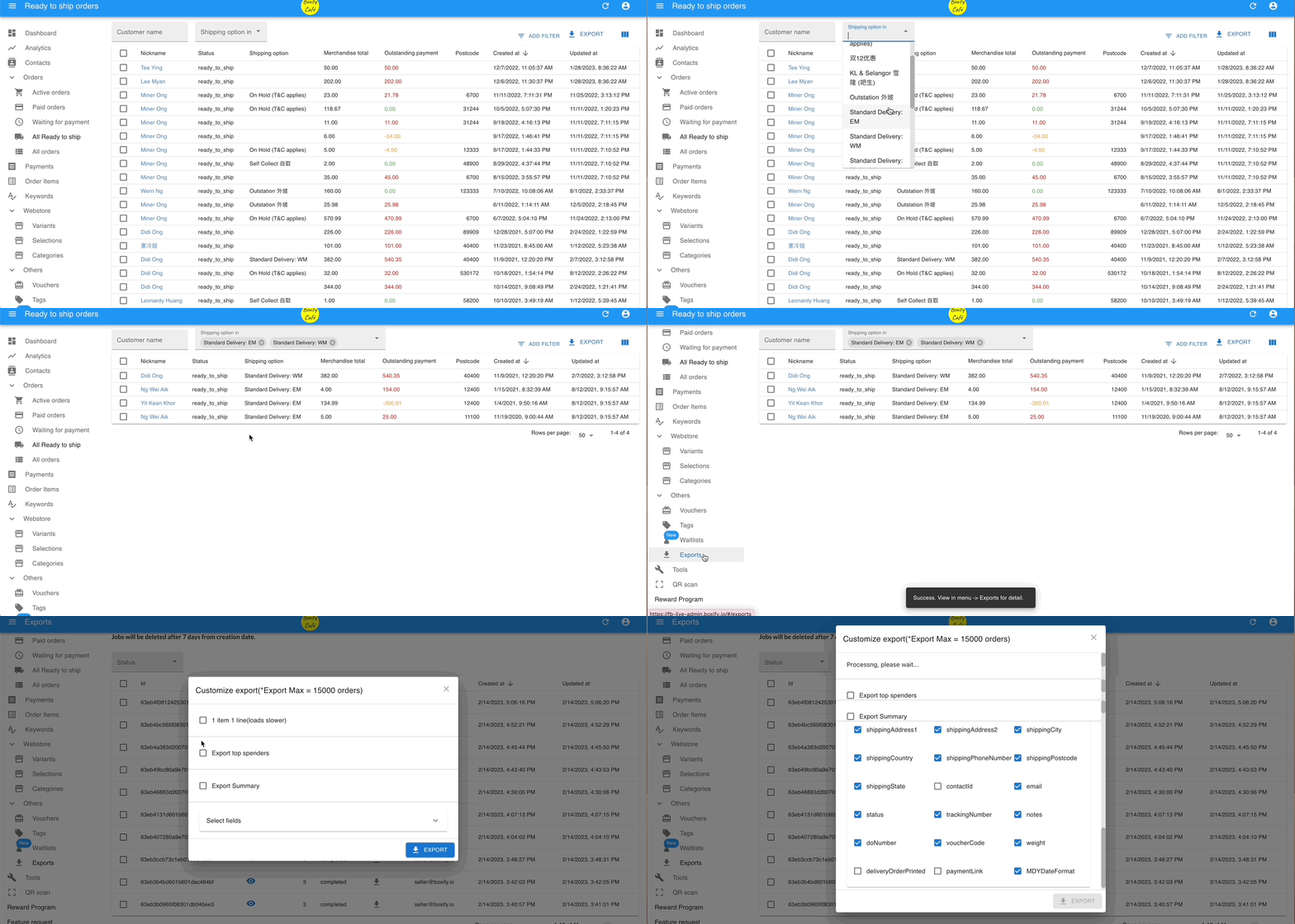
- Go to All Orders, filter by order status, then filter by shipping option.
- Click Export in the top right.
- Go to Others › Exports in the left menu, then click the download icon (
 ) next to the export file.
 - Select Export Standard, choose the fields you want in the CSV, and click EXPORT.
Mark orders as Ready to Ship
Section titled “Mark orders as Ready to Ship”Marking orders as Ready to Ship tells the system to send an order update notification to each customer.
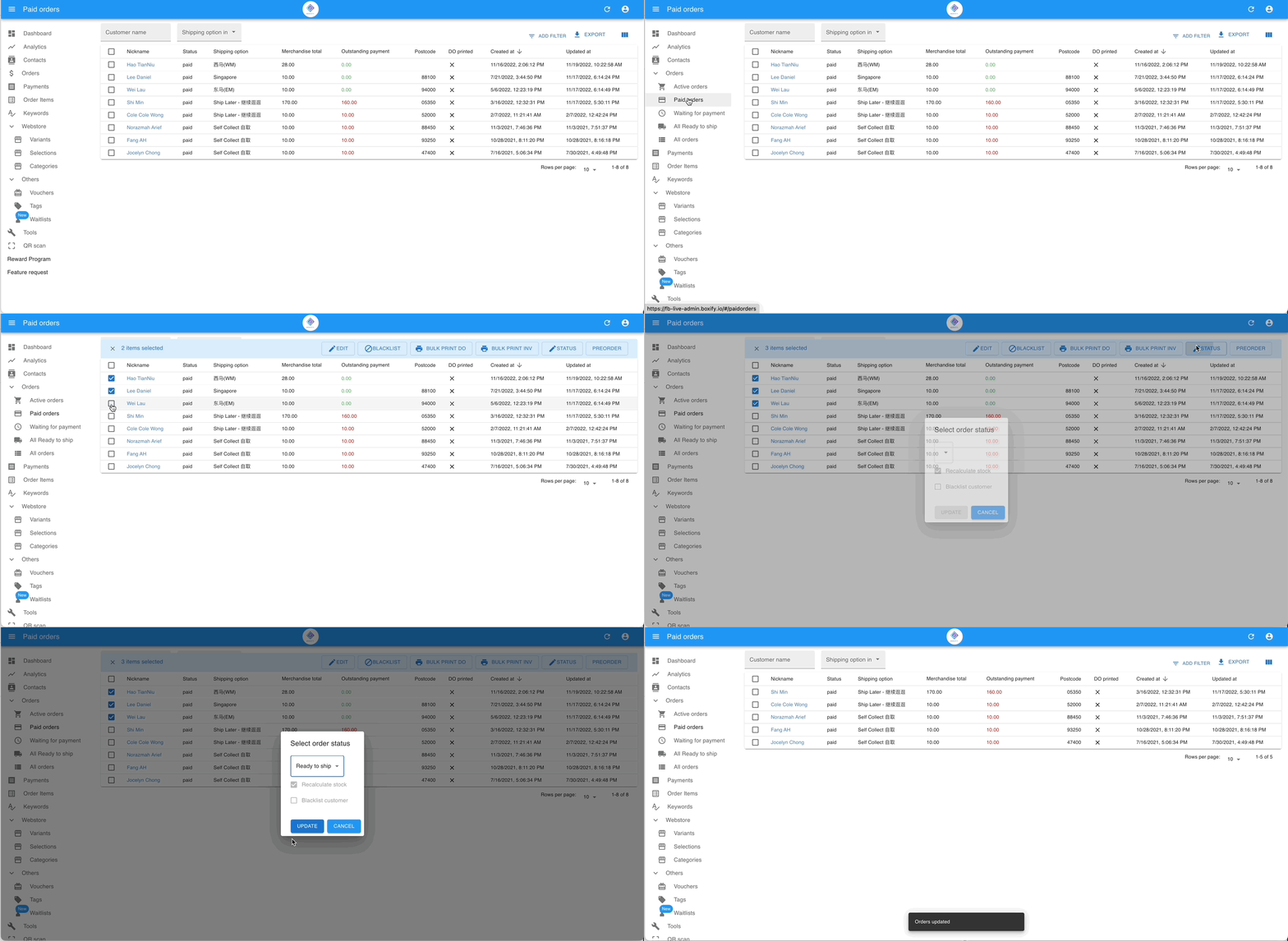
You can filter in All Orders, or click the Paid Orders folder to view paid orders directly.
- Go to Paid Orders and select the orders you want to arrange for shipment.
- Click STATUS in the top right and set the status to Ready to Ship.
After completing these steps, send the orders to your packing team.
See also: