
How to Post Orders from Boxify to Bukku (Create Invoices)
Follow these steps to convert your Boxify orders into invoices in Bukku correctly:
✅ 1) Log in to Boxify
Section titled “✅ 1) Log in to Boxify”Sign in to your Boxify account using your admin credentials.
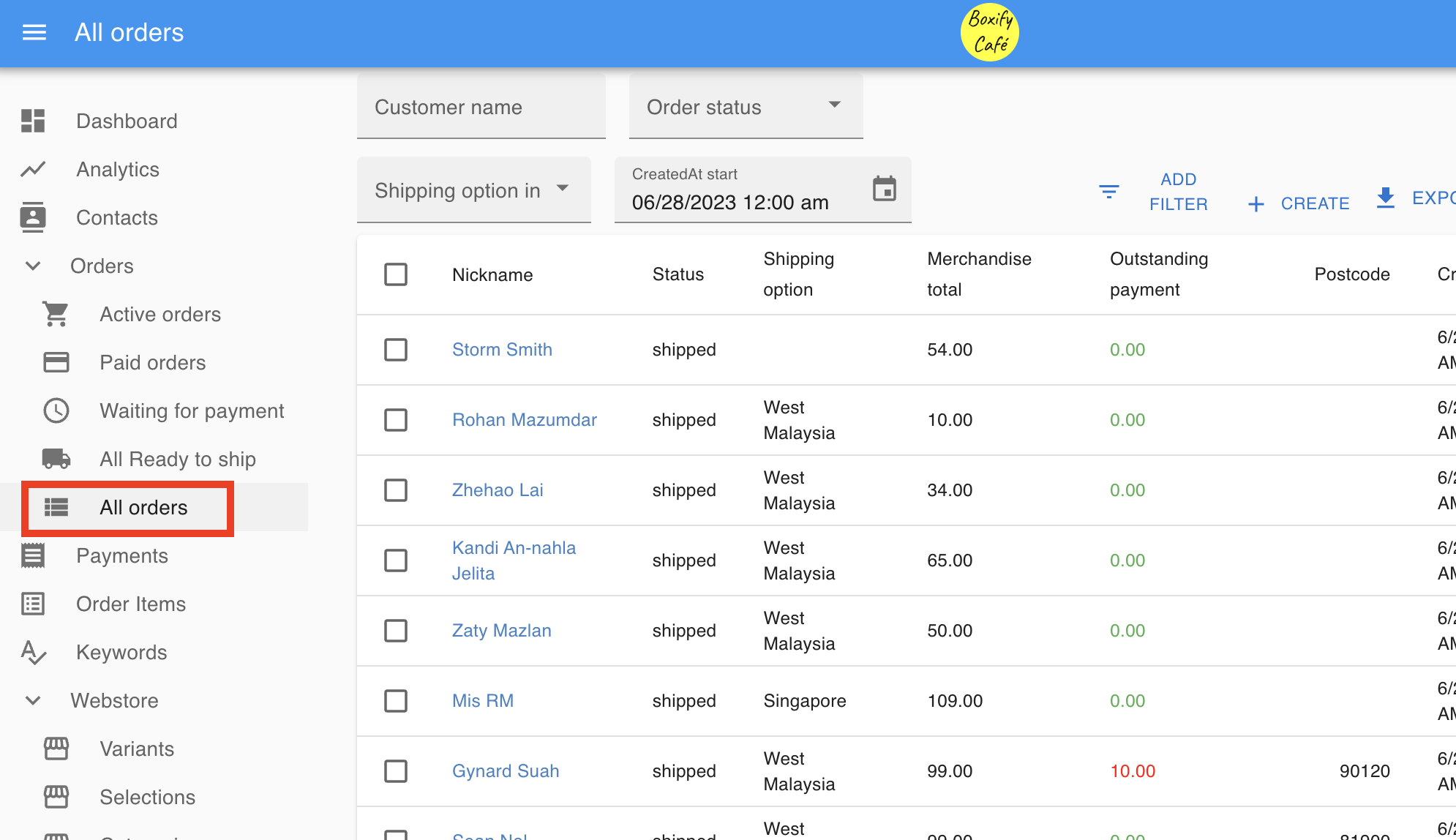
✅ 2) Go to All Orders
Section titled “✅ 2) Go to All Orders”From the left-hand menu, scroll down and click on All Orders.
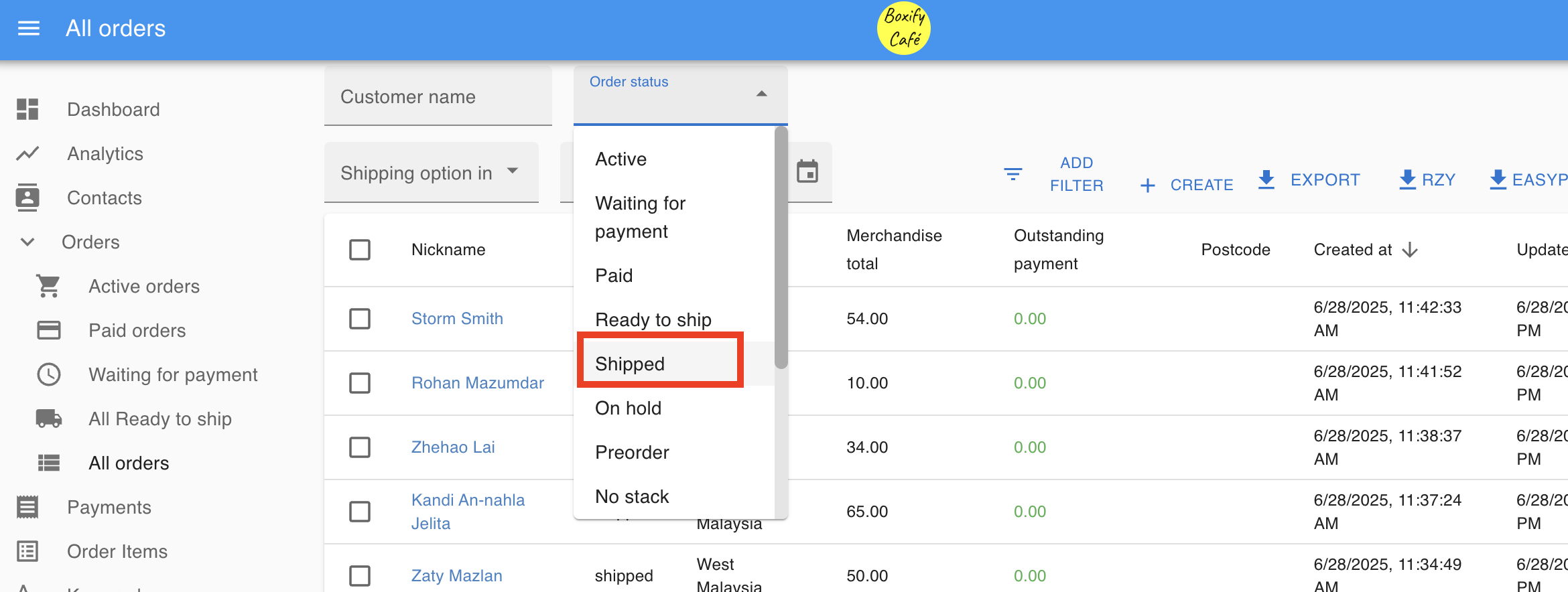
✅ 3) Filter by Shipped Status
Section titled “✅ 3) Filter by Shipped Status”To avoid errors, filter your orders to show only those with the Status: Shipped.
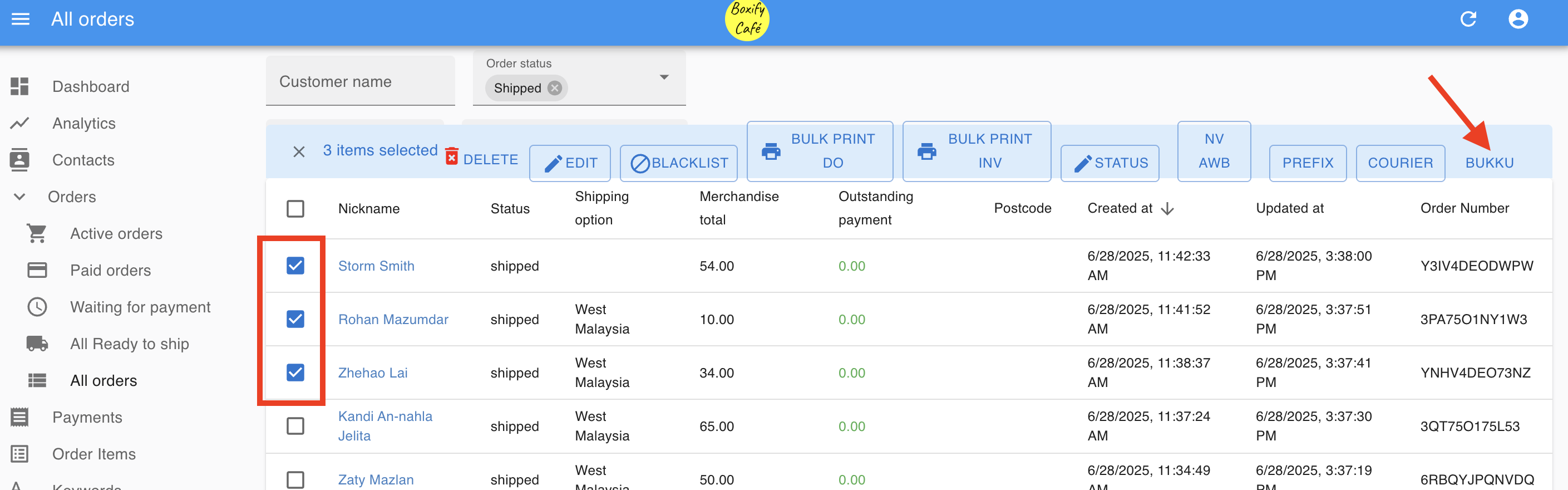
✅ 4) Select the Orders & Click the Bukku Button
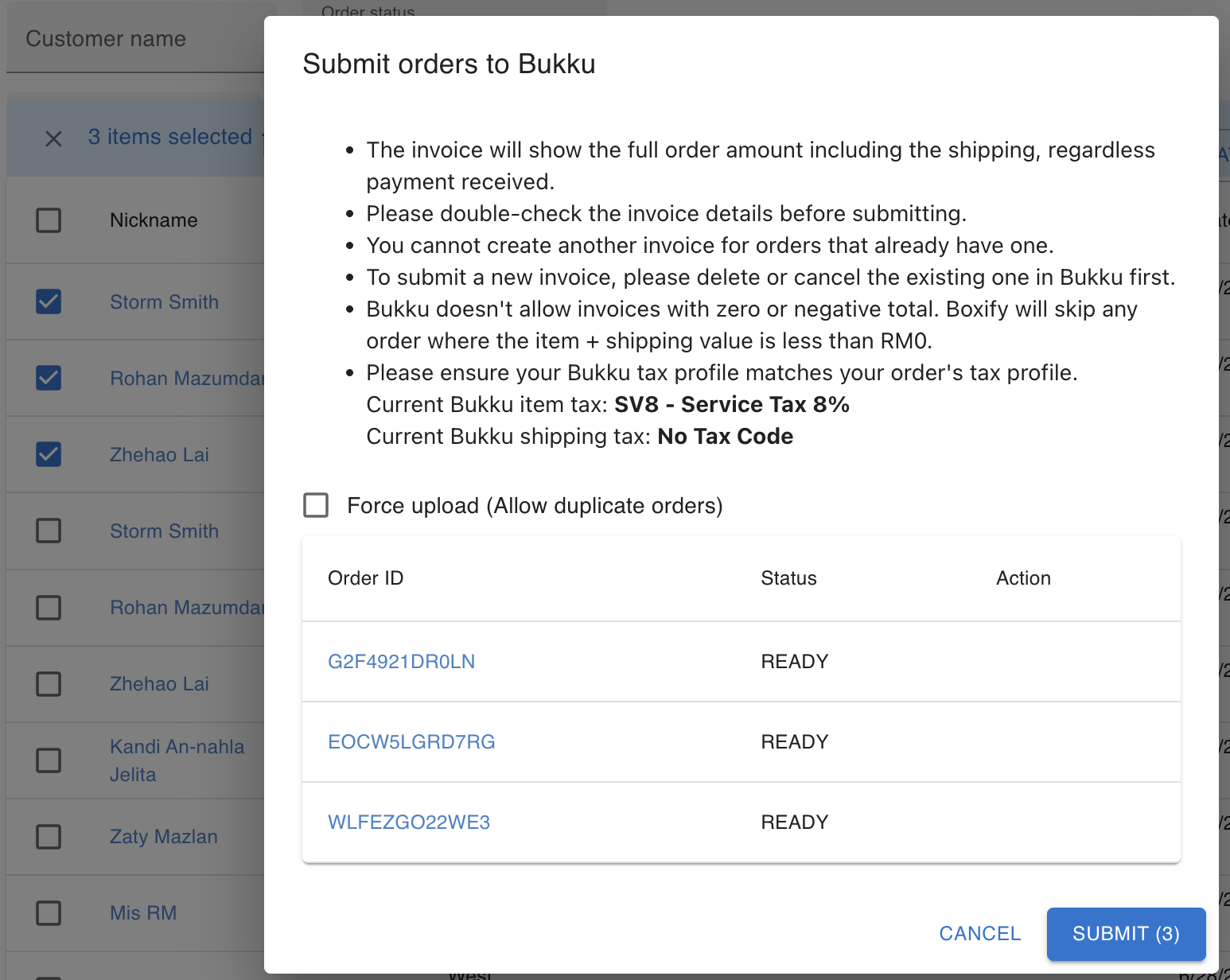
Section titled “✅ 4) Select the Orders & Click the Bukku Button”- Tick the checkboxes for the orders you want to post to Bukku.
- On the top right, click the Bukku button to start posting the selected orders.
✅ 5) Double-Check Before Submitting
Section titled “✅ 5) Double-Check Before Submitting”Before you click Submit, please check the following:
- ✔️ The invoice will include the full order amount, including shipping fees — regardless of whether partial payments were received.
- ✔️ Always double-check the invoice details to ensure accuracy.
- ✔️ ⚠️ You cannot create another invoice for an order that already has one in Bukku.
- If you need to submit a new invoice, you must delete or cancel the existing invoice in Bukku first.
- ✔️ Bukku does not accept invoices with zero or negative total amounts.
- Boxify will automatically skip any order where the item + shipping total is RM0 or negative.
- ✔️ Make sure your Bukku tax profile matches your order tax settings.
- Current example:
- Item tax: SV8 — Service Tax 8%
- Shipping fee: No Tax Code
- Current example:
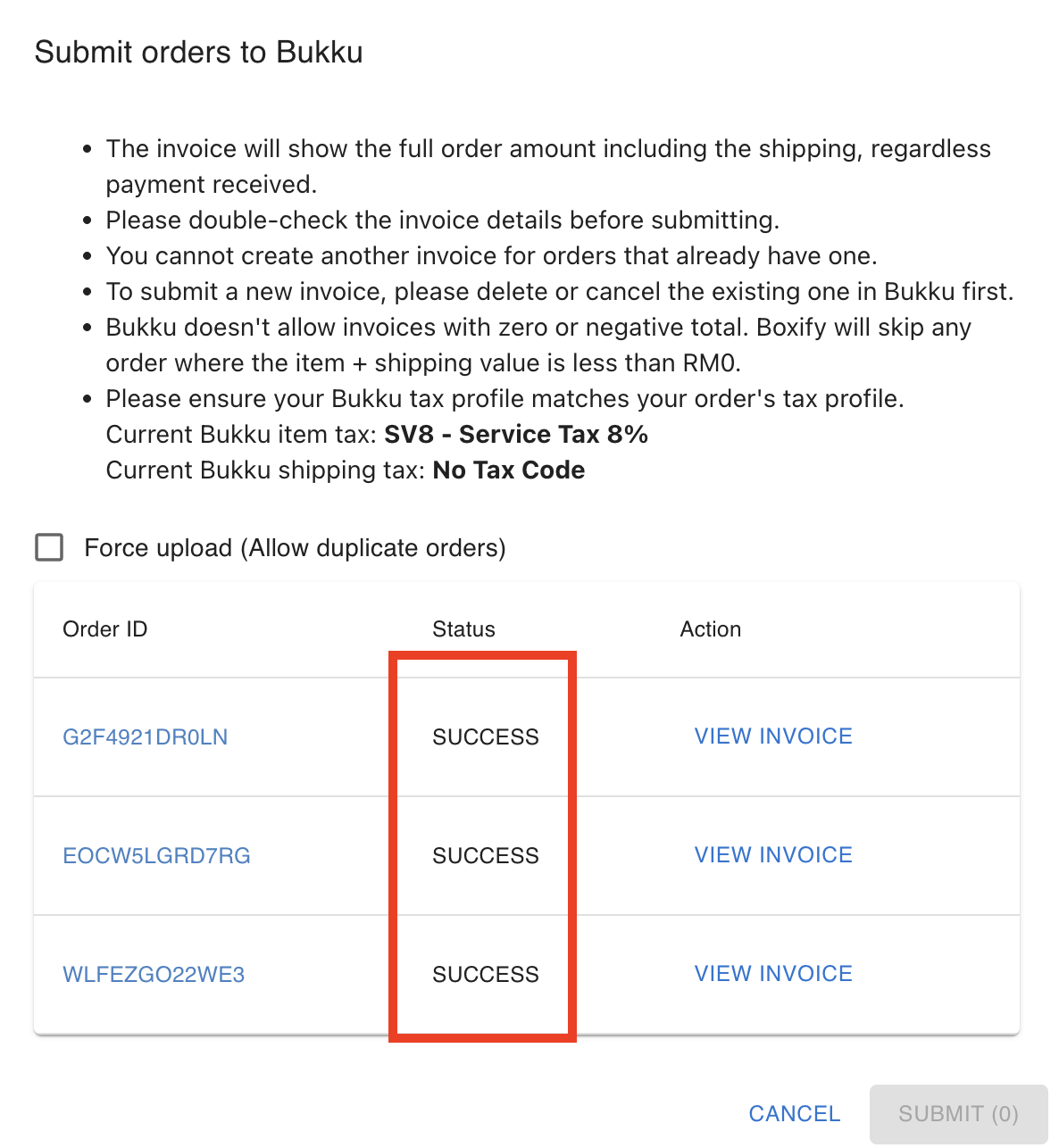
✅ 7) Click Submit
Section titled “✅ 7) Click Submit”When everything is confirmed, click Submit.
Your selected orders will be successfully converted into invoices in Bukku.
🎉 Done! You’re ready to manage your sales in Bukku with confidence.
⚠️ Important Notes
Section titled “⚠️ Important Notes”- The posting date will be used as the invoice date in Bukku. According to LHDN e-Invoice requirements, the invoice date must follow the date of the time of supply. We strongly advise you to post the shipped order to Bukku on the same day you ship the goods.
- All posted orders will be created as Cash Sales in Bukku with the status ‘Normal’.
- No shipping details or customer contact details will be posted into Bukku — please manage these separately if needed.
- How to submit an e-Invoice to LHDN? Refer to the Bukku guide: Submitting e-Invoices to LHDN
- How to submit a consolidated e-Invoice? Refer to the Bukku guide: Consolidated e-Invoices Submission & Cancellation
- Customer requests for e-Invoice? Refer to the Bukku guide: E-Invoice Requests by Customers
🎉 Done! You’re now ready to manage your Boxify orders and Bukku invoices confidently and in compliance with Malaysia’s e-Invoice requirements.