
Manually Create Orders in Live Window
Live Window lets you create orders by hand during a Facebook Live. You have full control over which items go to which customers, and you can edit or cancel orders on the spot.
Benefits of creating orders manually with Live Window
Section titled “Benefits of creating orders manually with Live Window”- Edit on the spot: Change or cancel a customer’s order immediately when they ask.
- No keywords needed: You do not need to set up keywords in advance.
- Start and end announcements: Boxify posts a comment when you start and stop selling a product.
- Winner announcement: Boxify posts the successful buyer’s name in the comments.
- Order notification after bidding: Boxify sends the order notification to the customer’s Messenger as soon as you submit the order.
Best suited for
Section titled “Best suited for”- Merchants selling items with many variants (colours, sizes) but limited stock — such as bags, clothes, shoes, and accessories.
- Auction-style selling — Live Window shows all comments so you can pick the highest bidder.
The Live Window interface
Section titled “The Live Window interface”Products input
Section titled “Products input”Item: Type the product description. Unit Price: Type the product’s unit price. Specifications: Type any additional product details.
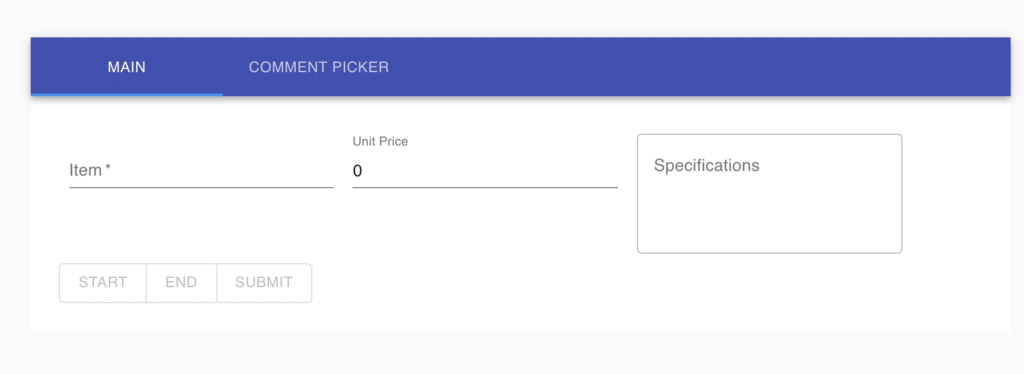
Start: Click to post a comment announcing that selling has started. End: Click to post a comment announcing that selling has ended. Submit: Click to send the order list to the system. Boxify will send order notifications to customers.
The order list
Section titled “The order list”All orders added for customers appear here.
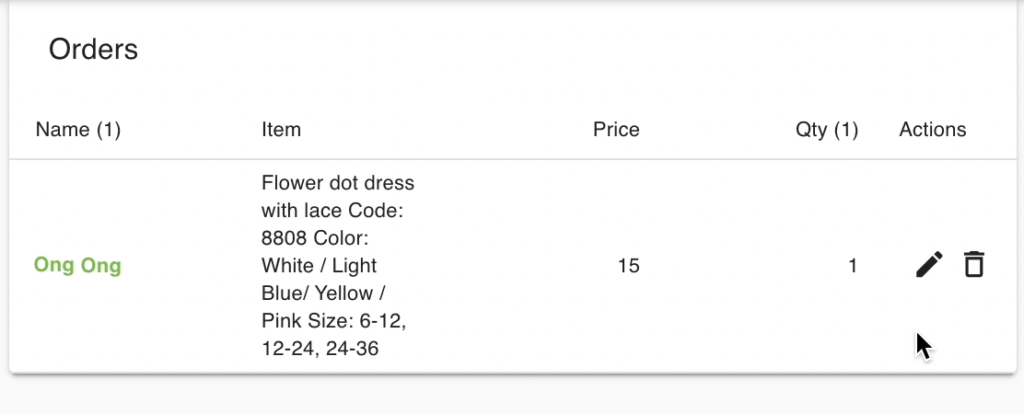
The comments window
Section titled “The comments window”All comments appear here in real time. You can take the following actions on each comment:
 Add a new order item for this customer.
 Reply to the customer’s comment.
 Add the previous item to this customer’s order.
 Clear the comment box to keep the screen tidy.
 Pause the comment feed when you need a moment to review.
 Blacklist icon — Block a disruptive customer immediately.
 Rating icon — Rate a customer on the spot.
 Outstanding icon — See the customer’s total unpaid amount at a glance. By default this shows purchases from the last 48 hours. You can change this in Parameters.
 Edit icon — Correct a customer’s comment if they typed the wrong code or do not know how to order. Example:
 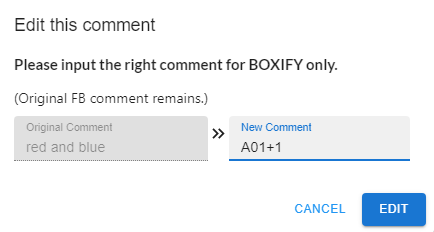 Clicking Edit and entering
 A01+1will treat the original comment “red and blue” as a valid order forA01+1.
Sales item table
Section titled “Sales item table”A summary table showing all items sold during the live.
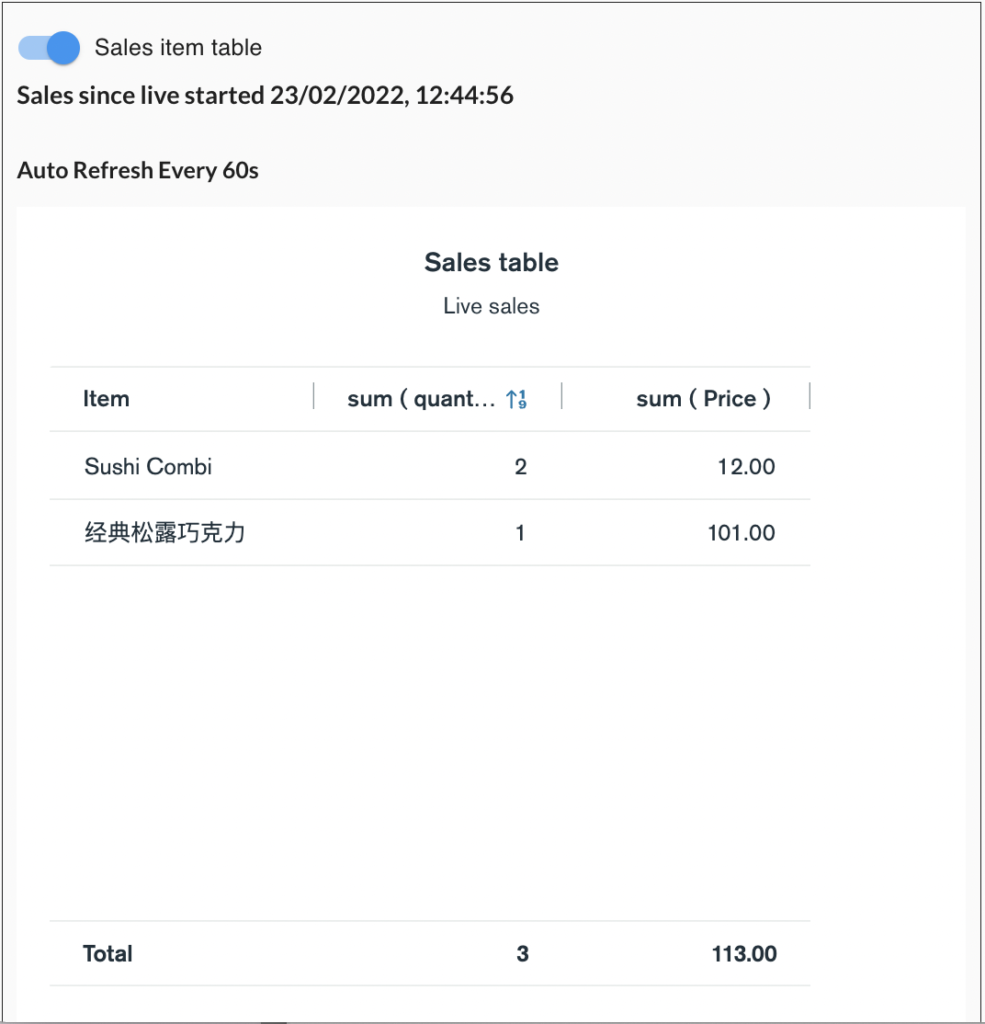
How to create orders with Live Window
Section titled “How to create orders with Live Window”- Start your Facebook Live on your Page.
- In Boxify, go to Tools › Live Window.
- Enter the product details under Main (Item, Unit Price, Specifications).
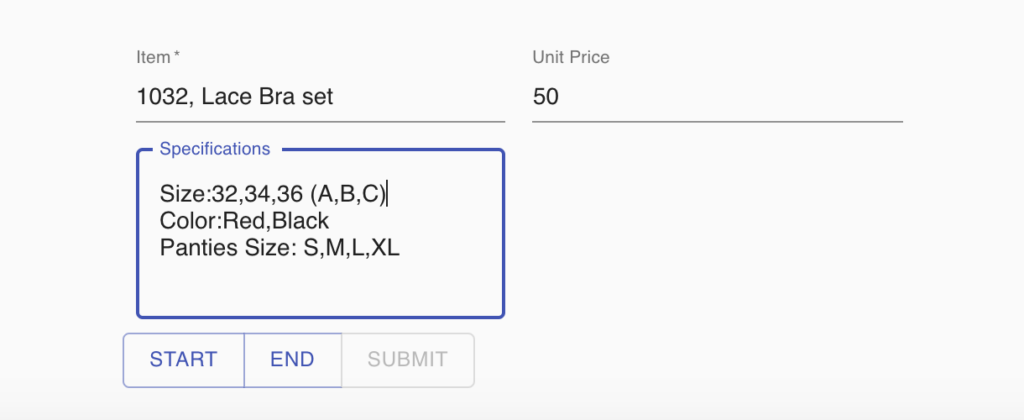
- Click Start when you begin selling the product. A comment is posted to your live.
- Click End when you finish selling the product. A comment is posted to your live.
- Click Submit to send the order list to the system. Customers receive their order notifications.
See also: