
Adding Keywords
A keyword is the short code your customers type in a Facebook comment to place an order. They comment the keyword followed by the quantity — A01+1 orders one unit of A01.
Boxify is forgiving about how customers type it:
- Spaces do not matter.
A01+2,A01 +2andA01 + 2are all read as two units. - Capitals do not matter.
a01+1works the same asA01+1.
Each product needs its own keyword in Boxify.
How to create a keyword
Section titled “How to create a keyword”The video above walks you through creating a keyword. Here is a summary of each field:
- Fields marked with * are required. You can leave quantity fields at the system default.
- SKU (Stock Keeping Unit) — a code you use to identify a product and track its stock level.
- Min. & max. quantity — limits how many units a customer can order in one comment.
- Allow backorder — when stock runs out, customers join a waitlist instead of being turned away. You can notify them or convert their waitlist entry to a real order when stock arrives.
- Allow in web — makes the item available in your webstore.
- Categories & Variants — these are for the Webstore. Leave them blank if you have not set up a webstore yet.
How to update stock quantity
Section titled “How to update stock quantity”Two numbers track each keyword:
- Stock — everything you have ever put up for sale
- Stock left — how many of those are still available
When new stock arrives, add the new quantity to both. That keeps Stock as the running total you have offered, so the difference between the two tells you how much you have sold.
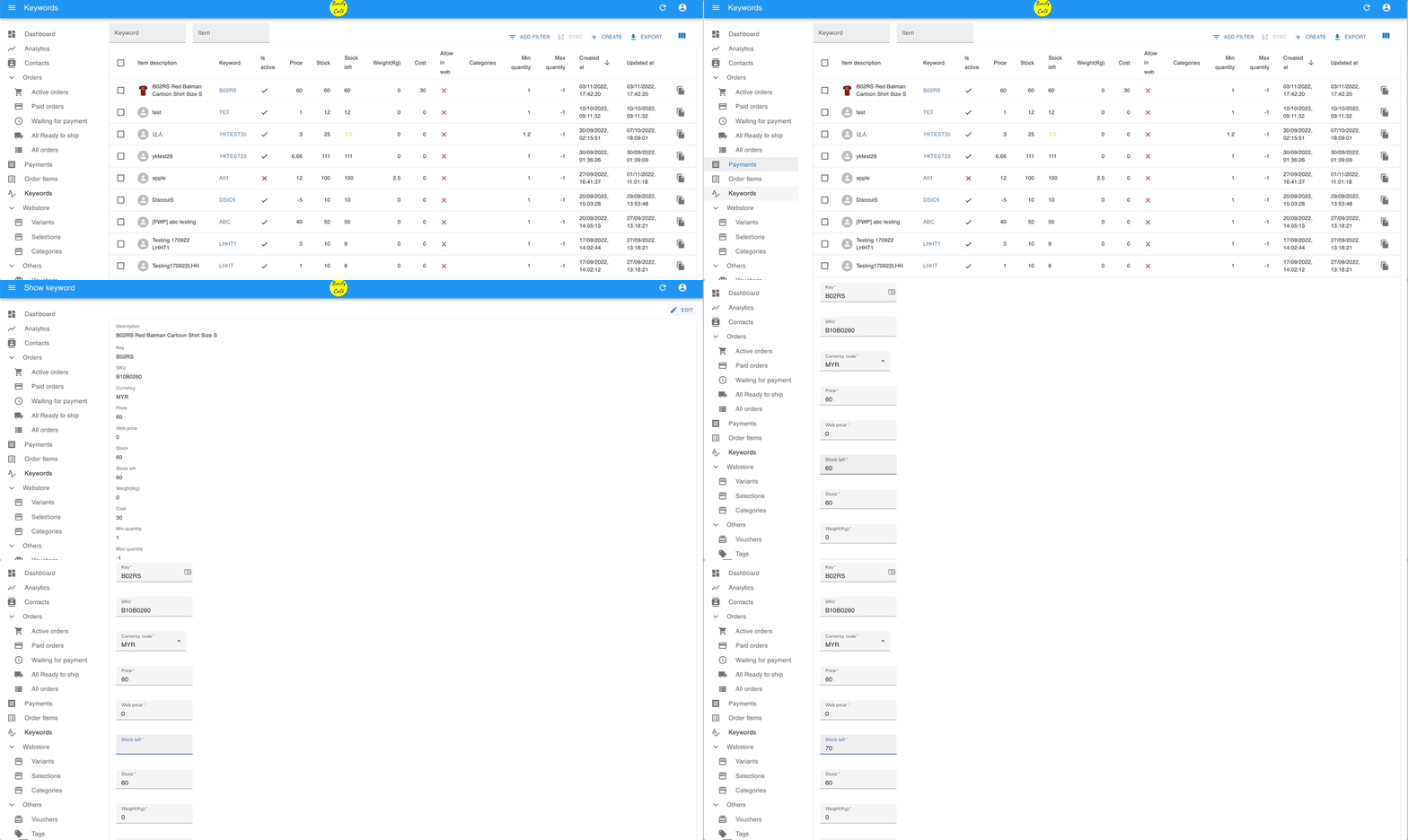
- Go to KEYWORDS in the left menu.
- Select the item and click Edit in the top right.
- Add the new quantity to Stock and to Stock left.
For example, you listed 10 units and sold them all:
| Stock | Stock left | |
|---|---|---|
| Before restocking | 10 | 0 |
| After restocking 10 more | 20 | 10 |
Raising only Stock left would leave Stock at 10 while 20 units have actually been offered, and your sold figure would be wrong.
Tiered prices
Section titled “Tiered prices”Tiered pricing lets you set special prices for specific quantities. When a customer orders exactly that quantity, the discounted price applies automatically.
You set a price for an exact quantity. For example:
| Quantity | Price |
|---|---|
| 3 units | $10 |
| 6 units | $18 |
If a customer orders exactly 3 units, they pay $10. If they order exactly 6, they pay $18. Any other quantity — say 4 or 5 — is charged at your normal price.
To set it up, go to Edit Keywords or Bulk Edit Keywords, find the tiered pricing option for the product, then add your quantity and price combinations and save.
See also: