
Troubleshooting FB Messaging
This page explains common Facebook Messenger error messages and what to do about each one. These errors come directly from Facebook — they are not generated by Boxify. You can also find a full list of Facebook error codes on the Facebook developer site.
”Message failed to send” — outside the 24-hour window
Section titled “”Message failed to send” — outside the 24-hour window”Failed to send : This message cannot be sent outside of the allowed 24-hour windowWhy it happens: The customer has not sent any message to your page in the past 24 hours, so the messaging window has closed.
What to do:
- Ask the customer to send a message to your page — for example,
hiorcart— to reopen the window. - Resend the message once the window is open.
”This Page is not allowed to send messages”
Section titled “”This Page is not allowed to send messages””Why it happens: Facebook has placed a messaging restriction on your page due to a Page Quality warning, spam detection, or a security trigger.
What to do:
- Check your Page Quality in Facebook Page Settings.
- Review your Support Inbox for any restriction notices.
- Reduce any messaging behavior that Facebook may consider spam.
If the restriction remains, wait for Facebook to lift it automatically.
”Permission Error” / “Invalid OAuth Access Token”
Section titled “”Permission Error” / “Invalid OAuth Access Token””Why it happens: Your Facebook page permission has expired or the page has been disconnected from Boxify.
What to do:
- Go to the Boxify login page.
- Click Login with Facebook or Login with Facebook For Business.
- Reconnect your Facebook Page.
- If the problem continues, remove the Boxify app from Facebook and re-add it.
”User not reachable” / “Cannot send message to this user”
Section titled “”User not reachable” / “Cannot send message to this user””"message": "(#200) This person isn't available right now.","type": "OAuthException","code": 200,"error_subcode": 1545041Why it happens: The customer has blocked your page, deactivated their account, or has privacy settings that prevent your page from messaging them.
What to do:
- Ask the customer to send a message to your page directly.
- Confirm they have not blocked your page.
If they are still unreachable, the restriction is on their side and cannot be resolved from your end.
”Rate limit exceeded” / “Application request limit reached”
Section titled “”Rate limit exceeded” / “Application request limit reached””Why it happens: You have reached Facebook’s messaging quota by sending too many messages in a short time.
What to do:
- Pause sending messages temporarily.
- Avoid sending large bursts of similar messages.
- Encourage customers to message your page first — this opens the window and reduces quota pressure.
The quota resets automatically based on Facebook’s platform rules.
”Spam detected” / “Your account appears to be sending spam”
Section titled “”Spam detected” / “Your account appears to be sending spam””Why it happens: Facebook detected repetitive automated replies, high user spam reports, or engagement bait behavior.
What to do:
- Reduce repetitive or identical messages.
- Avoid sending the same broadcast message to many users at once.
- Check your Page Quality and address any flags.
Some restrictions are temporary and will lift on their own.
”Content blocked” / “Message violates community standards”
Section titled “”Content blocked” / “Message violates community standards””message: (#2022) You have been temporarily blocked from performing this action.Why it happens: Your message contains words or content that Facebook’s policy system flagged.
What to do:
- Review the content of your message.
- Remove or rephrase any sensitive or flagged wording.
- Keep message text simple and direct.
How to handle any error efficiently
Section titled “How to handle any error efficiently”- Read the error message carefully.
- Match it to the list above.
- Follow the steps for that error.
- If the issue continues after following all steps, contact Boxify Support.
When to contact Boxify Support
Section titled “When to contact Boxify Support”Contact support if:
- You reconnected your page but still cannot send messages
- Multiple customers are reporting the same issue
- The error has persisted for more than 24 hours
- You cannot identify the error from this list
When contacting support, please include:
- A screenshot of the error
- Your page name
- The time the error occurred
- The affected customer (if applicable)
Note on deleted conversations
Section titled “Note on deleted conversations”If a customer deletes the conversation with your page, you can still send them a message by searching for them in Facebook Messenger. They will receive a request to start a new conversation, and no error will be generated.
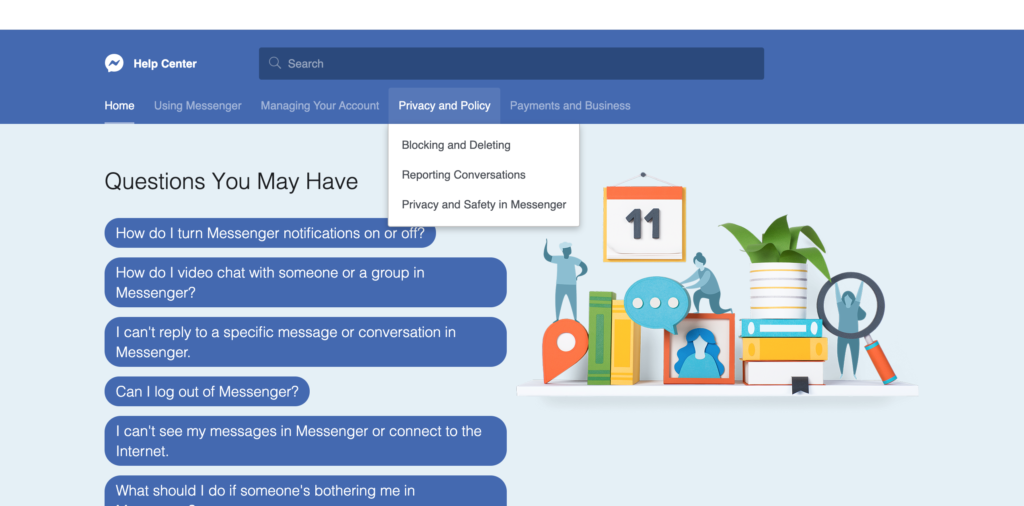
For more information on Messenger privacy and policies, visit the Facebook Messenger Help Center.
Why Messages Fail to Deliver
Section titled “Why Messages Fail to Deliver”Boxify sends order notifications and checkout messages to your customers through Facebook Messenger. When messages are not delivered, the cause is almost always a Facebook platform policy — not a Boxify system error.
The 24-hour messaging rule
Section titled “The 24-hour messaging rule”Facebook allows businesses to send messages freely within 24 hours after a customer interacts with your Page (for example, by commenting or sending a message). After 24 hours:
- Promotional messages may be restricted.
- Some automated messages may not be delivered.
- Facebook may block or limit messaging entirely.
If a customer has not interacted with your Page recently, their Messenger delivery may fail because of this rule.
Customer privacy and message restrictions
Section titled “Customer privacy and message restrictions”Facebook protects users from unwanted messages. A message may not be delivered if the customer has blocked your Page, restricted messages, previously reported spam, or never interacted with your Page. Boxify cannot override these restrictions.
Page Quality and policy violations
Section titled “Page Quality and policy violations”If your Facebook Page has spam warnings, policy violations, a low Page Quality rating, or messaging restrictions, Facebook may temporarily block or limit your ability to send messages. Check your Page Quality in Facebook Page settings.
Expired permissions
Section titled “Expired permissions”Facebook permissions between your Page and Boxify can expire over time.
Reconnect your Facebook Page in Platform Setup.
Facebook system updates
Section titled “Facebook system updates”Facebook frequently updates Messenger rules and messaging APIs. These updates may temporarily affect auto-replies, order notifications, and message delivery speed. Such changes are controlled by Facebook and may require you to reconnect your Page or adjust your settings.
How to reduce messaging problems
Section titled “How to reduce messaging problems”- Reply to customers within 24 hours of their interaction.
- Avoid spam-like messaging behavior.
- Do not send repeated promotional messages.
- Monitor your Page Quality regularly.
- Reconnect your Page if permissions expire.
When to contact Boxify support
Section titled “When to contact Boxify support”Contact support if:
- Orders are not being detected at all.
- No customers are receiving messages.
- You have reconnected your Page but the issue continues.
If only certain customers are not receiving messages, the cause is usually Facebook messaging policies or restrictions on the customer’s account. Our team can help you review the situation and guide you through the next steps.
See also: