Connect Webstore to Facebook
Making your webstore easy to find encourages customers to browse and buy more. You can connect it to your Facebook page button, the Messenger menu, and the shopping cart.
Add the Facebook page Shop button
Section titled “Add the Facebook page Shop button”-
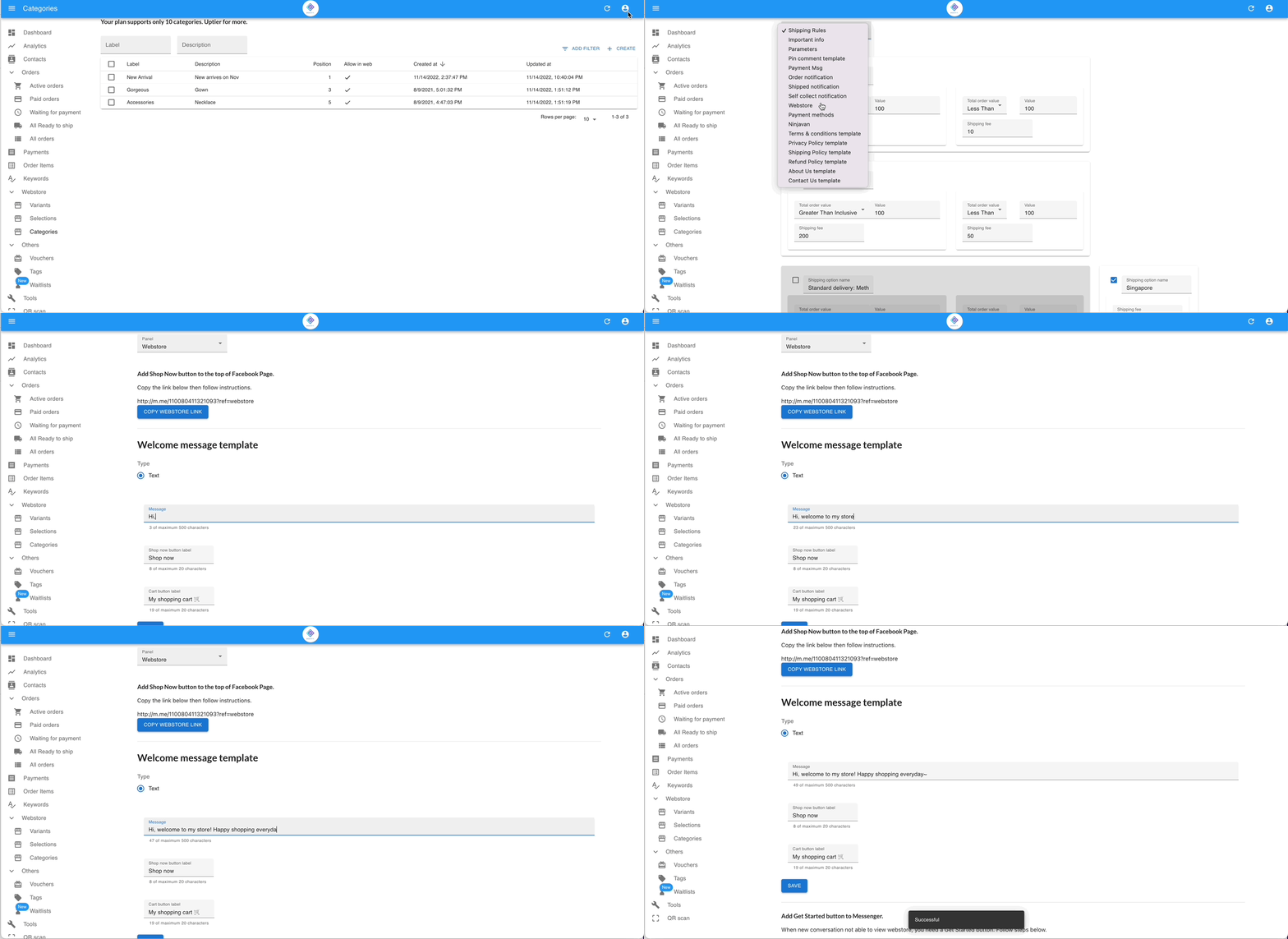
Go to Settings › General › Webstore and click Copy Webstore Link.
-
Go to your Facebook page and click the three dots icon (…), then select Edit Action Button.
-
Click Change button, select View Shop, then click Next.
-
Tick Link on Website and paste your webstore link into the field.
Add a Shop Now option to the Messenger menu
Section titled “Add a Shop Now option to the Messenger menu”- Go to Settings › General › Webstore and scroll to Add Get Started button to Messenger.
- Click Check. If the Add Get Started button appears, click it.
- Go to your Facebook page and click Meta Business Suite in the left menu.
- Click the Inbox icon (
 ) in the left menu.
 - Click the Automations icon (
 ) at the top and scroll to Frequent asked questions, then click Edit.
 - Click Add another question, then click the Edit icon.
- Type Shop now as the question text.
- Toggle on Add on menu, then click Save Changes.
Access from the shopping cart
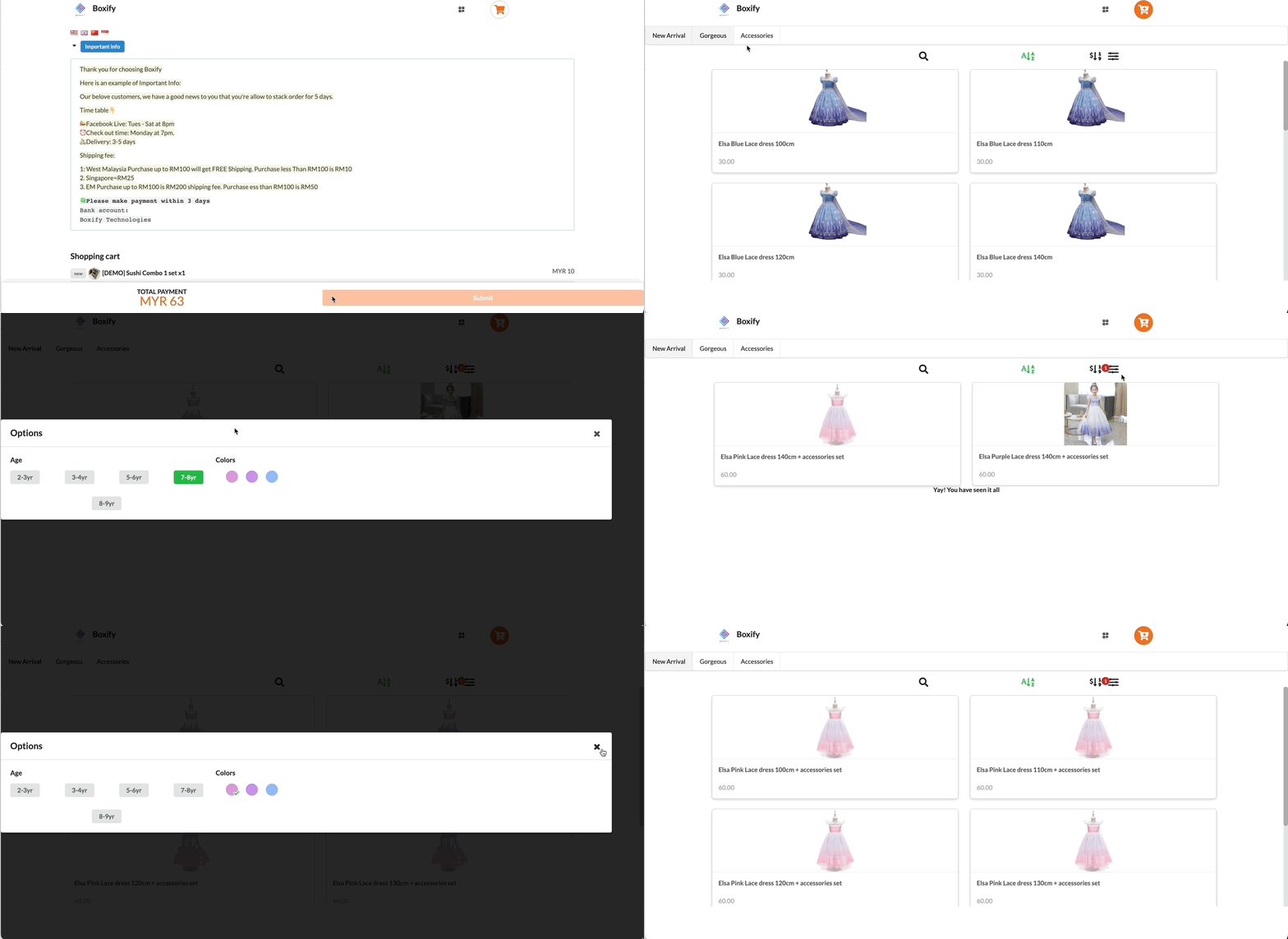
Section titled “Access from the shopping cart”Customers can open the webstore directly from the shopping cart when their order is in one of these statuses: Active, Paid, On-hold, or Waiting for payment.
Set up the webstore welcome message
Section titled “Set up the webstore welcome message”- Go to Settings › General › Webstore and scroll to Welcome message template.
- Write your welcome message and click Save.