
Discount Rules
Discount Rules give customers an automatic discount when they buy enough of the keywords you pick — no coupon code needed. You choose which keywords qualify, how many units make a group, and how much each group is worth.
Rules are off until you create one.
How it works
Section titled “How it works”- You create a rule: give it a name, pick a rule type, set a minimum quantity and a value, then add keywords to it.
- A customer buys enough units of the rule’s keywords to reach the minimum.
- Boxify adds a discount line to their order automatically — no action needed from you. Every further full group of the minimum quantity adds another discount line.
- The discount updates as the order changes, until the order reaches certain statuses (see Good to know below).
Two rule types
Section titled “Two rule types”Both types pay out once per full group of the minimum quantity, not once per order. Units left over after the last full group earn nothing.
Amount off
Section titled “Amount off”For every full group of the minimum quantity, a fixed amount comes off the order.
Example — “Buy 3, RM5 off”: minimum quantity 3, value RM5.
| Customer buys | Full groups of 3 | Discount |
|---|---|---|
| 2 | 0 | None |
| 3 | 1 | RM5 |
| 4 | 1 (1 left over) | RM5 |
| 6 | 2 | RM10 |
Bundle price
Section titled “Bundle price”For every full group of the minimum quantity, the customer pays a fixed total for those units instead of the regular price.
Example — “3 for RM100”: minimum quantity 3, value RM100. Each item costs RM40.
| Customer buys | Regular price | Pays | Discount |
|---|---|---|---|
| 3 | RM120 | RM100 | RM20 |
| 6 | RM240 | RM200 | RM40 |
When prices differ, units are grouped cheapest first: the cheapest 3 units form the first group, the next 3 the second, and so on. A group whose regular price is already at or below the bundle price gets no discount, but a pricier group after it still can.
Step 1: Create a rule
Section titled “Step 1: Create a rule”- Go to Discount Rules.
- Click Add rule.
- Fill in the settings.
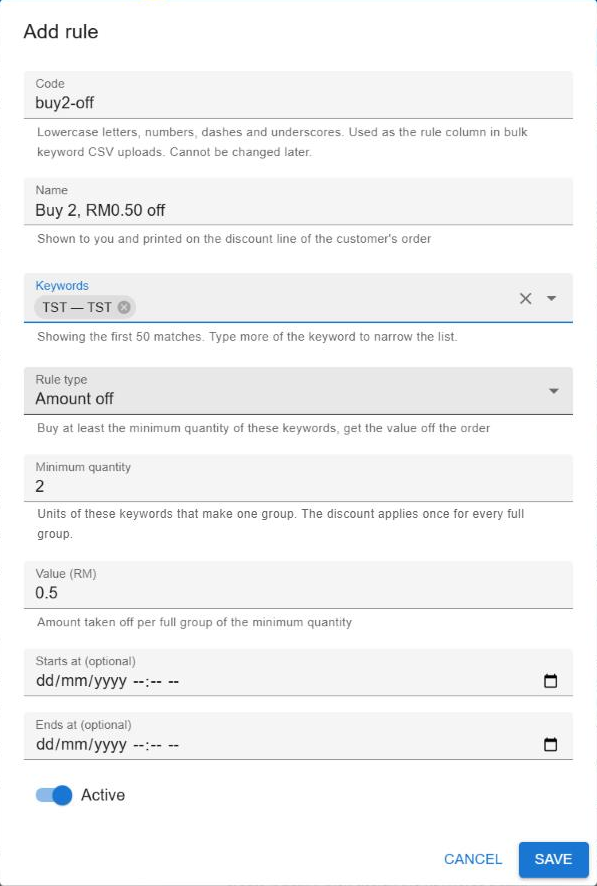
- Code — Lowercase letters, numbers, dashes and underscores only. Must be unique on your page. Used as the
rulecolumn when you bulk-upload keywords by CSV. Cannot be changed later — delete and re-create the rule for a new code. - Name — Shown to you, and printed on the discount line of the customer’s order. Tip: describe the deal, e.g. “Buy 2, RM0.50 off”, so customers understand the line. Up to 120 characters.
- Keywords — The keywords this rule applies to, up to 500 (see Step 2).
- Rule type — Amount off or Bundle price (see above).
- Minimum quantity — Units of the rule’s keywords that make one group. A whole number, at least 1.
- Value (RM) — The amount off per group (Amount off) or the price the customer pays for each group (Bundle price). From 0.01 up to 1,000,000. The value is in your page’s currency — the customer sees it in that currency.
- Starts at (optional) / Ends at (optional) — Leave blank for a rule with no date limits. The end must be after the start.
- Active — On by default. Switch off to keep the rule without giving discounts.
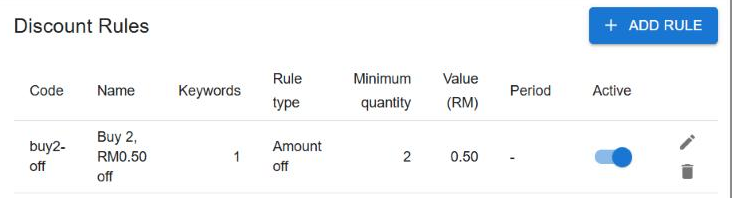
- Click Save. The rule appears in the list, where you can edit it, delete it, or switch it on and off.
Step 2: Assign keywords
Section titled “Step 2: Assign keywords”Each colour and size is its own keyword. A keyword can belong to one rule only. You can assign keywords in three places:
- From the rule — open the rule and add keywords under Keywords. If a keyword already belongs to another rule, saving is refused and Boxify tells you which rule has it.
- From the keyword form — open a keyword and set its Discount rule (in the Webstore section). If it already belongs to another rule, you’re asked whether to move it there — moving stops it counting toward the old rule.
- From bulk keyword upload — add a
rulecolumn to your CSV and put the rule’s code in it.- A code that matches no rule creates a new rule with that code, marked Incomplete and switched off. Open it, fill in the name, minimum quantity, rule type and value, then switch it on.
- A bulk upload never moves a keyword that already belongs to another rule — that row is reported as an error instead. Move it from the keyword form.
- If a keyword saves but its rule can’t be linked, it is listed under Download rule link failures, not in the failed list. Set the rule on that keyword’s page — don’t re-upload it, or the CSV’s stock would overwrite the live stock.
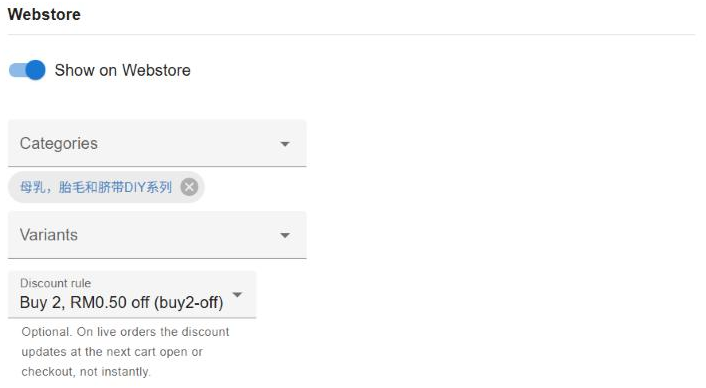
To see which keywords use a rule, filter the keyword list by Discount rule (choose All to clear it). A keyword’s page also shows its rule.
What the customer sees
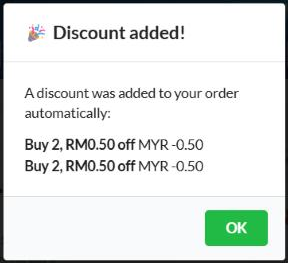
Section titled “What the customer sees”Each discount shows as a green minus line on the order, named after the rule, listing the keywords that group counted. In this example the customer bought 5 units on a “Buy 2, RM0.50 off” rule: two full groups, so two lines. The 5th unit is left over.
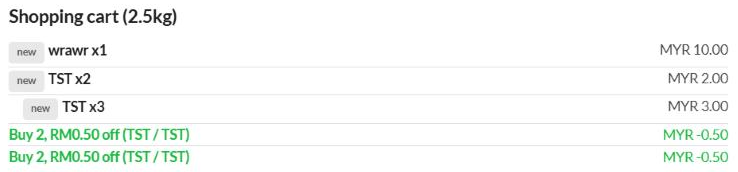
Whenever a new discount line is added, the customer sees a 🎉 Discount added! popup listing the new discounts.
Remove a discount from one order
Section titled “Remove a discount from one order”Discount lines are managed by the rule, so you cannot edit them. To take a discount off one order:
- Open the order.
- Next to the discount line, click Cancel and confirm. Only an unpaid discount line can be cancelled — a paid one is a discount the customer already received.
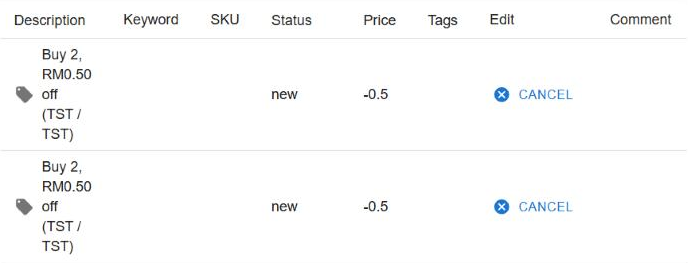
Cancelling any one line switches that rule off for the whole order: its other unpaid lines on that order are removed too, and it will not come back on that order. Other rules still apply.
If you later combine this order with another, the cancelled line moves with it, so the rule stays off on the combined order.
Good to know
Section titled “Good to know”Counting
- A rule pays out once per full group of the minimum quantity, each group as its own discount line. Different rules can also stack on the same order.
- Keywords in a rule are counted together — example: a rule covering Red, Blue and Green with minimum 3 counts 1 Red + 2 Blue as one group.
- Every item of the rule’s keywords counts, whatever its price — a free (RM0) item counts towards a group too.
- A keyword can belong to one rule only.
When the discount updates
- The discount line updates when the customer opens their cart, removes an item, or checks out, or when you open the order, edit its items from the Order Items list, or combine it with another order — not instantly.
- Changing a live rule’s amount or minimum updates open orders the same way, once they refresh.
Turning a rule off or deleting it
- Turning a rule off, letting it expire, or deleting it stops new discounts. A discount line already on an order is kept, and is marked paid with the items as long as the paid items cover it. Deleting a rule also frees its keywords for other rules.
- A rule’s code cannot change after creation. Need a new code? Delete the rule, create it again, and reassign the keywords.
Paid orders
- A paid order can still get a discount when you add a new unpaid item. The discount only reduces what is still unpaid — never money already paid.
- Example: RM20 already paid (2 items), a new RM10 item added, rule “3 for RM10”. Discount is RM10, not RM20 — the customer pays RM0 more.
- After the last unpaid items are marked paid, the order’s unpaid discount lines are marked paid too, as long as the paid items cover them — after taking off any unpaid credit (negative) line you added yourself. This happens the next time the order is checked — when you open it, the customer opens their cart or checks out, you update its items from the Order Items list, or you combine it with another order. While the rule is running, a line whose items were cancelled is removed instead.
Vouchers
- A voucher is calculated on the amount after rule discounts. The goods and their discount line count together: an RM10 item with an RM-2 discount line counts as RM8.
- A percentage voucher applies to that RM8 — a 10% voucher takes RM0.80.
- A voucher’s minimum spend is also checked against the amount after rule discounts.
Order statuses
- Discounts are only added, updated or removed while an order is New, Active, Preorder, Waiting for payment, or Paid with an unpaid item on it.
- In any other status — Ready to ship, Shipped, On hold, Locked, Cancelled, Expired, No stack, Waiting for online payment, a payment error, or fully paid — its discount lines stay exactly as they are.
See also: