
Set Up the Shipping Fee
This article shows you how to set your shipping fees in Boxify.
Open the shipping rules
Section titled “Open the shipping rules”-
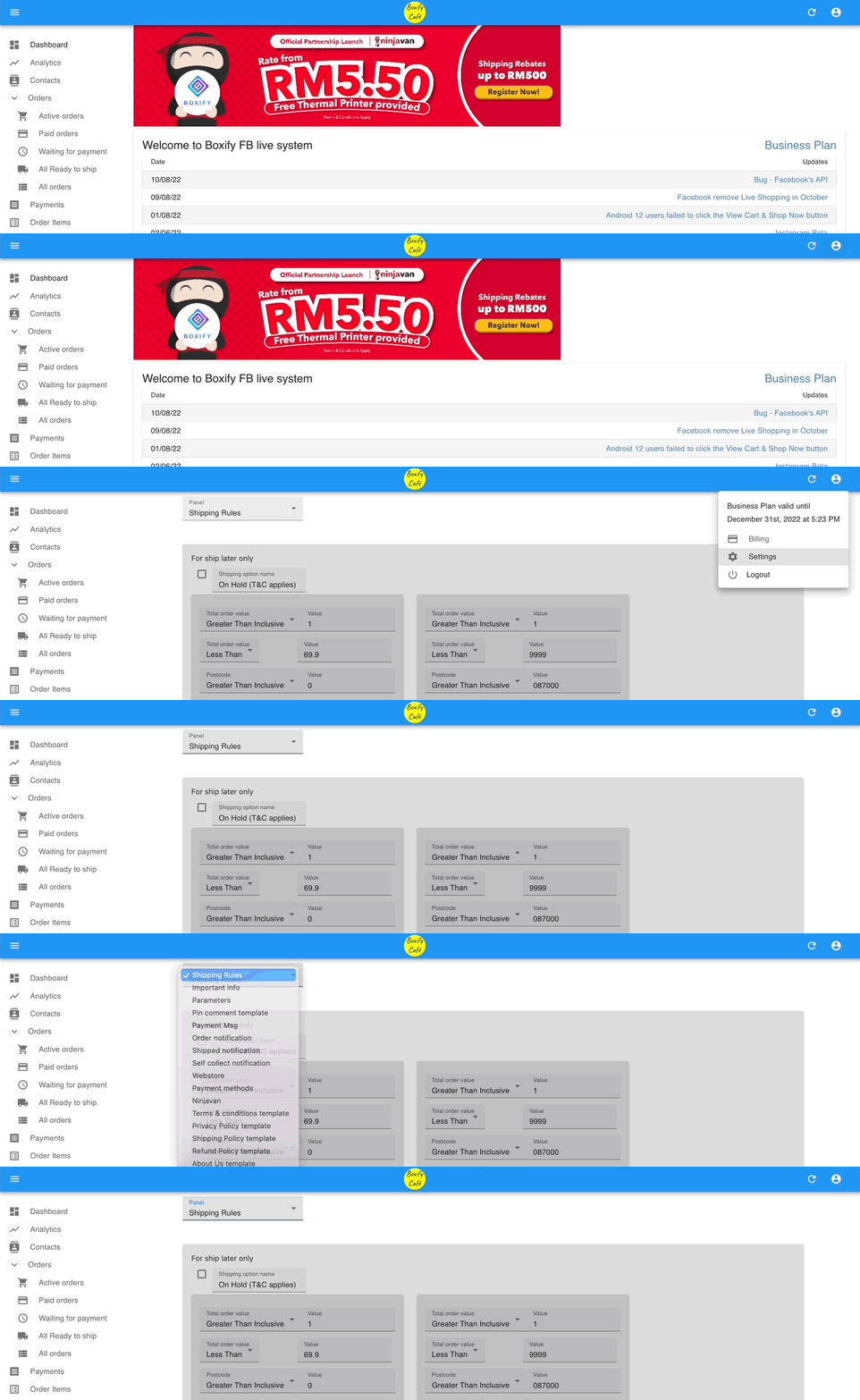
Click your profile icon in the top-right corner of the screen.
-
Select Settings.
-
Click the Shipping Rules tab.
Flat rate shipping
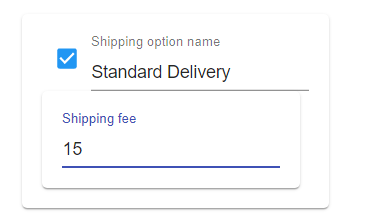
Section titled “Flat rate shipping”Use this when you charge a fixed shipping fee regardless of order size.
-
Set the shipping option name (for example, “Standard Delivery” or “Standard Delivery – West Malaysia”).
-
Enter the flat fee in the Shipping Fee column.
Tiered shipping (free shipping above a spend threshold)
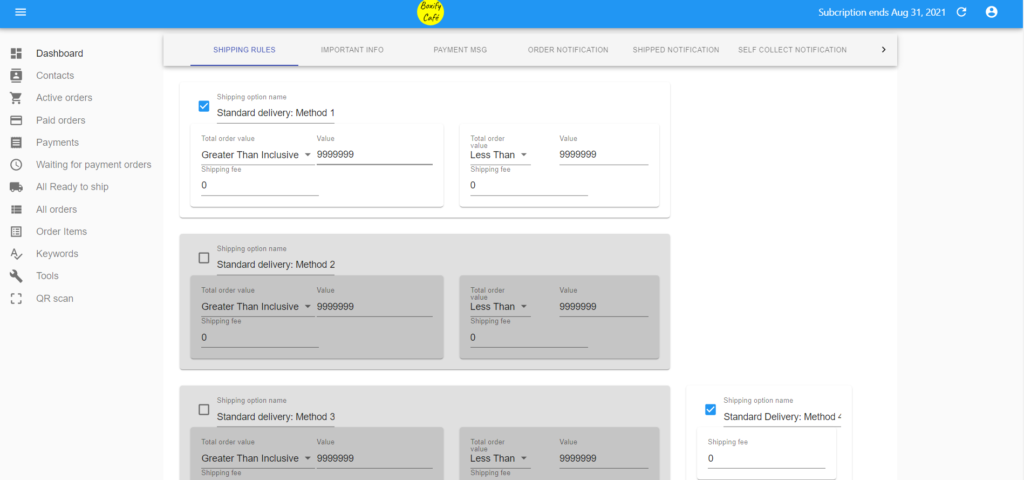
Section titled “Tiered shipping (free shipping above a spend threshold)”Use this when shipping is free above a certain order amount.
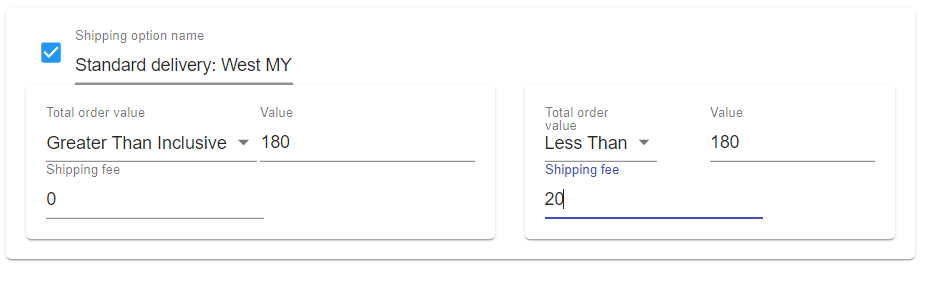
Example: free shipping for orders RM180 or above; RM20 shipping for orders below RM180.
-
Set the shipping option name (for example, “Standard Delivery – West Malaysia”).
-
In the Greater than or equal to row, set the minimum order amount (RM180) and enter 0 as the shipping fee.
-
In the Less than row, enter the order amount threshold (RM180) and the shipping fee (RM20).
When the customer selects this shipping option:
- Orders of RM180 or more get free delivery.
- Orders below RM180 are charged RM20.
Weight-based shipping
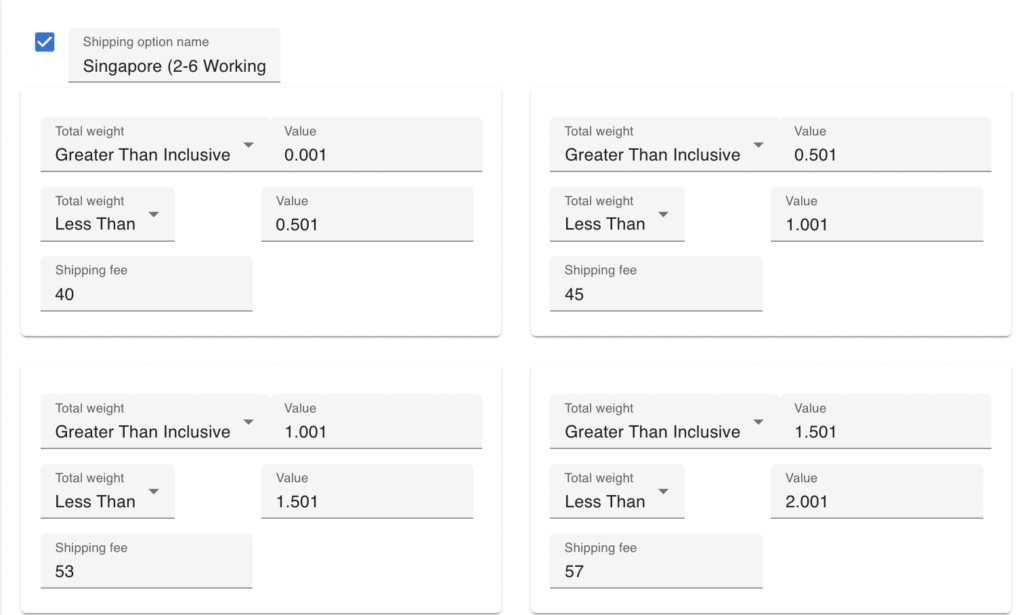
Section titled “Weight-based shipping”Use this when your shipping fee depends on the weight of the order.
Enter the weight value and the fee for each weight range.
Allow customers to stack orders (Ship Later)
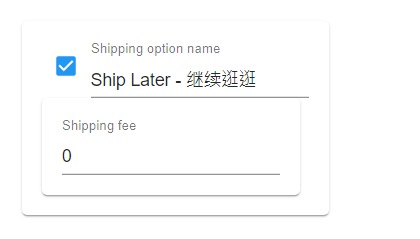
Section titled “Allow customers to stack orders (Ship Later)”Turn on Ship Later to let customers add more orders before checkout. This is on by default.
Allow self-collection
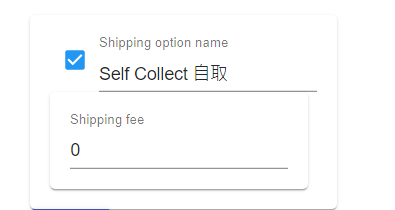
Section titled “Allow self-collection”Turn on Self Collect to let customers pick up orders from your shop or warehouse. This is on by default.
Add a custom shipping fee to a specific order
Section titled “Add a custom shipping fee to a specific order”If one order needs a special shipping rate not covered by your rules:
-
Open the order.
-
Go to Edit › Shipping Option.
-
Select Custom and enter the fee.

How shipping options look to customers
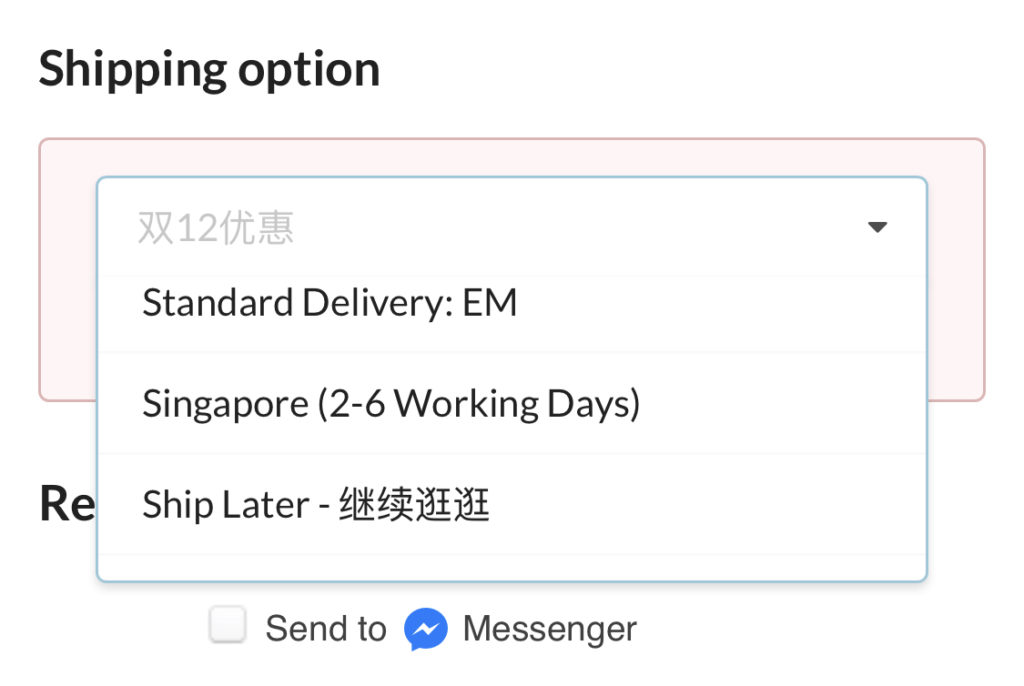
Section titled “How shipping options look to customers”Customers see your shipping options in their shopping cart and can scroll to view all available choices.
See also: