
Admin Panel Settings
This article explains each setting in the Admin Panel and when to use it.
Admin Panel settings control what your staff can do, how orders are managed, and how keyword limits work.
Allow Admin Delete Orders
Section titled “Allow Admin Delete Orders”Controls whether Admin users can delete orders.
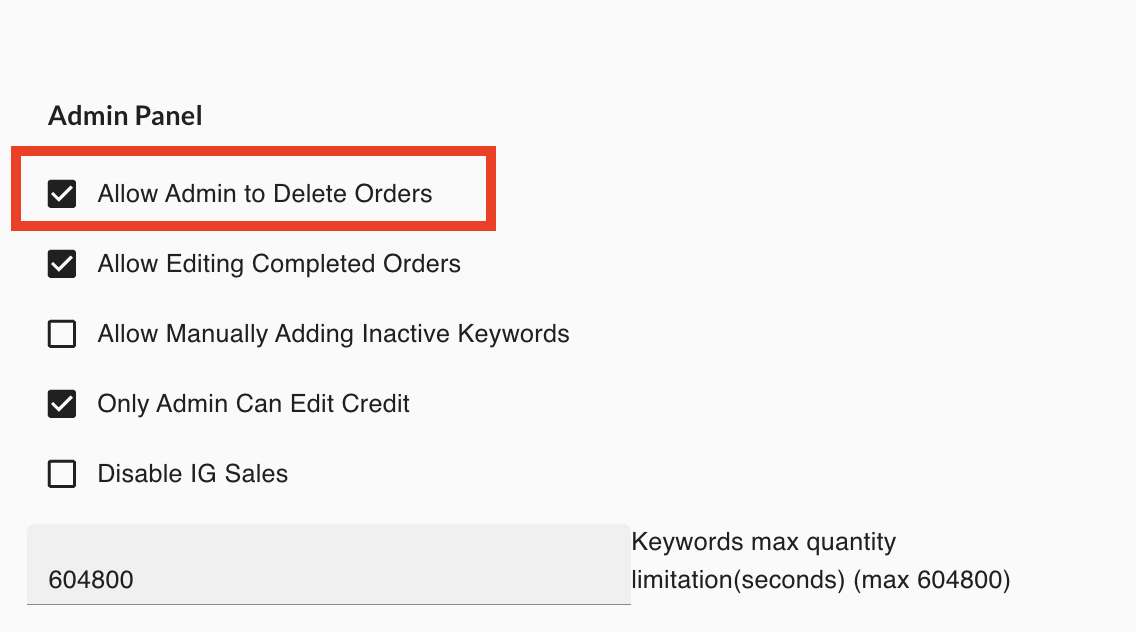
When turned on, Admin users can delete orders — but only if the order status is Cancelled. Orders with any other status cannot be deleted.
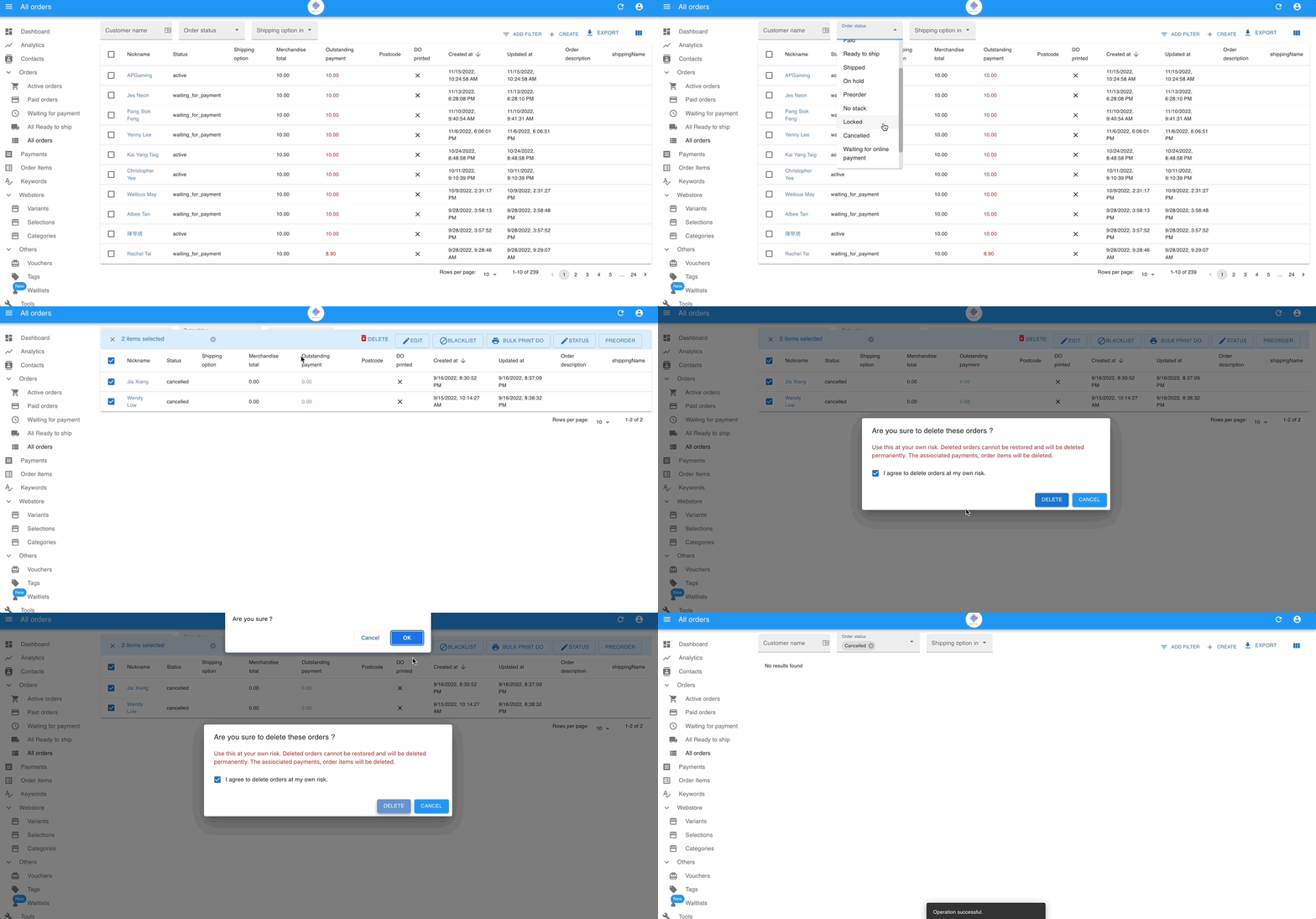
Use this to clean up cancelled or invalid orders. Completed orders are always preserved.
Allow Editing Completed Orders
Section titled “Allow Editing Completed Orders”Controls whether Admin users can edit orders that are already completed.
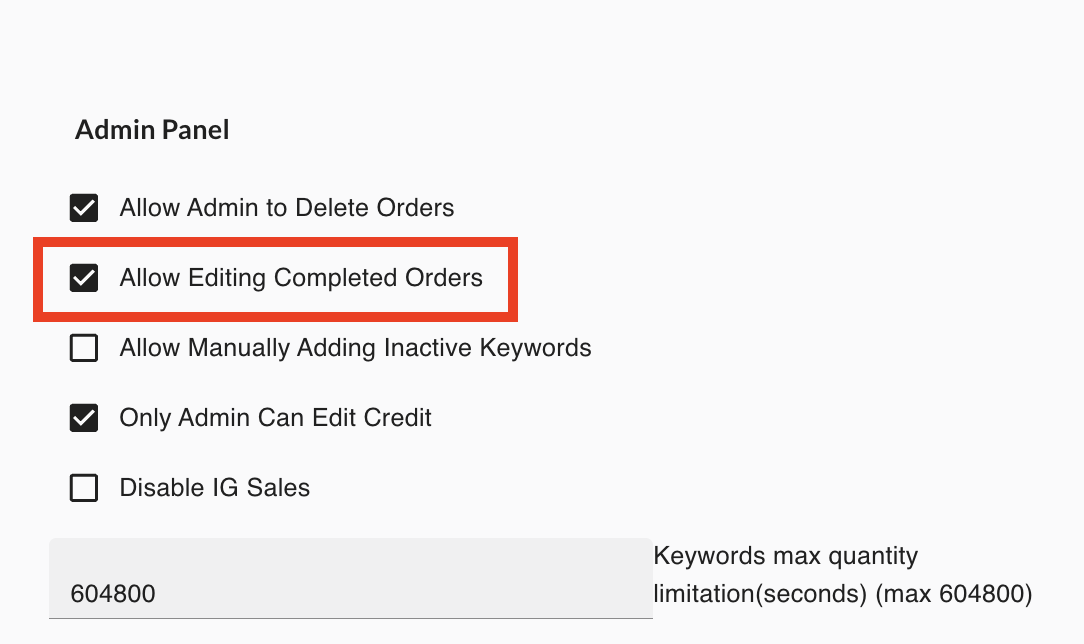
Completed orders include Shipped and Cancelled orders.
When turned on, Admin users can edit information in completed orders. When turned off, completed orders are read-only.
Use this when you need to correct shipping details or order information after an order is complete.
Allow Manually Adding Inactive Keywords
Section titled “Allow Manually Adding Inactive Keywords”Controls whether Admin users can add inactive keywords to orders manually.
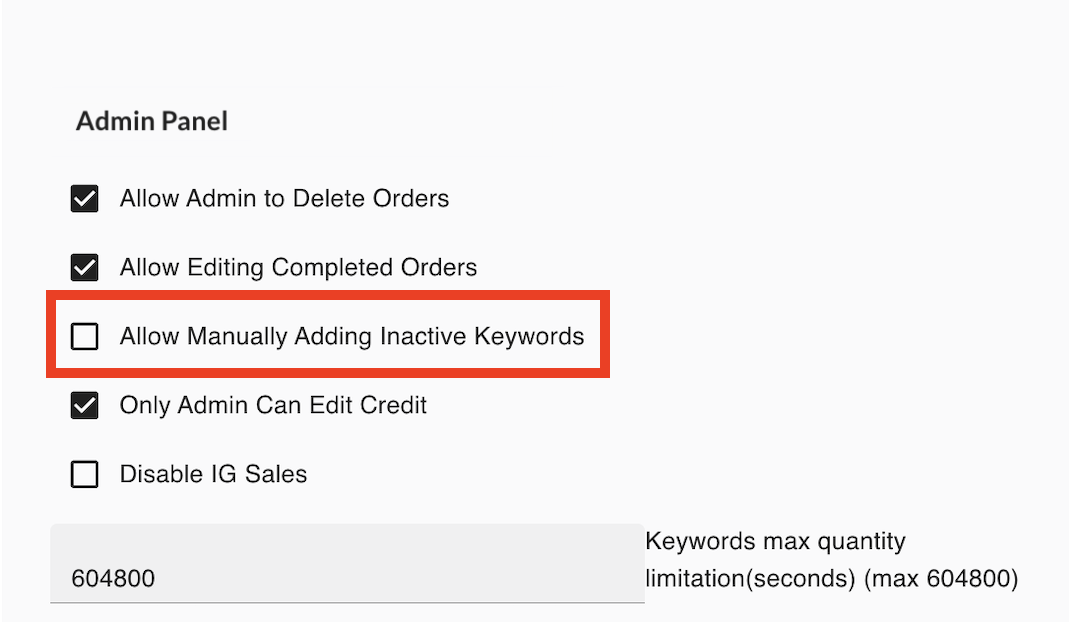
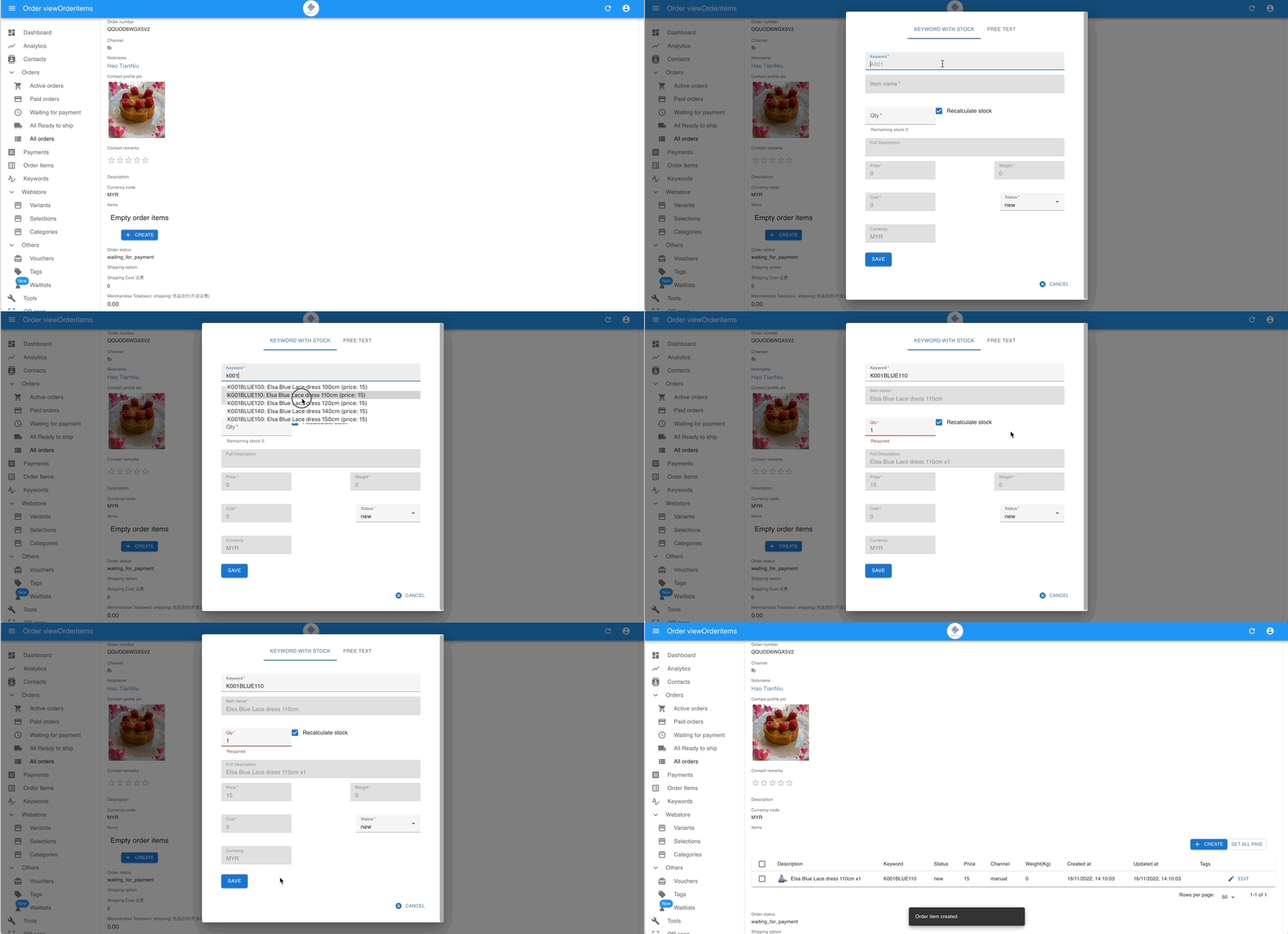
When turned on, Admin users can create orders using keywords that are currently inactive. When turned off, only active keywords can be used.
Use this when you need to process orders for past products or temporarily disabled keywords.
Only Admin Can Edit Credits
Section titled “Only Admin Can Edit Credits”Restricts credit editing to Admin users only.
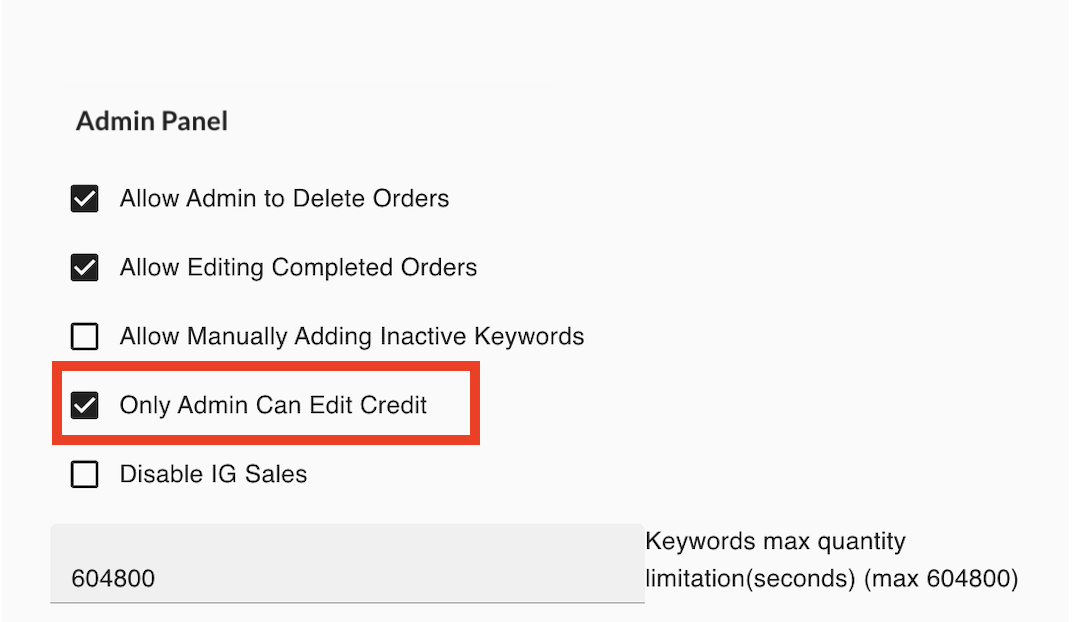
When turned on, only Admin role users can change a customer’s credit balance. Staff with other roles cannot edit credits.
Disable IG Sales
Section titled “Disable IG Sales”Stops the system from collecting orders from Instagram comments.
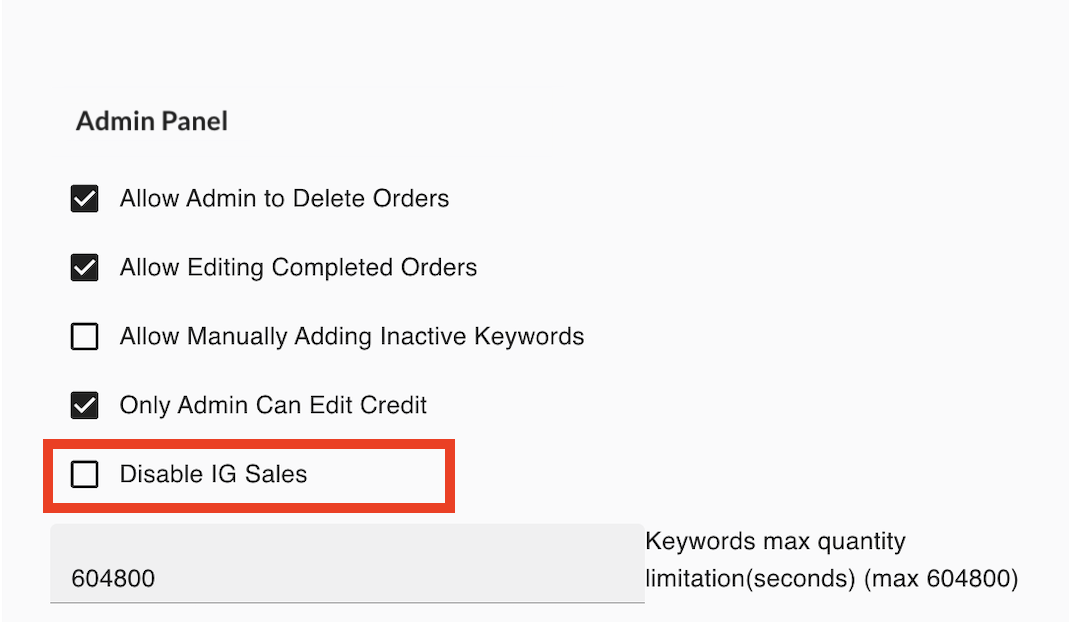
When turned on, the system ignores Instagram comments. Facebook and Messenger continue to work normally.
Use this if your store does not sell through Instagram, or if you want to pause Instagram order collection temporarily.
Keywords Max Quantity Limitation (Seconds)
Section titled “Keywords Max Quantity Limitation (Seconds)”Sets how long the per-customer quantity limit applies to keyword orders.
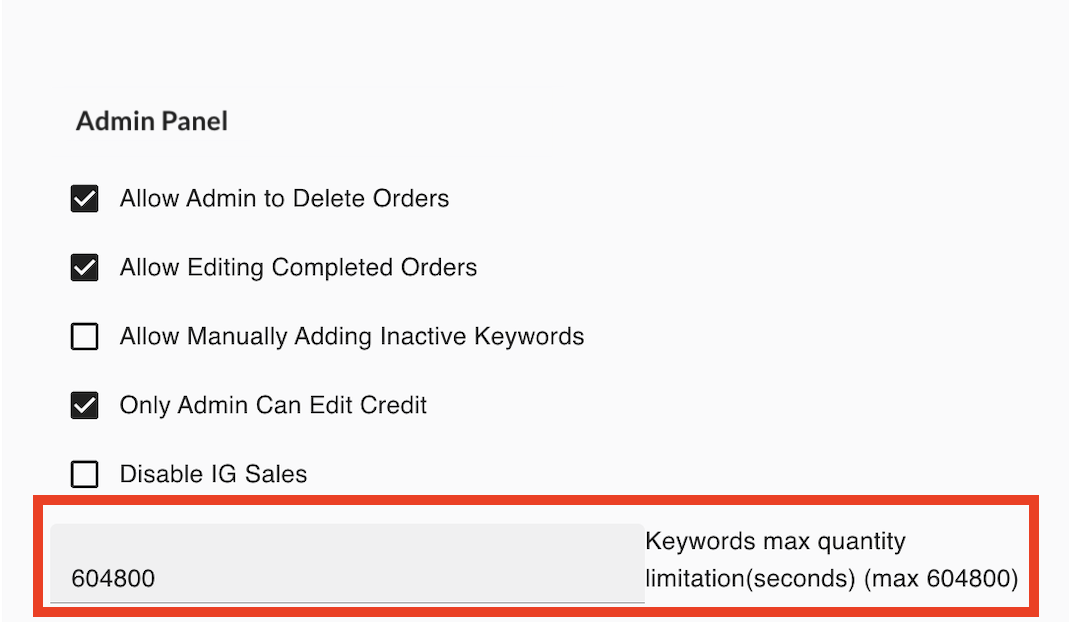
In your Keywords settings you can set the maximum number of items a customer can order per keyword. This Admin Panel setting controls how long that limit stays active.
Enter the time in seconds. The setting applies to all keywords in the system.
Example: If the limit is 2 items and you set 300 seconds, a customer cannot order more than 2 items of that keyword within 5 minutes. After 300 seconds, they can place another order.
This limit only applies to orders placed via keyword comments. You can still manually add orders for customers regardless of this restriction.
See also: