
Excel Formulas for Boxify Exports
These Excel tricks tidy up the data in your Boxify exports. To export and filter your data first, see Work with Boxify Exports in Excel.
Extract the order quantity
Section titled “Extract the order quantity”Use this formula in Excel to extract the order quantity from a cell. Replace target_cell with the cell reference you want to read from (for example, A2):
=VALUE(RIGHT(target_cell,1))The formula reads the last character of the cell, so it suits single-digit quantities. Watch the video for a step-by-step walkthrough.
Combine addresses into one line
Section titled “Combine addresses into one line”When you export orders from Boxify, the address is split across two columns: shippingAddress1 and shippingAddress2. Some shipping platforms require a single address line. Here is an example of what your exported sheet looks like:
| shippingAddress1 | shippingAddress2 |
|---|---|
| 1 Harimau Street #02-16 | |
| Blk 3000A Bukit badak street 25 | #22-58 |
| 100 Tigerlands Ave 5 | #04-02 Bellewoods |
| Bukit Tiger west ave 4 blk 407 #04-100 | |
| Harimau Central Blk 220B #04-38 | |
| Blk 36 Jalan Rumah Panjang | #21-5000 |
| 80 Lowview Avenue , #08-05 | Singapore |
Watch the video to see how to merge these two columns into one line using an Excel formula.
Split a multi-line cell into separate rows
Section titled “Split a multi-line cell into separate rows”When you export data from Boxify, some cells may contain multiple lines of text stacked inside a single cell. Watch the video to see how to split each line into its own row in Excel.
Combine text into keywords
Section titled “Combine text into keywords”If your keywords follow a pattern — such as product code + color + size — you can build them automatically in Excel instead of typing each one.
Step 1: Combine text in Excel
Section titled “Step 1: Combine text in Excel”- Put the product code, color, and size in separate columns (for example, columns A, B, and C).
- In the column where you want the finished keyword, type a formula like
=A2&B2&C2.
Excel will join the values from each column into one keyword automatically.
Step 2: Paste the combined keywords into the upload file
Section titled “Step 2: Paste the combined keywords into the upload file”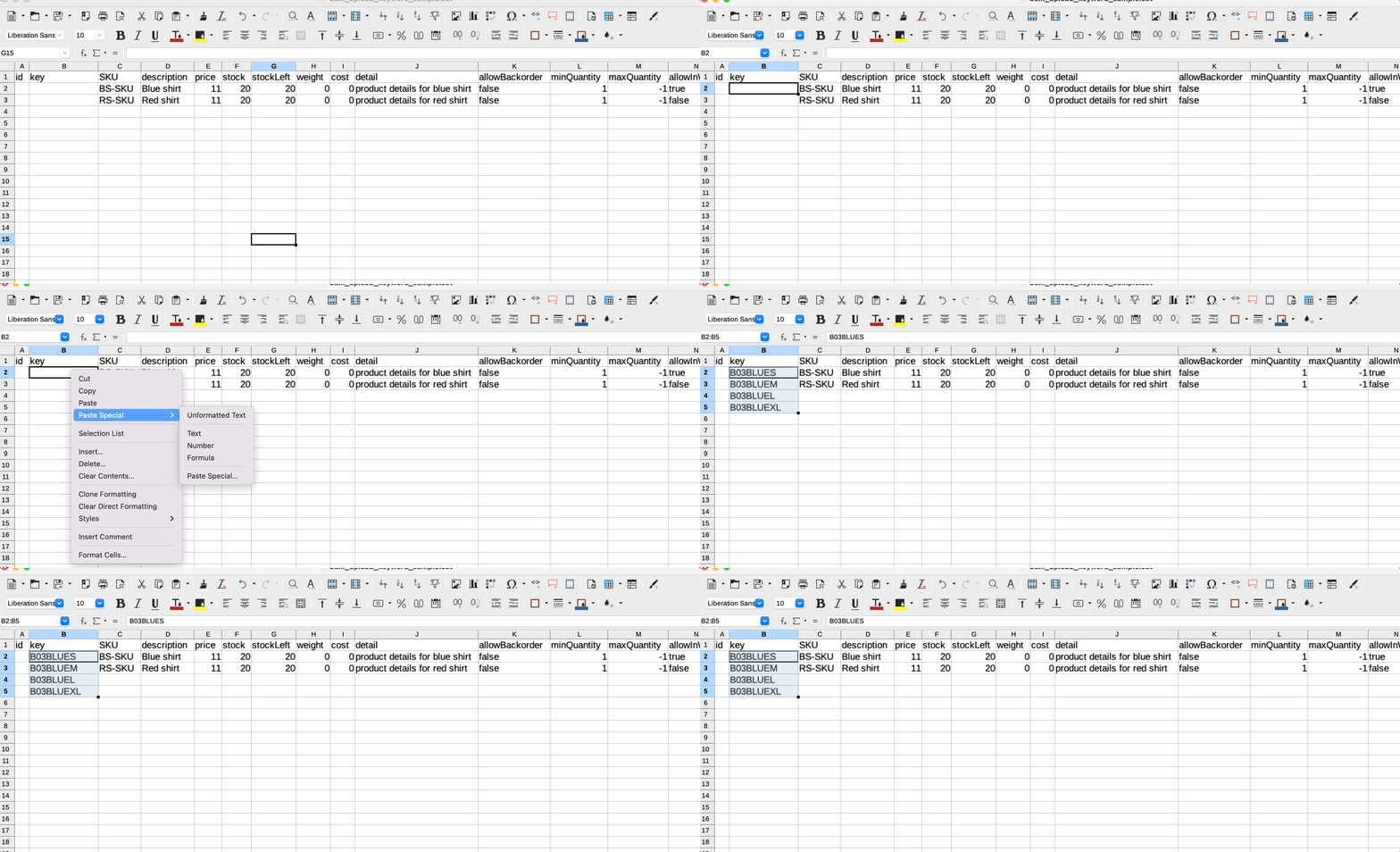
- Copy the keywords you generated.
- Right-click in the destination cell and choose Paste Special › Text.
Option: Use Google Sheets instead of Excel
Section titled “Option: Use Google Sheets instead of Excel”- Upload the downloaded sample file to Google Drive.
- Open a new sheet and prepare your keywords and descriptions using the formula method above.
- Paste all the keywords and descriptions into the sample file.
- Download the file as CSV from Google Drive.
- Go to TOOLS › BULK UPLOAD KEYWORDS and import the CSV.