
Set Boxify as Your Page's Default Messaging App
If you turned on Facebook’s own Auto-Reply, Instant Reply, or FAQ feature on your Page, Boxify may stop receiving new customer messages. There is no error message — messages simply stop coming in.
This happens because Facebook only lets one app reply to a conversation at a time. When Facebook’s own auto-reply feature is on, it can take over the conversation and shut Boxify out.
Follow the steps below to give the conversation back to Boxify.
Step 0: Switch to your Facebook Page profile
Section titled “Step 0: Switch to your Facebook Page profile”Every setting below belongs to your Page, not your personal profile. If you are still on your personal profile, the options will not be there.
-
Go to facebook.com
-
Click your profile picture at the top right.
-
Choose your Page from the list to switch into it.
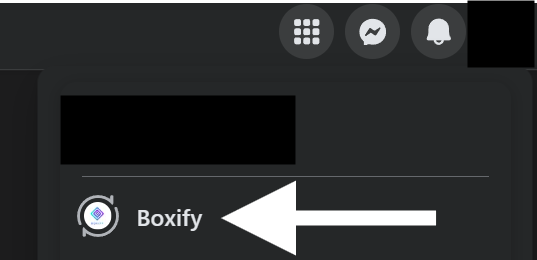
Once the top-right picture shows your Page, continue with Step 1.
Step 1: Allow Boxify to manage your conversations
Section titled “Step 1: Allow Boxify to manage your conversations”-
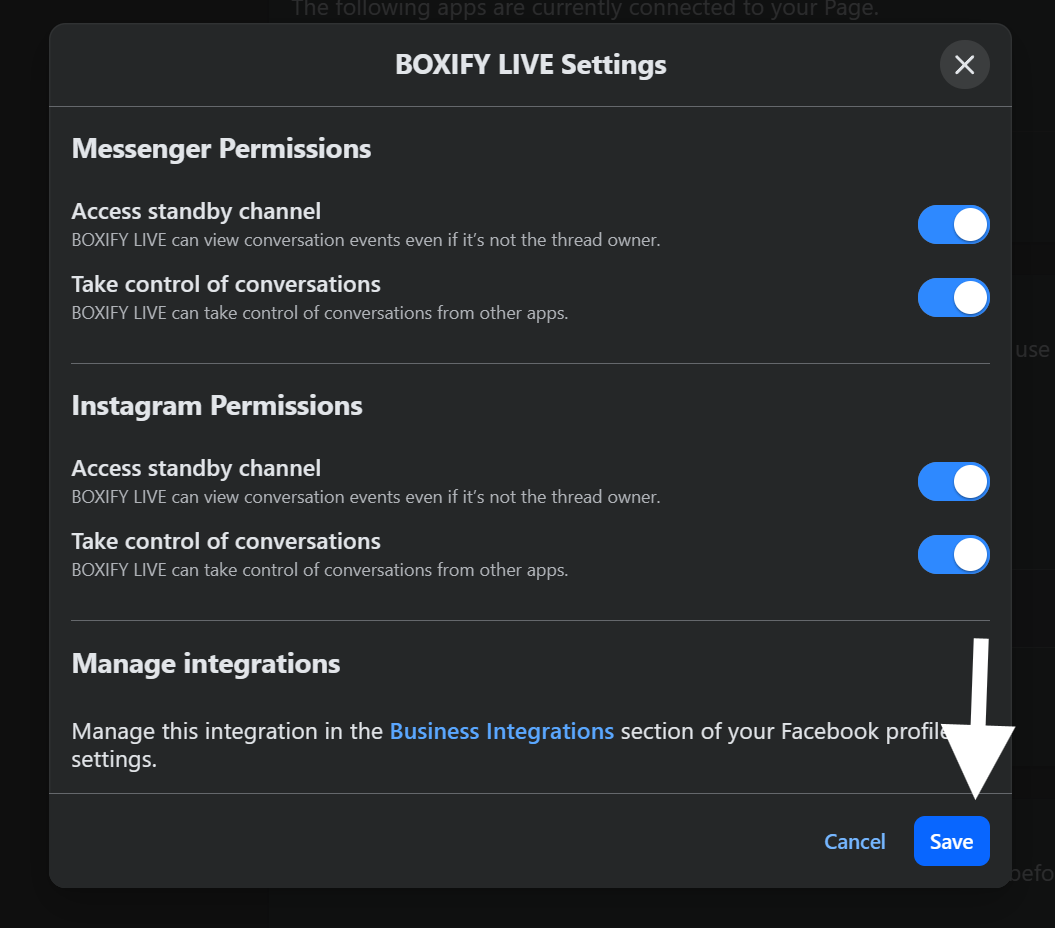
Find BOXIFY LIVE under Connected Apps and click Edit.

-
Turn on all the toggles, then click Save:
- Messenger Permissions — Access standby channel, Take control of conversations
- Instagram Permissions — Access standby channel, Take control of conversations
Step 2: Make Boxify your Page’s main messaging app
Section titled “Step 2: Make Boxify your Page’s main messaging app”-
Under Default routing app, choose BOXIFY LIVE.
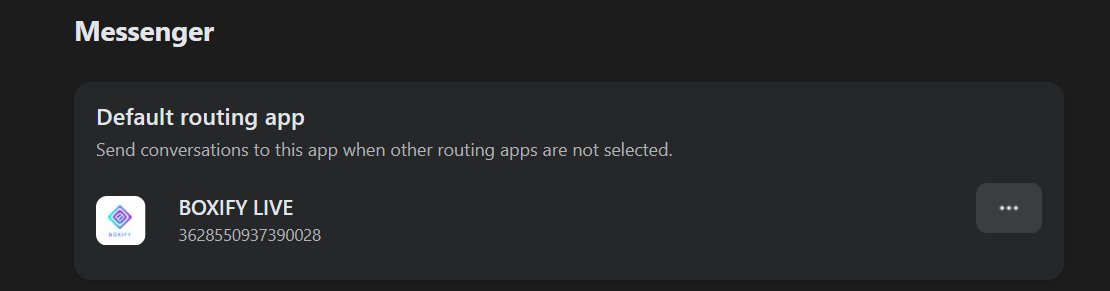
This tells Facebook to send new conversations to Boxify first, instead of Facebook’s own Page Inbox.
Step 3: Turn off Facebook’s own Auto-Reply (recommended)
Section titled “Step 3: Turn off Facebook’s own Auto-Reply (recommended)”- Open Meta Business Suite.
- Go to Inbox › Automations.
- Turn off Instant Reply and FAQs for Messenger.
Turn off Meta Business Agent (mobile app)
Section titled “Turn off Meta Business Agent (mobile app)”- Open the Meta Business Suite app and go to Inbox.
- Tap the AI/agent icon at the top.
- Open the On dropdown at the top centre.
- Turn off Business Agent responses on Messenger.
Turn off Meta Business Agent (desktop)
Section titled “Turn off Meta Business Agent (desktop)”- Open Meta Business Suite and select your Page.
- Go to All tools › Meta Business Agent.
- Turn off the agent’s replies for Messenger.
See Meta’s official instructions
Check that it worked
Section titled “Check that it worked”- Send a test message to your Page from a different Facebook account.
- Check that the message shows up in Boxify as usual.
- Confirm Facebook’s own auto-reply does not reply in the same conversation.
If a conversation is still stuck
Section titled “If a conversation is still stuck”Existing conversations that started before you made these changes may not switch over right away. If a customer says they’re not getting replies, ask them to wait a few days — the conversation will reset back to Boxify on its own.
See also: