
Payment Message
This article shows you how to set up the payment message that customers receive in Messenger when they request their shopping cart.
The Payment Message is sent together with the shopping cart link. Use it to give customers your bank account details and shipping fees.
What to include in your Payment Message
Section titled “What to include in your Payment Message”Shipping fees
Section titled “Shipping fees”List your shipping zones and prices clearly.
Example:
- West Malaysia – RM10
- East Malaysia – RM20
Bank account details (for bank transfer payment)
Section titled “Bank account details (for bank transfer payment)”List your bank name, account name, and account number.
Example:
- ABC Sdn Bhd
- UOB Bank
- 123456789090
Set up the Payment Message
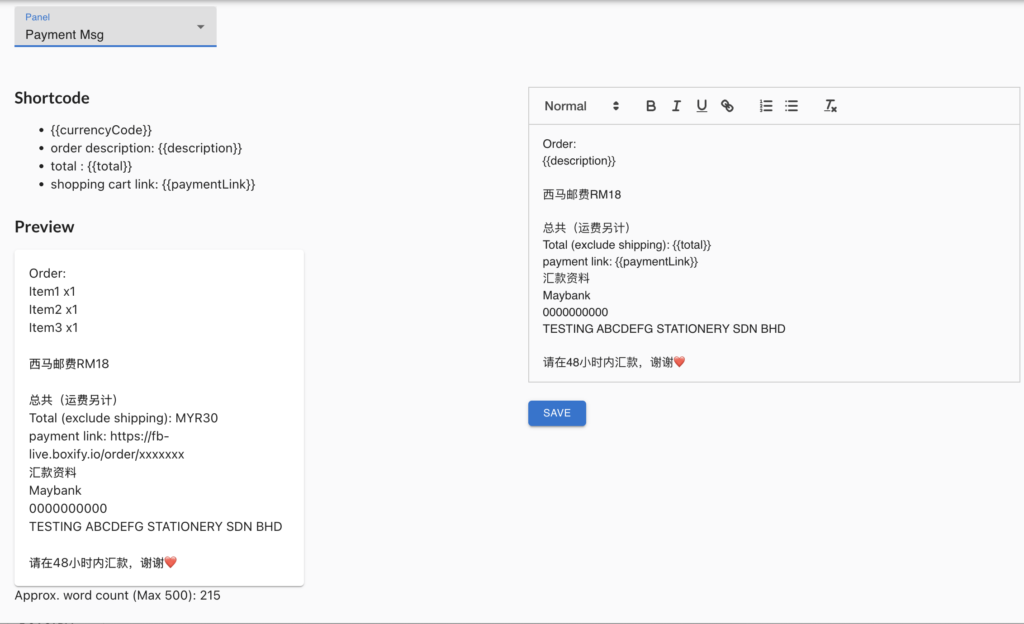
Section titled “Set up the Payment Message”- Go to Settings › Messaging › Payment Message.
- Type your message in the text box on the right, or keep the default template.
See also: