
Customers Not Receiving Order or Shipping Notifications
Facebook limits how many messages your Page can send to prevent overloading the system. The limit is based on how many users message your Page inbox within 24 hours. When this limit is reached, or when a customer’s privacy settings block messages, order and shipping notifications may not be delivered.
Order notifications
Section titled “Order notifications”Customers may not receive an order notification when:
- Your Page has reached Facebook’s messaging quota limit.
- A customer has strict privacy settings that block incoming messages. This follows Facebook Messenger policy.
Fix 1: Ask the customer to type “cart” in Messenger
Section titled “Fix 1: Ask the customer to type “cart” in Messenger”Ask the customer to send the word cart to your Page inbox. The system will resend the shopping cart and payment link, and they will receive subsequent notifications within 24 hours.
Fix 2: Ask customers to message your Page before the live session starts
Section titled “Fix 2: Ask customers to message your Page before the live session starts”-
Post on your Page one to two hours before the live session asking customers to send any message to your inbox. This opens a 24-hour messaging window for each customer.
-
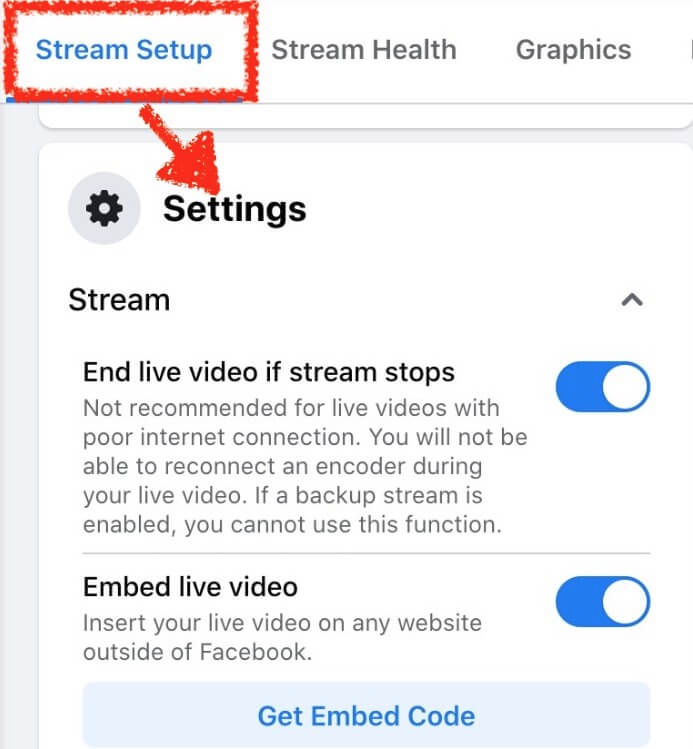
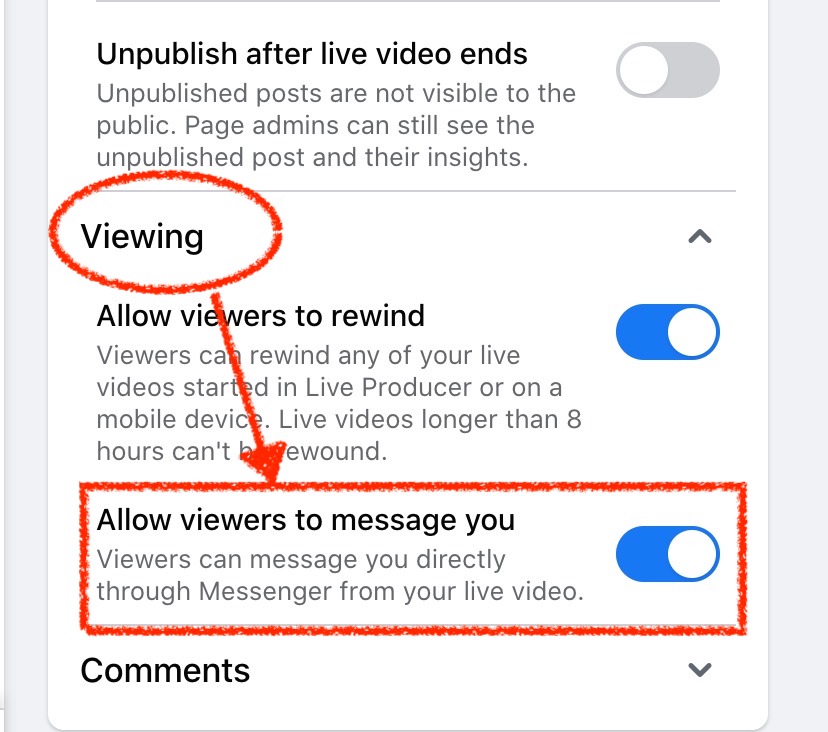
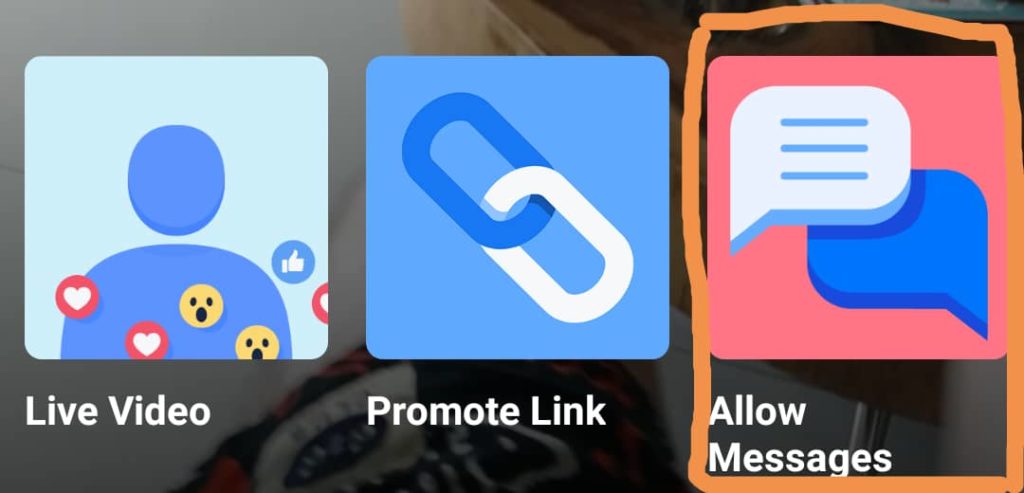
Enable the Messenger button during your live stream so viewers can message you directly.
Step 1: Go to Stream Setup › Setting.
Step 2: Scroll down to Viewing and toggle Allow viewers to message you to On.
If you are using an Android phone, tap this button before your live session starts.
Fix 3: Set up the persistent menu in Messenger
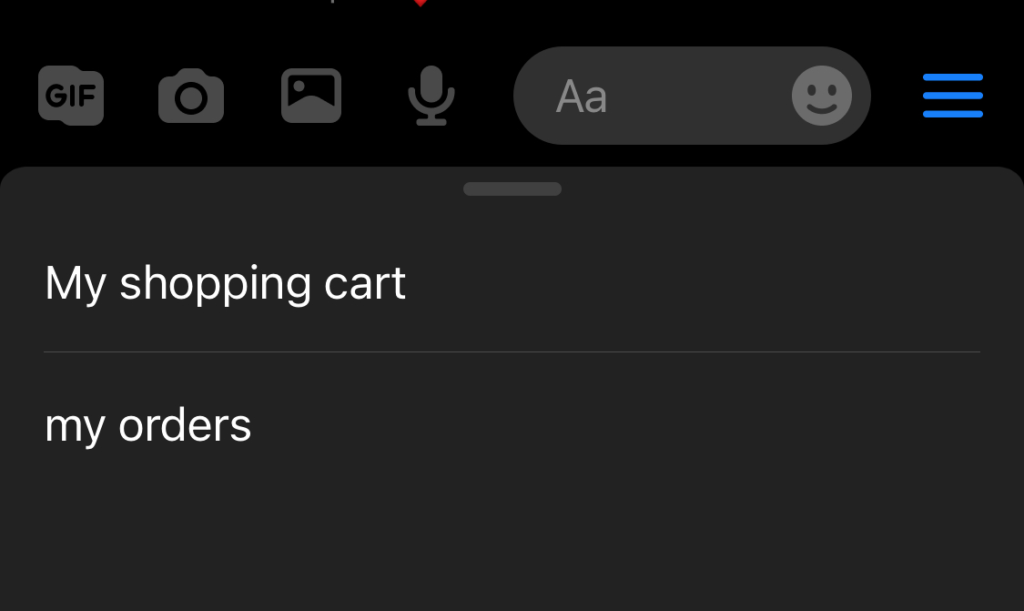
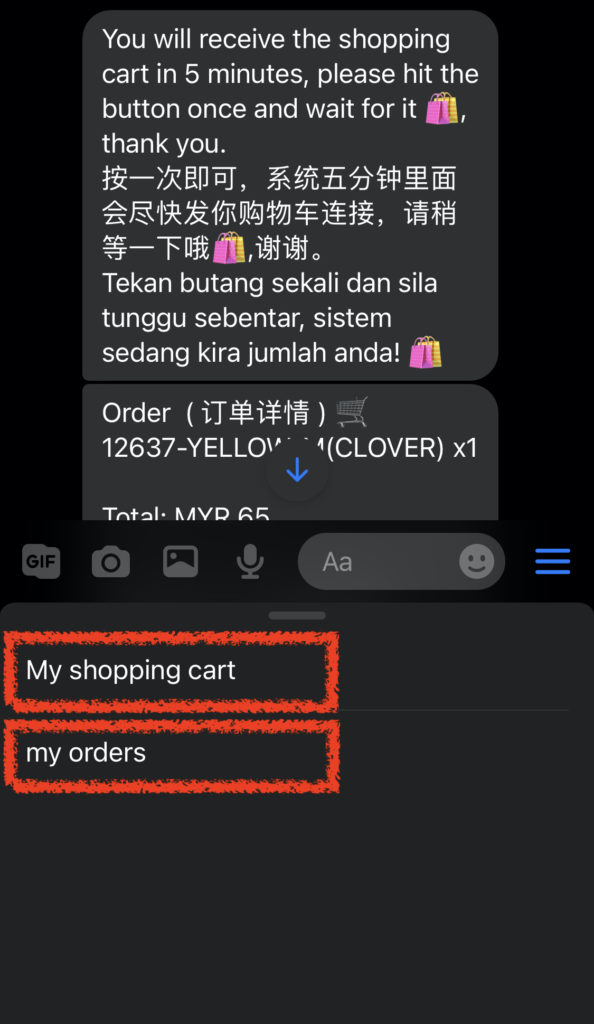
Section titled “Fix 3: Set up the persistent menu in Messenger”Set up the persistent menu so customers can check their own order status at any time. The menu appears in your Messenger and gives customers access to their shopping cart and last three orders.
Shipped notifications
Section titled “Shipped notifications”Facebook allows businesses to send messages freely within 24 hours of a customer interaction. After that window closes, only certain message types are allowed — and only if the customer has given consent.
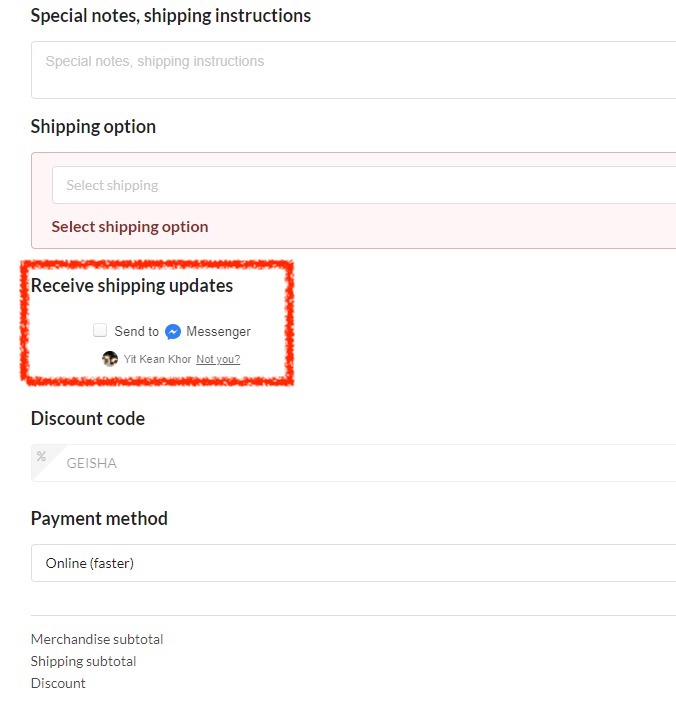
Fix 1: Get the customer’s consent for shipping updates
Section titled “Fix 1: Get the customer’s consent for shipping updates”In the shopping cart, ask the customer to tick the checkbox that allows the system to send shipping updates.
Fix 2: Encourage customers to self-check order status
Section titled “Fix 2: Encourage customers to self-check order status”Add the persistent menu to your Messenger and encourage customers to check their own order status.
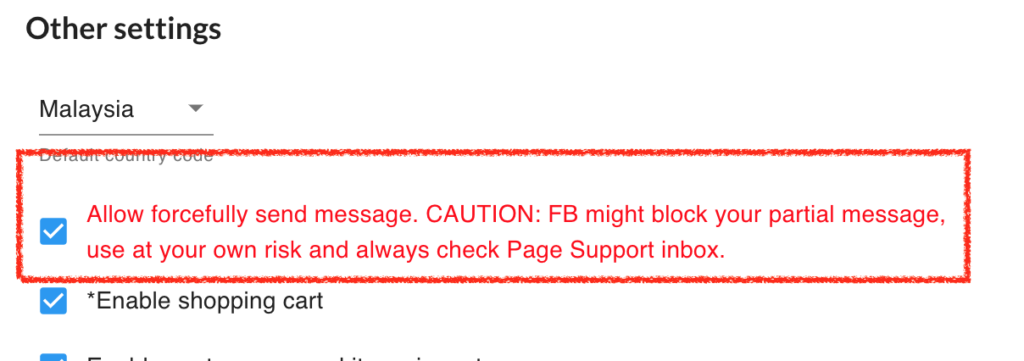
Fix 3: Turn on Force Send
Section titled “Fix 3: Turn on Force Send”Go to Settings › General › Parameters and turn on Force Send.
See also: