
Credit — Setup
Use this guide to activate the credit feature, assign credit to your customers, and review credit records.
Enable credit payment
Section titled “Enable credit payment”Before customers can pay with credit, you must turn on the feature in Settings.
- Log in to your Boxify Dashboard.
- Go to Settings › General › Parameters.
- Scroll down to the *Shopping Cart section.
- Tick Enable Credit Payment.
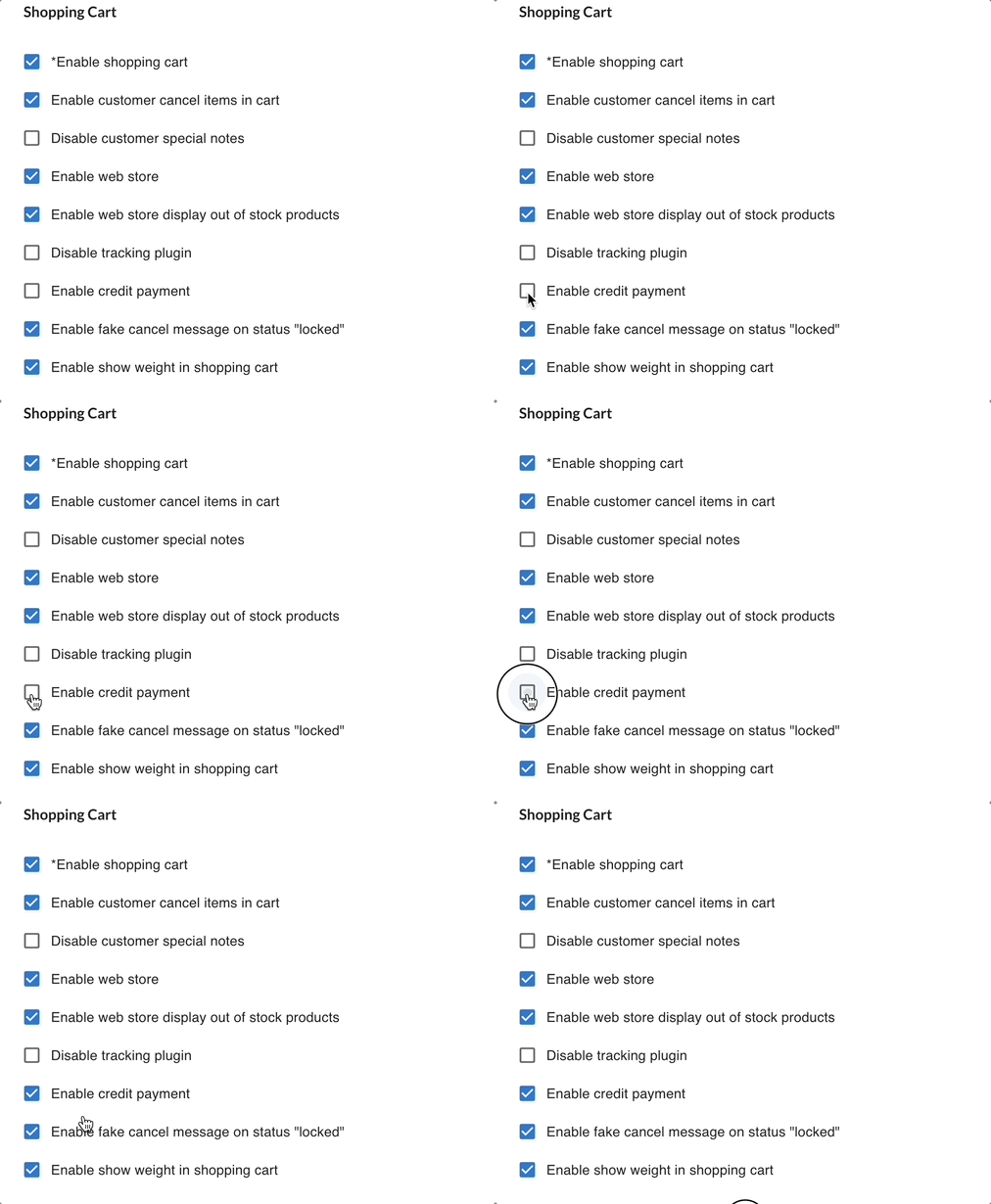
Once enabled, customers will see credit as a payment option at checkout and can apply their available balance.
Add credit to a customer
Section titled “Add credit to a customer”Credit must be added manually by you. Customers cannot add credit themselves.
- Go to Contacts.
- Open the customer.
- Find Available Credit in their profile.
- Click + to add credit or − to deduct it.
- Enter the amount and click Save.
The dialog shows the resulting balance before you confirm, and warns you if you try to deduct more than the customer has.
The customer’s available balance updates immediately.
View credit history
Section titled “View credit history”Check a customer’s current balance
Section titled “Check a customer’s current balance”- Go to Contacts.
- Select the customer.
- Check Available Credit shown in their profile.
View detailed credit transactions
Section titled “View detailed credit transactions”- Go to Menu.
- Click Credit Logs.
- Search for the customer.
The log shows the customer, the amount, who made the change, and when.
How credit is deducted at checkout
Section titled “How credit is deducted at checkout”When a customer places an order, they can choose to apply their available credit. The credit reduces the amount they need to pay. If their credit balance is larger than the order total, the remaining credit stays in their account.
See also: