
Why Facebook Blocks Your Page Messenger (and How to Prevent It)
If Facebook has blocked your Page’s Messenger, this guide explains why it happened, how to identify the type of block, and what you can do to fix it and prevent it from happening again.
Step 1 — Confirm the Type of Block
Section titled “Step 1 — Confirm the Type of Block”Before taking action, check what Facebook has told you.
- Make sure you are an Admin on your Page.
- Go to your Page › Settings › Page Support Inbox.
- Read the notice carefully and match it to one of the cases below.
Case 1 — Message Tag Violation (Temporary Restriction)
Section titled “Case 1 — Message Tag Violation (Temporary Restriction)”You may see a notice like this:
Developer Policy 8.8.1.b: Message Tags — You may send certain message tags after the 24-hour limit expires. Please monitor your block rate to understand how users are responding to your messages. You may only use message tags, templates, quick replies, or other structured messages for their intended purposes as described in our technical documentation.
As a result, this Page has been temporarily restricted from using message tags or news page permissions to send messages to users for [N] days.
What this means: Facebook believes you used message tags to send promotional content. Message tags are a Facebook feature that allows automated messages (such as order updates and shipping updates) to be sent after the standard 24-hour messaging window closes.
How to resolve it: If you believe your messages were order updates — not promotions — you can appeal. Check your email for the same notice; it will include an appeal link.
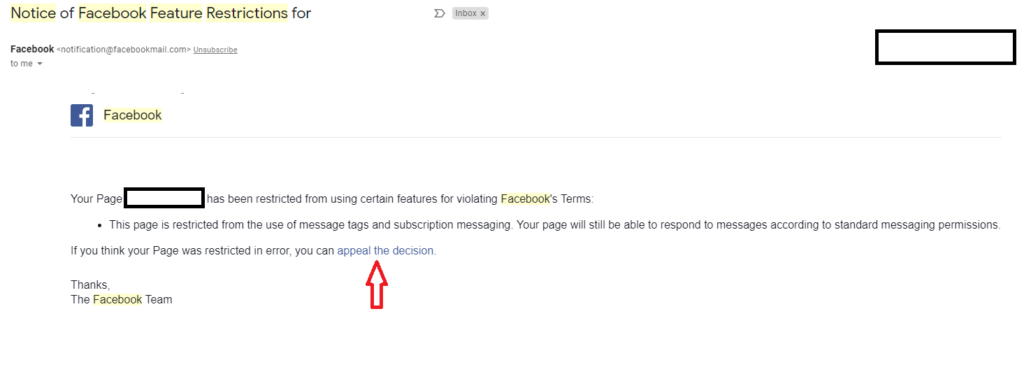
Worst case: You temporarily lose the ability to send automated order and shipping update messages. You can still send messages manually.
Case 2 — Single Manual Message Violation (Full Block)
Section titled “Case 2 — Single Manual Message Violation (Full Block)”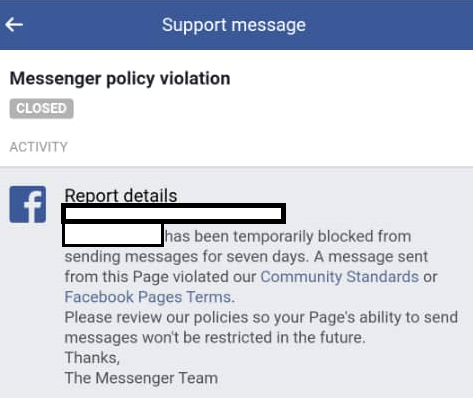
What this means: One manually sent message violated Facebook’s Community Standards — most often because a customer reported it. This blocks all messaging on your Page for 7 days.
How to check: Go to Page › Insights › Messages to see if you have been reported.
How to resolve it: There is no shortcut — always treat customers with respect, even when they cancel orders. Rude or pressuring messages are the most common cause of this type of block.
Case 3 — Single Tag Message Violation (Partial Block)
Section titled “Case 3 — Single Tag Message Violation (Partial Block)”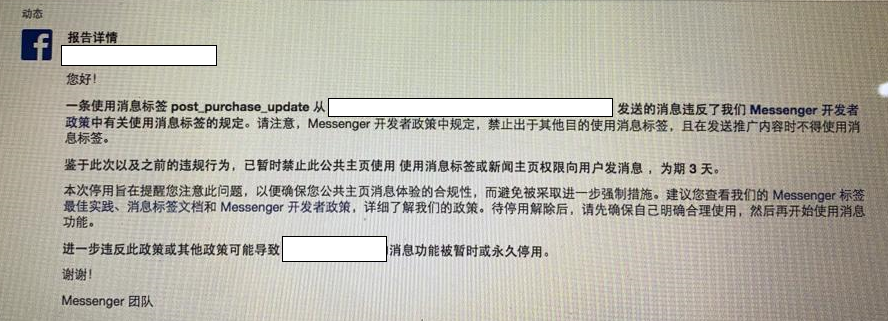
What this means: One automated message (sent using a message tag after the 24-hour window) was reported by a customer. A common scenario: a customer asked to change an order, you processed it on a day off and sent the automated update — but by then the customer no longer wanted the item and blocked or reported you instead of saying so.
How to resolve it: You can appeal, but it may not succeed. As a workaround, send messages manually or ask customers to check their own cart. The penalty is similar to Case 1 — only automated out-of-window messages are restricted.
How to Check Your Messaging Health
Section titled “How to Check Your Messaging Health”Monitor your block rate and reports regularly.
- Go to your Page › Insights › Messages.
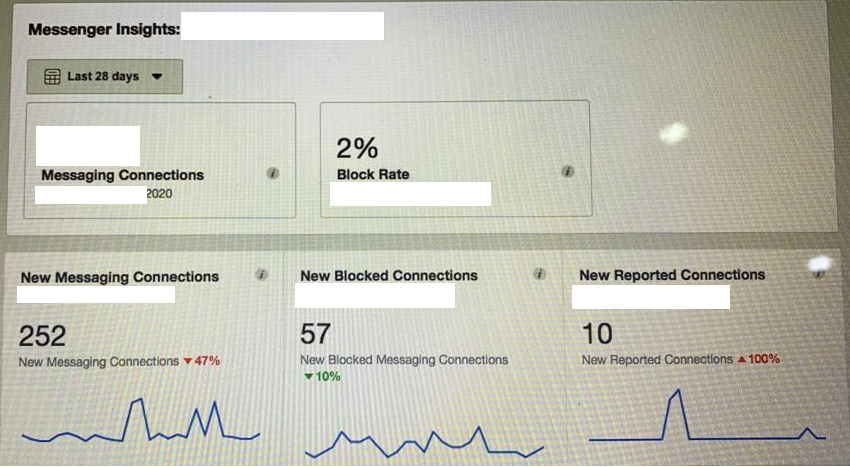
The Insights panel shows your block rate and the number of times users have reported your Page.
A small number of blocks (customers opting out of your messages) typically results in a warning, not a restriction. Reports are more serious — if enough customers report you, Facebook will restrict your messaging. Use this data to identify patterns and prevent future issues.
How to Prevent Messenger Blocks
Section titled “How to Prevent Messenger Blocks”Follow Facebook’s Messaging Policy
Section titled “Follow Facebook’s Messaging Policy”Facebook only allows you to send promotional messages to customers who have interacted with you in Messenger within the past 24 hours. After 24 hours, only specific message types (order updates, shipping updates) can be sent — and only with the correct message tag.
To stay within the policy:
- Encourage customers to message you during your live session so the 24-hour window opens.
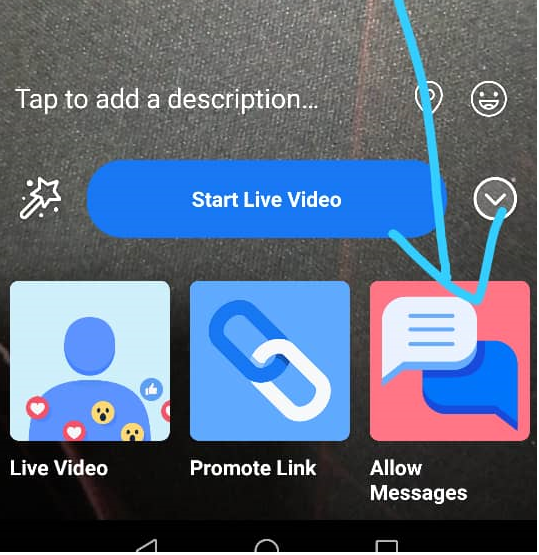
- During a live, enable the option that lets viewers send you a message without leaving the stream.
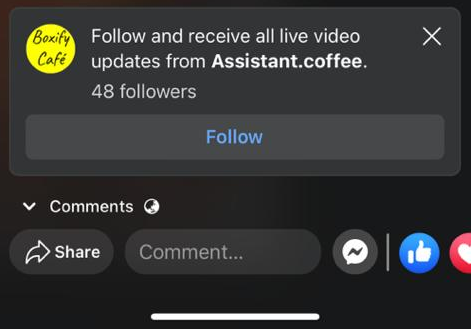
When this option is enabled, viewers see a Messenger icon (the lightning bolt symbol) while watching your live.
Warm Up Your Audience Before a Live
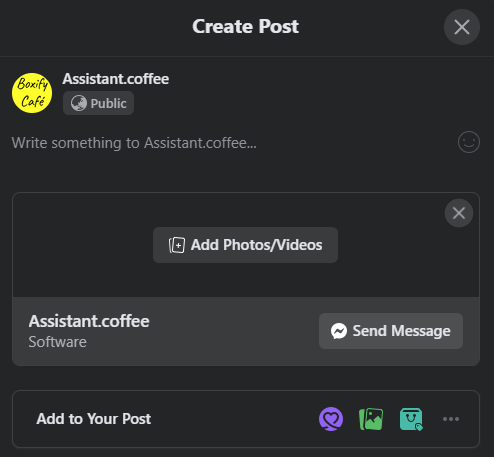
Section titled “Warm Up Your Audience Before a Live”If you know a live session will feature popular products, post about it in advance and add a Send Message button to the post. This encourages customers to message you before the live starts, opening the 24-hour window early and making it easier to follow up after the session.
Treat Every Customer with Respect
Section titled “Treat Every Customer with Respect”Customers who feel pressured or disrespected are more likely to block or report your Page. This applies even when a customer cancels an order.
Summary
Section titled “Summary”When your Page messaging is blocked:
- Go to Page Support Inbox to find the specific notice.
- Check Insights › Messages to see your block rate and any reports.
- Match your situation to Case 1, 2, or 3 above.
- Take the correct action for that case — appeal where possible, or adjust your process to prevent recurrence.
If you have questions or want to share a new case, email support@boxify.io.
See also: